Controller and Tablet Usage Guide
Controller Configuration
- Product Model: GameSir G8+ Controller
- Supporting Device: Redmi 8.8-inch Xiaomi Android Tablet (for HMI interface display and control)
Disclaimer
This usage guide is only for users to operate the robot with the controller and does not constitute any legal or technical commitment. When using the GameSir G8+ controller and supporting Redmi 8.8-inch Android tablet to operate the robot, users should carefully read the accompanying "Spirit AI Moz1 User Manual". Spirit AI assumes no direct or indirect responsibility for equipment damage, personal injury, or data loss caused by misoperation, equipment failure, or third-party reasons.
This controller and tablet system is only applicable for local control and monitoring scenarios of the Moz 1 robot platform. Use for unauthorized, non-official industrial or entertainment purposes is prohibited.
It is recommended to operate under the guidance of professional technical personnel to ensure safe and compliant operation.
Safety Instructions
- Operating the robot without supervision is prohibited, especially in auto-return-to-zero, high-speed movement, or power on/off modes.
- Before operation, confirm that the robot is in a safe state and the work area is free of personnel, obstacles, or flammable items.
- Using this controller in high voltage, humid, high temperature, or flammable environments is strictly prohibited.
- The "power on/off" combination keys on the controller (such as RT+LT+A) will trigger all mechanical units to power on. When operating, please confirm the robot has left the danger zone and the work area is clear of personnel.
- If the controller exhibits abnormal heating, key malfunction, or screen unresponsiveness, stop using it immediately and contact customer service.
- This controller does not support remote control or network operation. All controls provide local real-time feedback, and operators must monitor the status throughout.
- When using the controller, the wireless emergency stop should be placed within easy reach of the operator. Always pay attention to safety.
- The tablet device (Redmi 8.8-inch) is used to display robot status, path, parameters, and other information. It also supports direct touch screen control and can work independently without the controller.
- When using the tablet device independently, please fully confirm the controller is powered off.
Product Overview
The GameSir G8+ controller works in conjunction with the Redmi 8.8-inch Xiaomi Android tablet, paired with Spirit AI robot operation software MovaXHelper HMI. It is a high-performance controller designed specifically for the Moz 1 robot, supporting local control and HMI visual monitoring, enabling human-machine interaction, status monitoring, and real-time feedback.
- The controller supports user control mode and external control mode (VR/remote)
- The tablet is used to display robot status, path trajectory, parameter settings, alarm information, etc., and can also fully implement all controller functions.
- The controller features multi-DOF buttons, supporting fine control of acceleration, speed, direction, and joint movement.
- Equipped with one-key return-to-zero, emergency stop, power on/off control, and other functions to improve operational safety and efficiency.
Introduction
This system consists of the G8+ controller + Redmi 8.8-inch Android tablet, connected via Bluetooth, enabling linkage between controller operation and tablet display. The controller is responsible for executing motion commands, while the tablet displays robot status, position, operation logs, and other information in real-time for user monitoring and debugging. When the tablet is used independently, full-function robot operation can be achieved through touch buttons.
Mode Description:
| Mode | Description |
|---|---|
| Task Mode: User Control (Default) | Directly control robot movement through the controller, with the tablet displaying current status, speed, position, and other parameters in real-time. |
| Task Mode: External Control (VR/Remote) | Requires VR headset or remote device. The controller serves as an input device, transmitting commands through the system, suitable for remote inspection, teaching, and other scenarios. |
Connecting and Using the Tablet
Please carefully read the tablet and controller usage instructions before powering on. When shipped with the Spirit AI Moz 1 robot, the tablet and controller have been paired and tested, ready for immediate use. Please keep the tablet's Bluetooth enabled during use.
Quick Start:
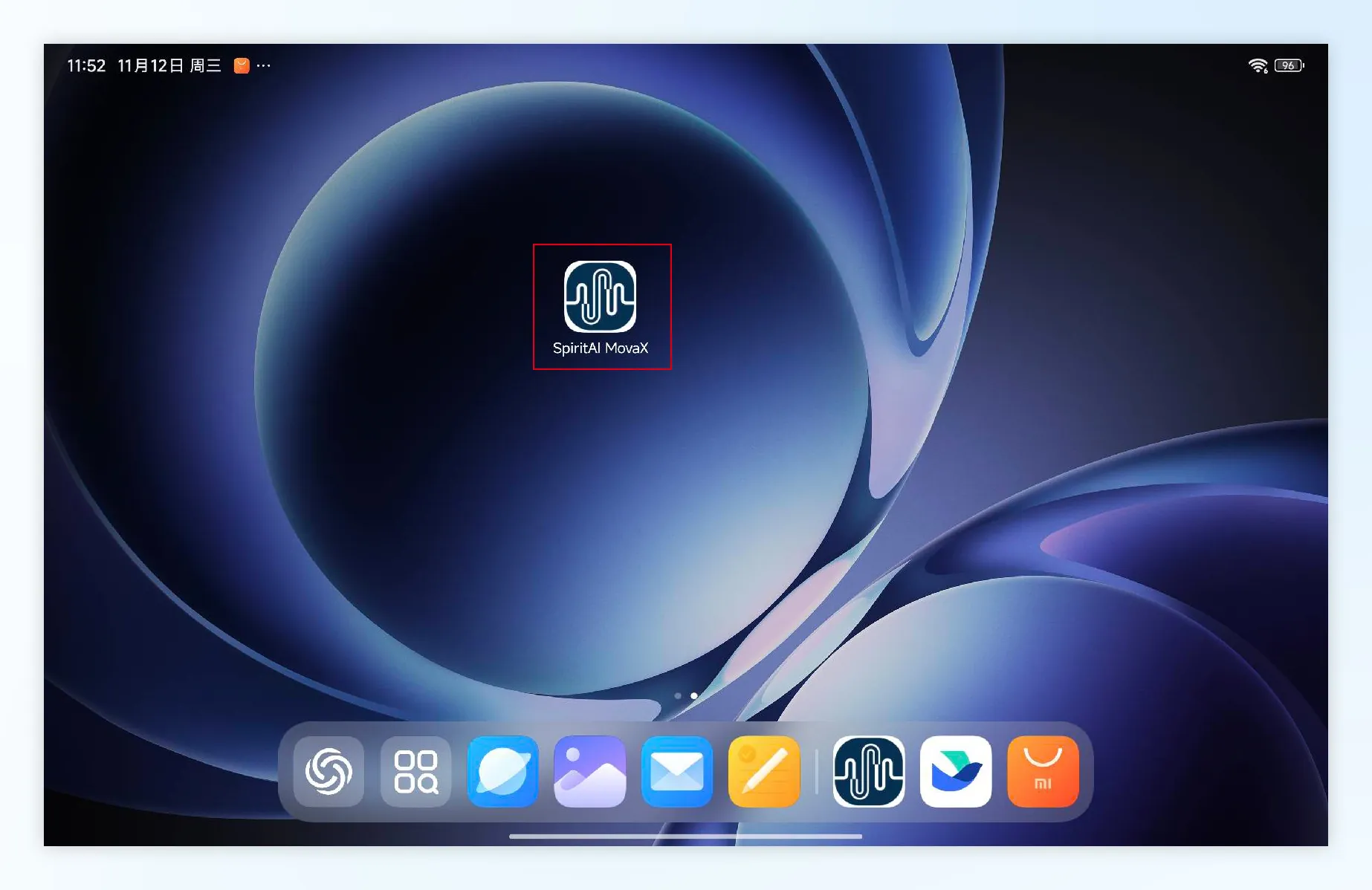
- Turn on the tablet and open SpiritAI MovaX (For MovaX usage, please refer to Spirit AI Moz 1 Robot User Manual Chapter 8 HMI Introduction)
- Pull open the controller, place the tablet into the controller, and the controller will automatically power on
- Start using
Usage Instructions
Default Operating Mode
- The controller defaults to User Control mode and can directly operate robot movement.
- During operation, the tablet will synchronize and display robot status changes in real-time.
- In External Control mode (VR/Remote), the controller is not effective
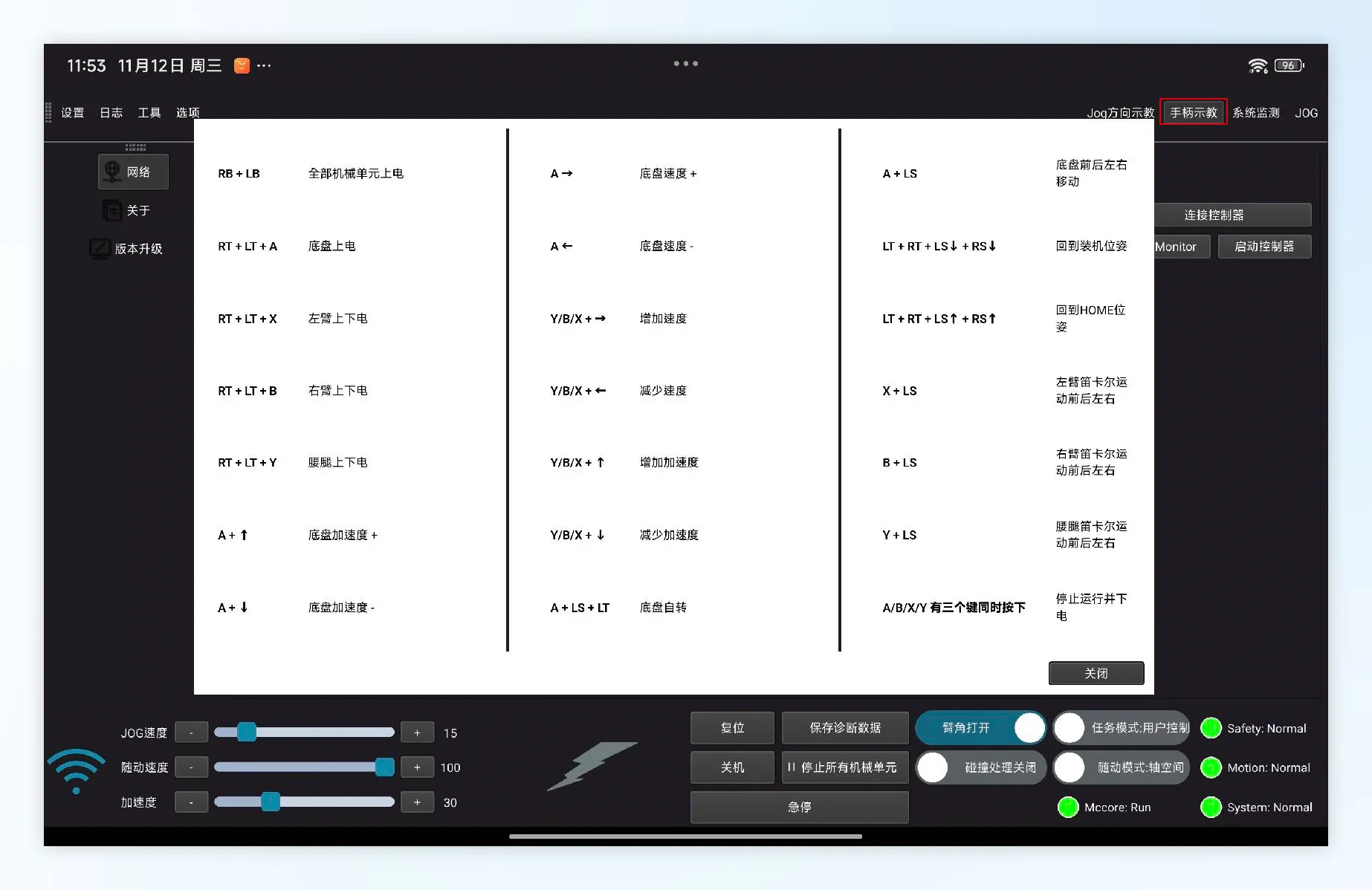
- After opening MovaX, click "Controller Teaching" to display controller shortcuts
6.2 Common Function Operations (Controller Control)
| Operation | Description |
|---|---|
| ↑↓ | Acceleration adjustment, can be used in conjunction with A/B/X/Y keys |
| ←→ | Speed adjustment, can be used in conjunction with A/B/X/Y keys |
| A + ↑ | Chassis acceleration increase |
| A + ↓ | Chassis acceleration decrease |
| A + → | Chassis speed increase |
| A + ← | Chassis speed decrease |
| Y/B/X + → | Chassis/Left arm/Right arm speed increase |
| Y/B/X + ← | Chassis/Left arm/Right arm speed decrease |
| Y/B/X + ↑ | Chassis/Left arm/Right arm acceleration increase |
| Y/B/X + ↓ | Chassis/Left arm/Right arm acceleration decrease |
| A + LS + LT | Chassis rotation (clockwise/counterclockwise) |
| A + LS | Chassis forward/backward/left/right movement (precise control) |
| X + LS | Left arm Cartesian movement (forward/backward/left/right) |
| B + LS | Right arm Cartesian movement (forward/backward/left/right) |
| Y + LS | Leg-waist Cartesian movement (forward/backward/left/right) |
| LT + RT + LS↓ + RS↓ | Return to packing posture (default position) |
| LT + RT + LS↑ + RS↑ | One-key return to HOME position (customizable) |
6.3 Multi-function Combination Keys (Power On/Off Control)
| Combination Key | Function Description |
|---|---|
| RB + LB | Power on all mechanical units (chassis, left arm, right arm, leg-waist) |
| RT + LT + A | Chassis power on/off (simultaneously activates speed mode) |
| RT + LT + X | Left arm power on/off |
| RT + LT + B | Right arm power on/off |
| RT + LT + Y | Leg-waist power on/off |
| Any three of the four keys A/B/X/Y pressed simultaneously (A+B+X or A+B+Y or B+X+Y or A+X+Y) | Stop operation and power off (safe exit) |
⚠️ Note: All "power on/off" operations must be performed when the robot is stationary, unloaded, and with no personnel contact to prevent accidental startup.
How to Charge
- Use the included USB-C charging cable (original cable recommended) to connect the controller to a power source.
- Insert the charging cable into the USB-C port and connect to a computer, power adapter, or USB-C compatible mobile power bank.
- It is recommended to check the battery level before each use. When the battery is below 20%, charge promptly to avoid sudden power-off.
- Charging time is approximately 1.5 hours (may vary slightly depending on usage environment).
- Using non-original chargers or third-party power sources is prohibited to avoid damaging internal circuits.
- Additional notes on controller charging:
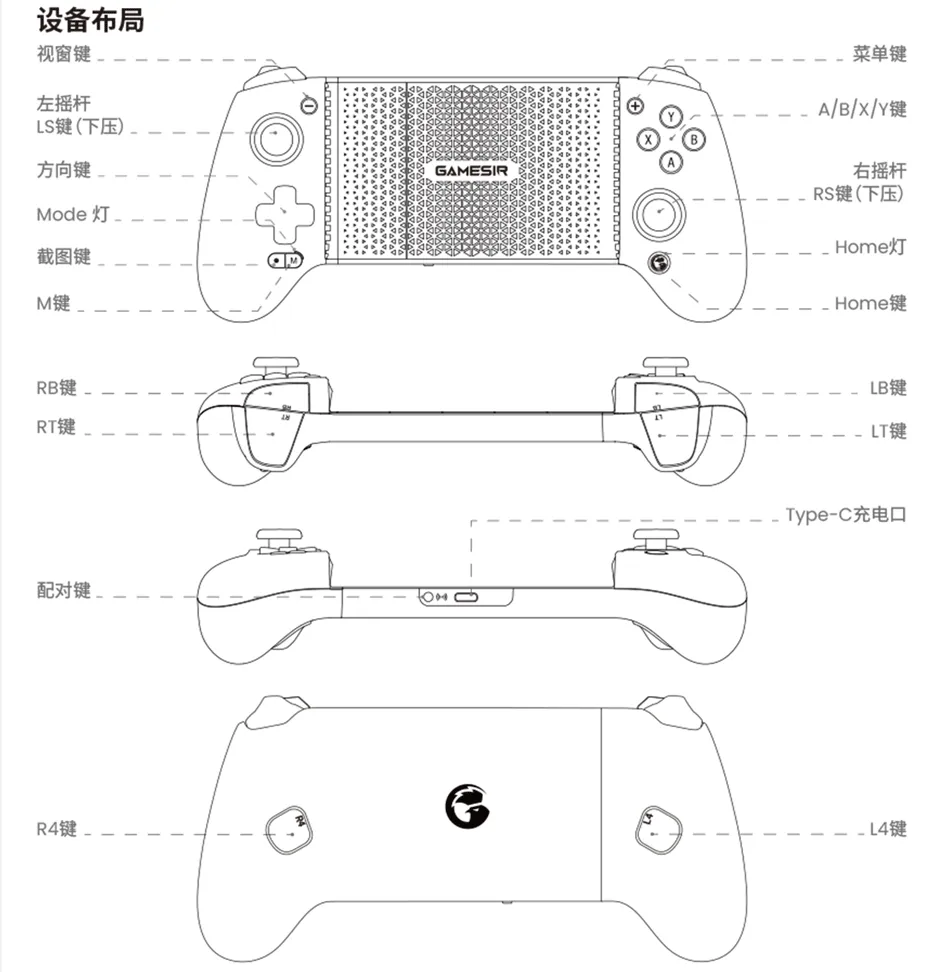
- When the controller is extended, only the right battery charges.
- When the controller is closed, both left and right batteries charge.
- When the controller is in charging state, closing left and right sides will not trigger automatic shutdown.
- In charging mode, the Mode light breathes to indicate current battery level.
Troubleshooting
| Symptom | Possible Cause | Solution |
|---|---|---|
| Controller not responding | 1. Battery depleted 2. Controller entered standby mode after extended non-use | 1. Check charging cable connection, try charging; if still not working, contact after-sales 2. Press the controller home button to exit standby mode |
| Key malfunction | 1. Keys covered by dirt 2. Software lag 3. Controller has turbo function enabled | 1. Clean keys with a dry soft cloth; restart controller or robot system 2. Double-click M key to clear turbo settings |
| Cannot connect to tablet | 1. Bluetooth not enabled 2. Controller not paired | Check if Bluetooth is enabled, restart devices and retry |
| Cannot adjust speed/acceleration | 1. Accidental key press 2. Signal delay | Reconfirm key combination, check controller and tablet connection stability |
| One-key return-to-zero failed | 1. Robot not connected 2. HOME position not correctly set | Check robot connection status, check robot IP address, enter system settings to reconfigure HOME position |
| Tablet shows black screen or unresponsive | 1. Tablet system frozen 2. Network interrupted | Restart tablet, check Wi-Fi connection |
| Controller and tablet disconnected | 1. Weak Bluetooth signal 2. Distance too far | Bring devices closer (≤3 meters), ensure no obstructions; try re-pairing |
Appendix 1: Controller Button Layout Diagram: