
User Interface
DANGER
Note Functions not explained in this document or those involving parameter adjustments will affect robot operation. If you need to use them, please contact technical support. Do not adjust without authorization.
MovaXHelper Software Introduction
MovaXHelper is the HMI software for the Mccore control system, featuring robot motion control, task editing, parameter settings, and status monitoring functions. The software can be installed on PC or Pad, and can control the robot as long as it is on the same network segment as the robot.
HMI Overall Layout
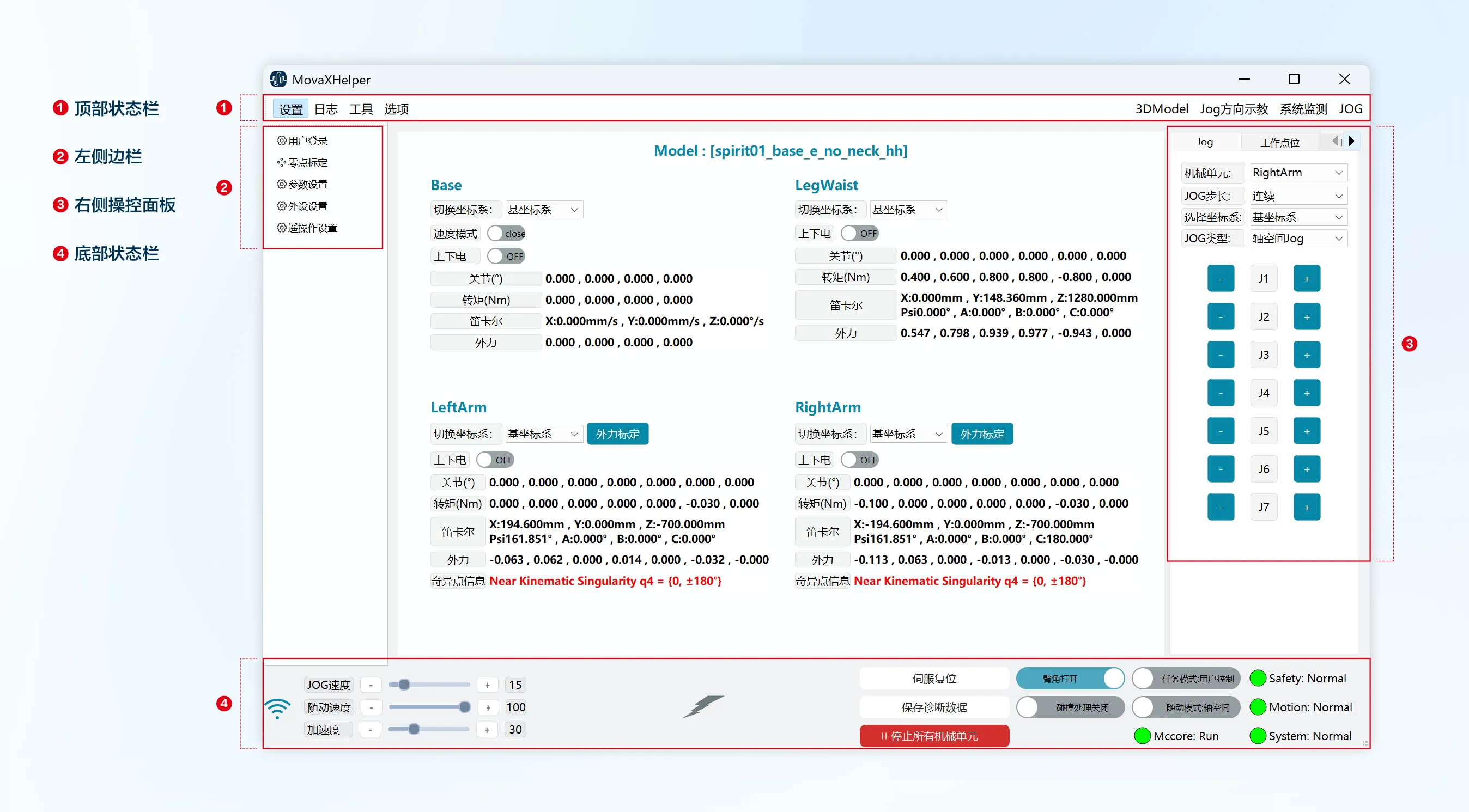 The main operation interface usually consists of 4 main areas, including: top status bar, bottom status bar, left sidebar, and right control panel.
Top Status Bar
The top status bar contains: several first-level menu buttons (Settings, Logs, Options), 3DModel button, Jog direction teaching button, System monitoring button, and JOG panel button.
| Status Bar | Image Indicator | Description |
|---|---|---|
| Settings, Logs, Options | 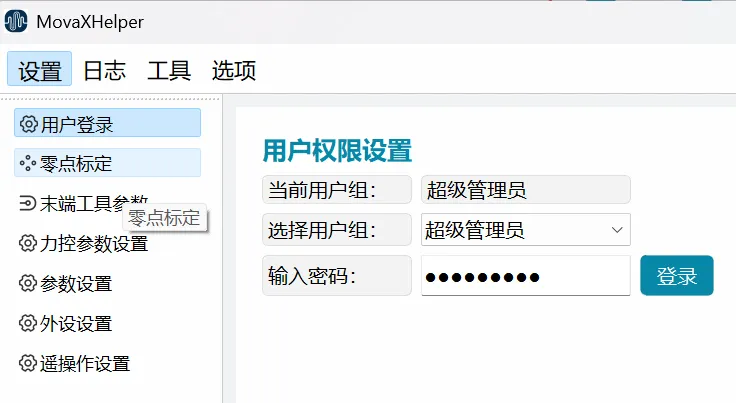 | First-level menu buttons, including Settings, Logs, Options, and other first-level menu buttons. Click to navigate to function sub-interfaces. |
| 3DModel | 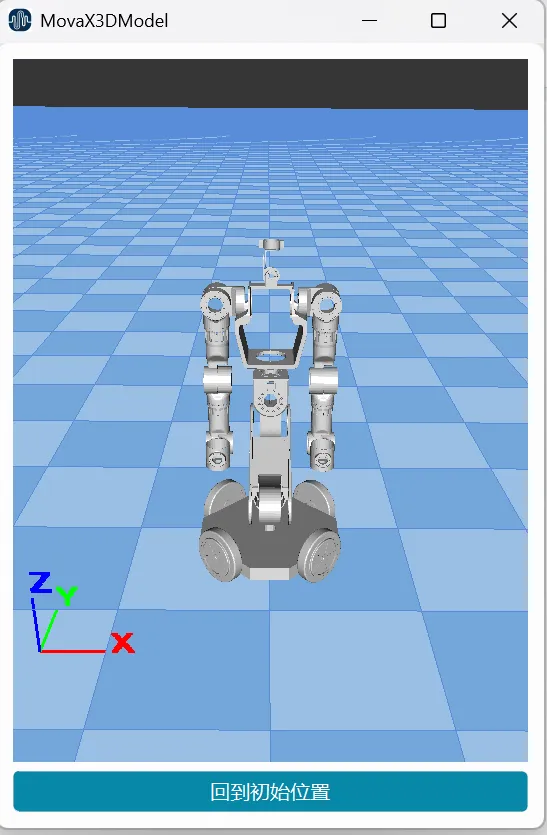 | 3D model display button. Click to open/close the display panel. This interface visually displays the robot's current state in 3D model form. The 3D model can be rotated by clicking and dragging to change the viewing angle, or click the "Return to Initial Position" button to restore the default view. |
| Jog Direction Teaching | 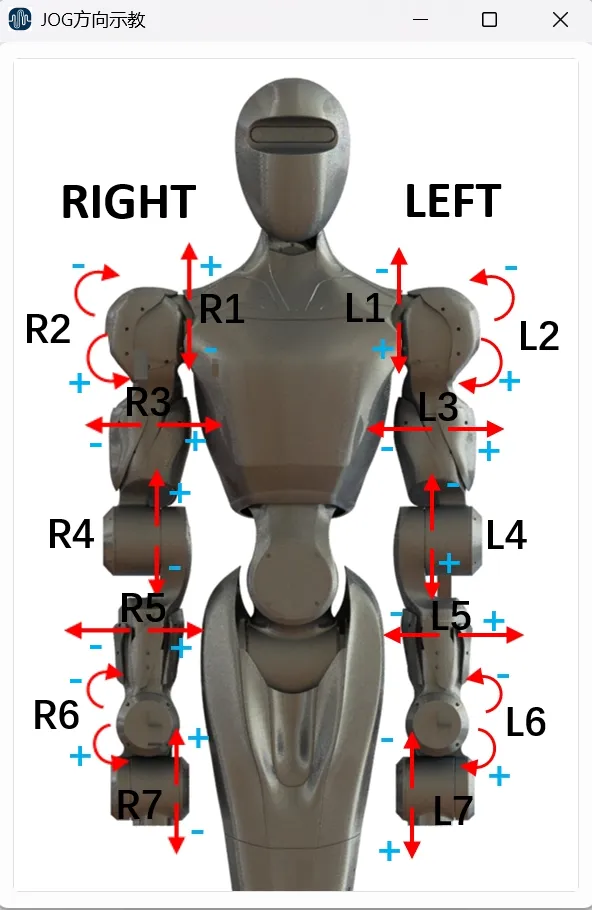 | Jog direction teaching display button, shows the "+" "-" rotation direction for each joint to assist with Jog operations. Click to open/close the display panel. |
| System Monitoring | 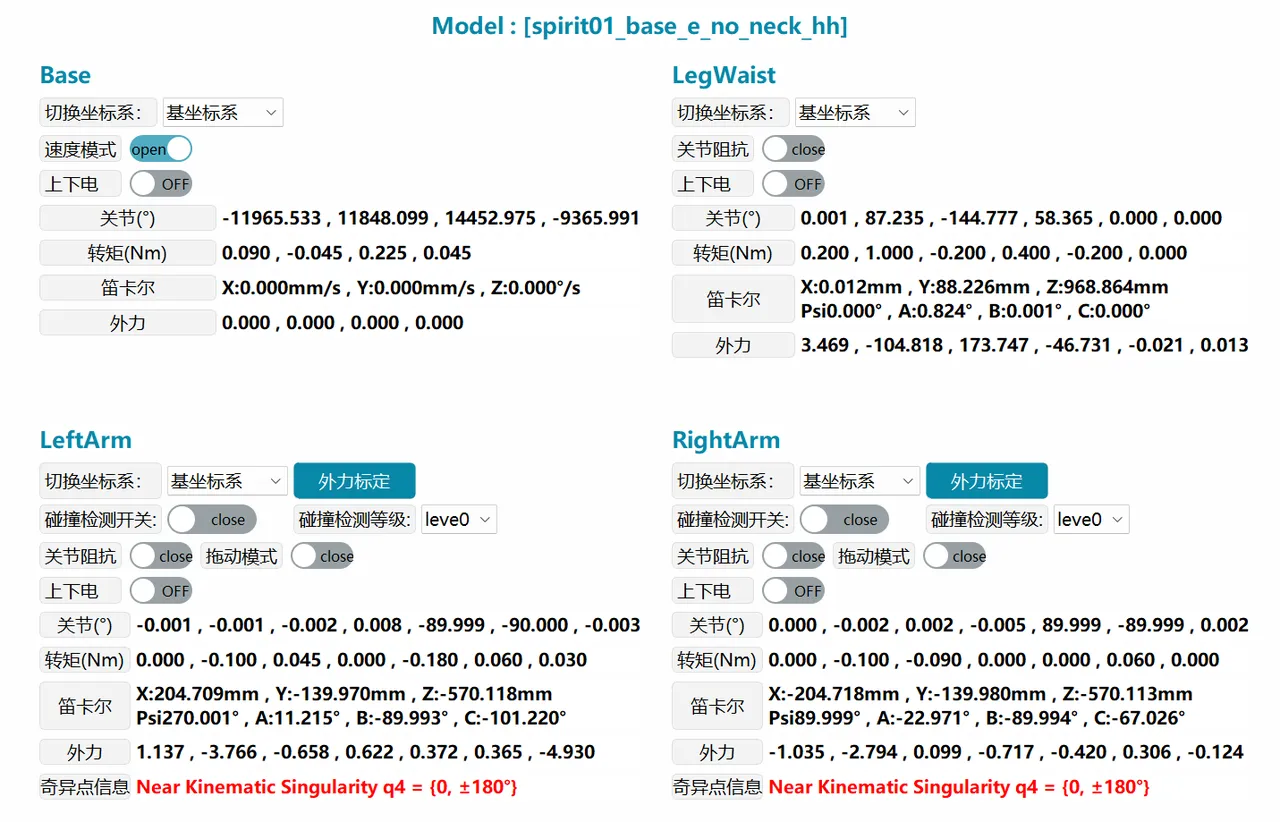 | System monitoring entry button, displays robot's current power on/off status, pose, force status, etc. in real-time. Click to open/close the control panel. |
| JOG Panel Button | 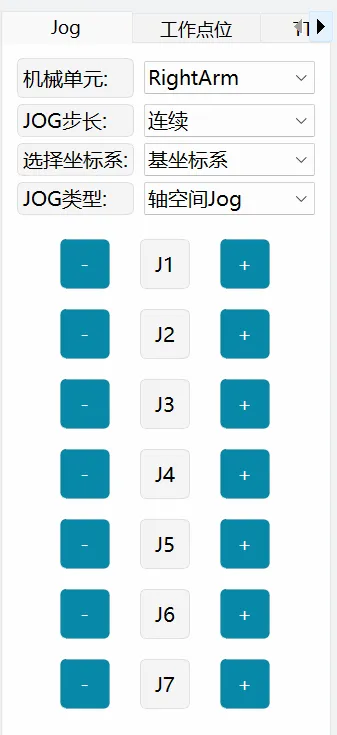 | JOG panel entry button. Click to open/close the control panel. |
Left Sidebar
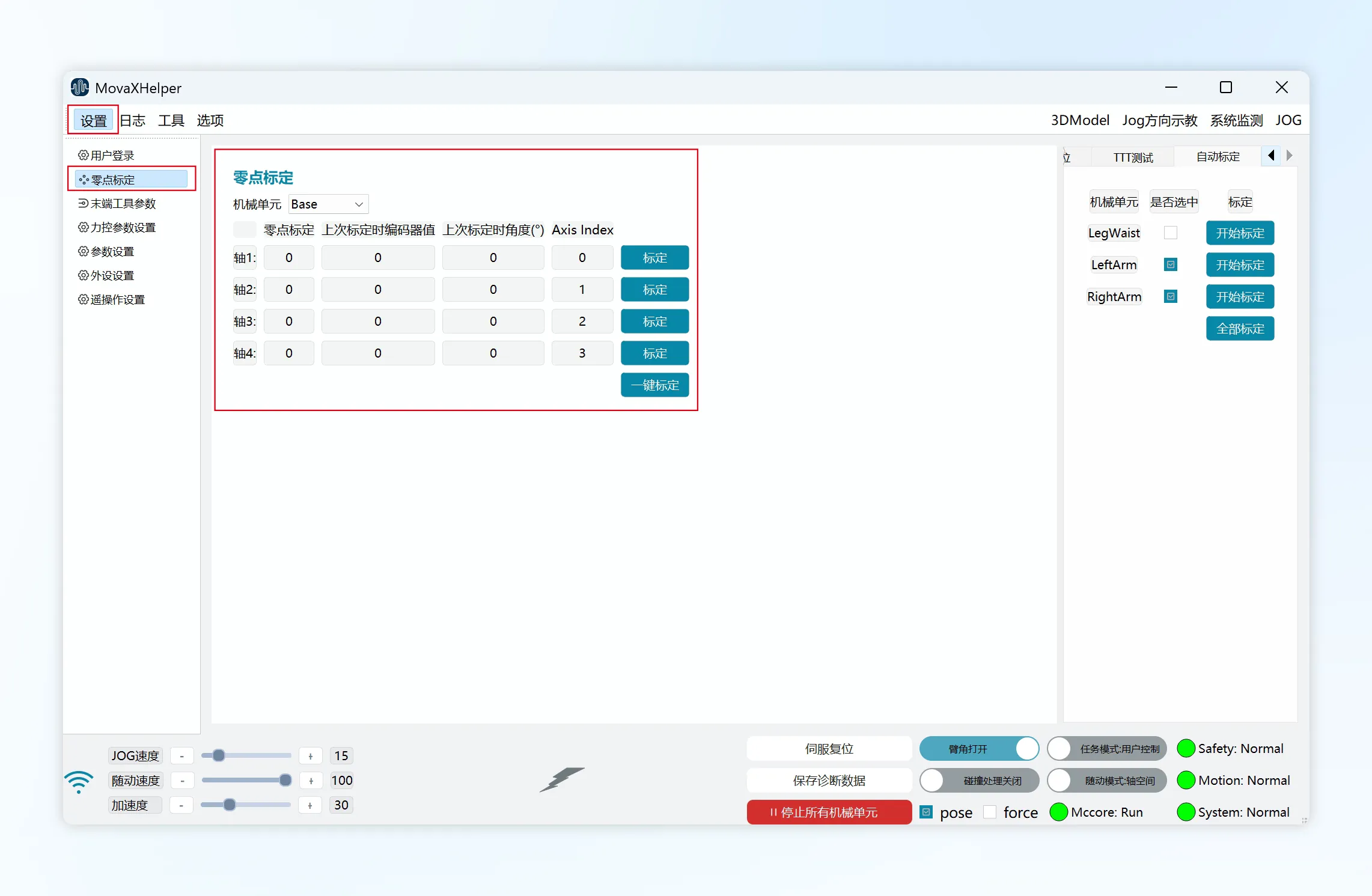 When switching between different functions through the top status bar, such as Settings, Tools, etc., the left sidebar will display the corresponding sub-menus for that function.
As shown above, clicking "Settings" in the top status bar will display all "Settings" sub-menus in the left sidebar. Click "Zero Point Calibration" to enter the "Zero Point Calibration" settings page.
Right Control Panel
Click the JOG button in the top status bar to open the right control panel. The control panel is used for robot motion control, auto calibration, etc.
| Status Bar | Image Indicator | Description |
|---|---|---|
| Jog | 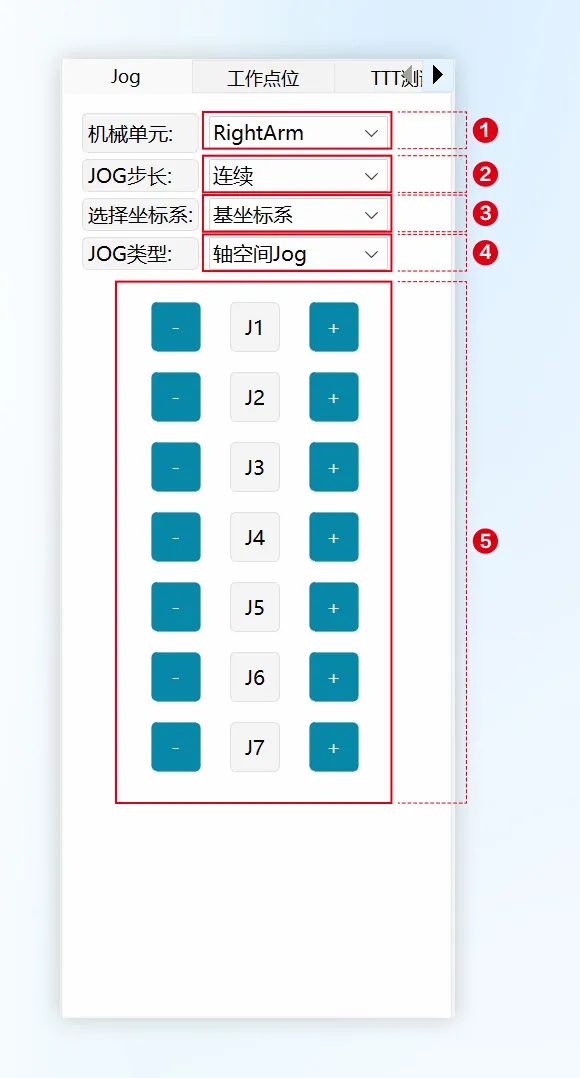 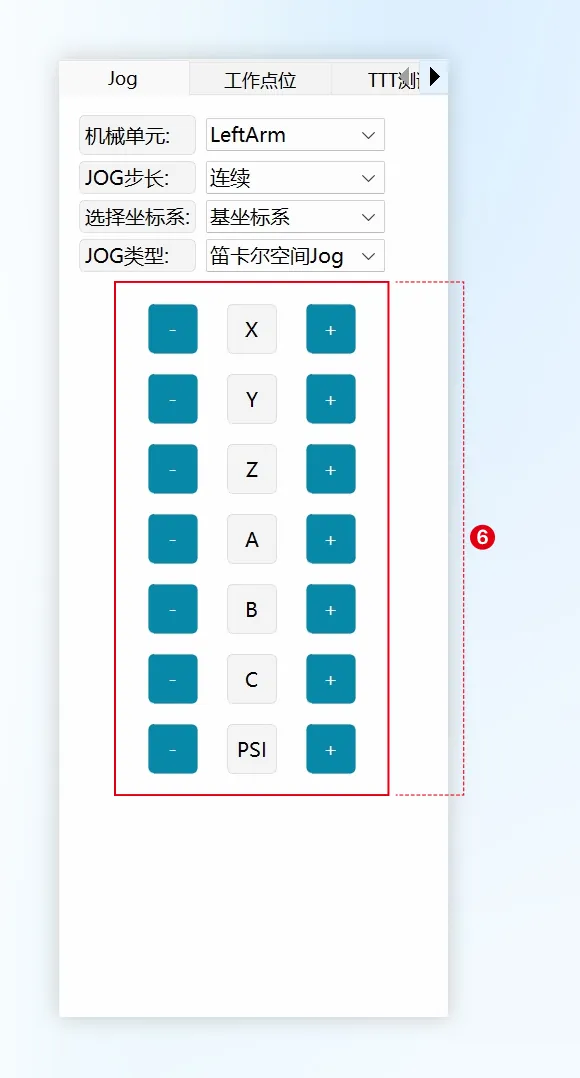 | ① Mechanical Unit: Select the mechanical unit to Jog, including LeftArm (left arm), RightArm (right arm), LegWaist (leg-waist), and Base (mobile platform) ② JOG Step Size: Choose between continuous Jog and step Jog, and adjust the increment step size. ③ Select Coordinate System: Select the reference coordinate system for Cartesian mode, including: base coordinate system, mobile platform base coordinate system. ④ JOG Type: Select between single-axis mode and Cartesian mode during Jog. ⑤ Axis Space Jog Buttons: Display J1~J6/J7 during axis space Jog (depending on mechanical unit selected in ①). ⑥ Cartesian Space Jog Buttons: Display X/Y/Z/A/B/C and PSI during Cartesian space Jog. |
| Jog-Mobile Platform | 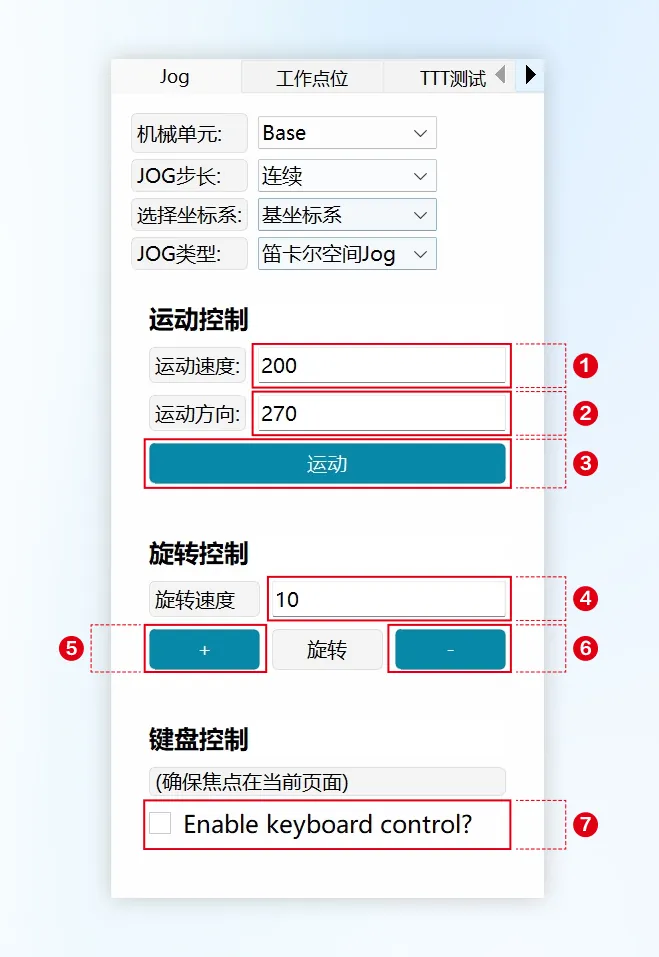 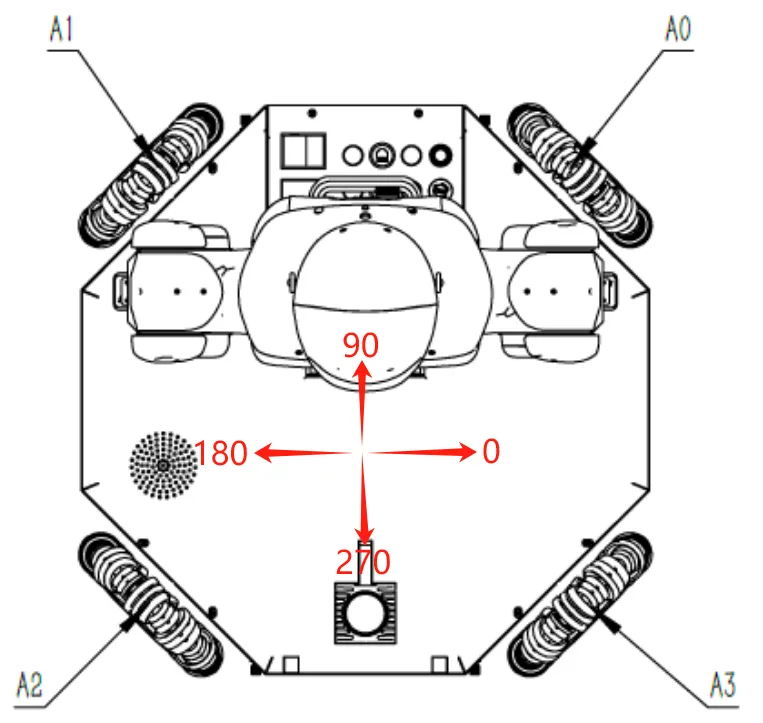 | Mobile platform running speed is adjusted in "Settings-Parameter Settings", adjustment range 1-100%, which is a percentage relative to ②④ speed limits. Mobile platform JOG only supports Cartesian mode. Motion Control: Control the mobile platform's linear movement in different directions. ① Motion Speed: Valid range 0-500, unit: mm/s ② Motion Direction: Valid range 0-360, corresponding motion direction as shown in the left diagram. ③ Motion: Click the button, mobile platform starts moving, release to stop. Rotation Control: Control the mobile platform to rotate in "+" "-" directions ④ Rotation Speed: Valid range 0-60, unit: °/s ⑤ +: Mobile platform rotates in "0-90-180-270-0" direction ⑥ -: Mobile platform rotates in "0-270-180-90-0" direction Keyboard Control: Use keyboard "↑""↓""←""→" keys to control mobile platform movement ⑦ Enable keyboard control?: Check this option to control mobile platform via keyboard: ↑: Same as the direction filled in ②, linear movement ↓: Opposite to the direction filled in ②, linear movement ←: Mobile platform rotates in "0-90-180-270-0" direction →: Mobile platform rotates in "0-270-180-90-0" direction When using keyboard, mouse focus must remain on the current page. |
| Work Points | 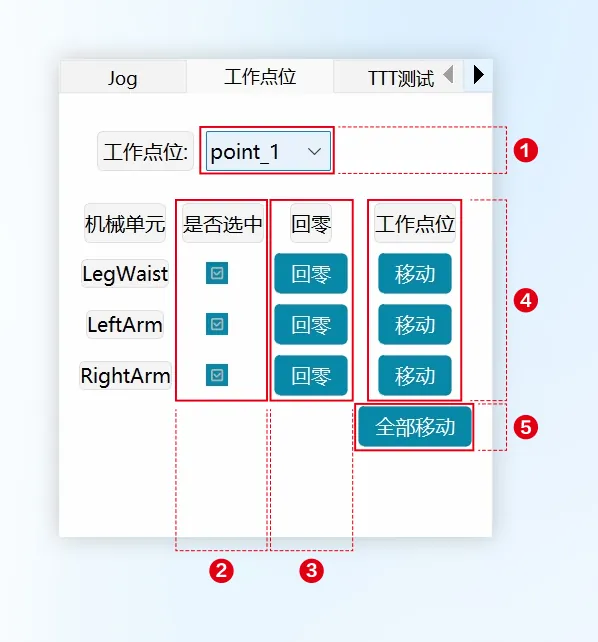 | ① Work Points: Select established work points ② Select Mechanical Unit: Select the mechanical unit to move ③ Return to Zero: Single mechanical unit returns all axes to zero position ④ Single Mechanical Unit Move: Single mechanical unit moves to the work point selected in ① ⑤ Move All: Mechanical units selected in ② move to work point selected in ① |
| TTT Test | 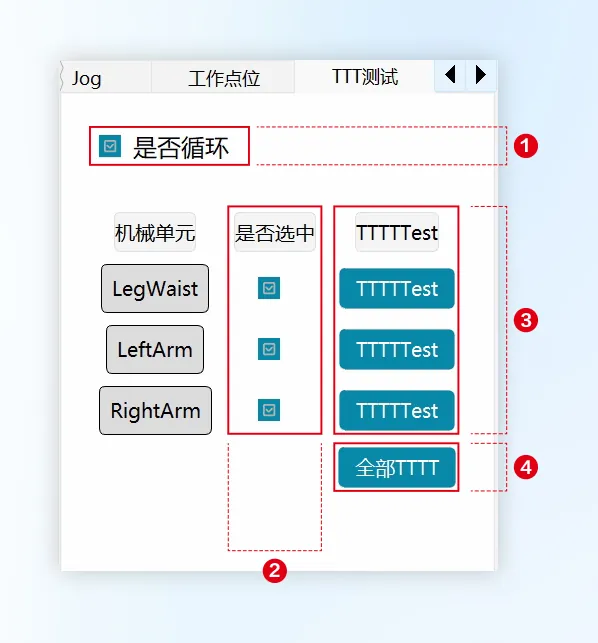 | ① Loop: Check this option to loop through TTTTtest points ② Select Mechanical Unit: Select the mechanical unit to run ③ Single Mechanical Unit Run: Single mechanical unit runs ④ All TTTT: Mechanical units selected in ② run |
| Auto Calibration | 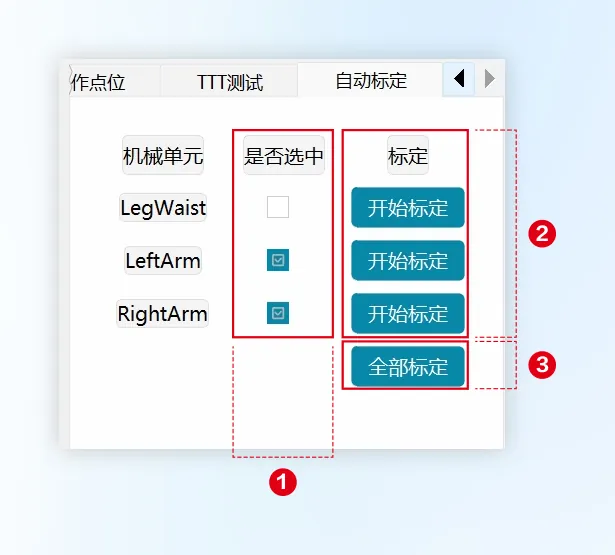 | ① Select Mechanical Unit: Select the mechanical unit to calibrate, dual arms and leg-waist cannot be selected simultaneously ② Single Mechanical Unit Calibration: Single mechanical unit calibration ③ Calibrate All: Calibrate mechanical units selected in ①, dual arms and leg-waist cannot be selected simultaneously |
Bottom Status Bar

| No. | Description | |
|---|---|---|
| ① | MovaXHelper software connection status with robot. Click this button to open robot connection settings page. Signal not full indicates not connected; full signal indicates connected; when controller service is not connected, robot cannot be operated or parameters set. | |
| ② | Running speed adjustment control, used to adjust motion speed during dual arm and leg-waist operation, adjustable range 1%~100%. JOG speed and follow speed independently affect running speed in user control and external control modes, acceleration is common to both modes. Click the slider or -/+ buttons to fine-tune program speed (-/+1%). | |
| ③ |  | All mechanical unit motors are powered off, click to power on all mechanical units. |
 | Some mechanical unit motors are powered on, click to power off all mechanical units. | |
 | All mechanical unit motors are powered on, click to power off all mechanical units. | |
| ④ | Servo reset button. When robot is in emergency stop or servo error state, after eliminating the cause of the above state, click this button to restore robot status. | |
| ⑤ | Manually save diagnostic data from the last 60 seconds. | |
| ⑥ | In user control mode, clicking will stop all mechanical units but maintain powered state. | |
| ⑦ | Arm angle switch, default is on; recommended to be on during external control. | |
| ⑧ | Function only works when collision detection is triggered, can choose between pose and force modes to clear collision alarm. | |
| ⑨ |  | User control mode, can operate robot via HMI, controller, etc. |
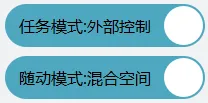 | External control mode, cannot operate robot via HMI, controller, etc. | |
| ⑩ | 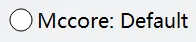 | Current controller status, automatically obtained after connecting to monitor: green indicates controller is running; red indicates controller is not running; white indicates not connected to monitor. |
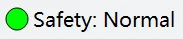 | Current controller safety status: green indicates safe state; red indicates unsafe state. | |
 | Current robot running status: green indicates idle state; red indicates busy state, robot is in motion. | |
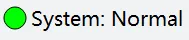 | Current control system status: green indicates normal operating state; red indicates system abnormality. |
System Monitoring
Click the "System Monitoring" button in the top status bar to open the status monitoring panel. Through the status monitoring panel, you can monitor: current angle, torque, Cartesian pose, external force status, and singularity information of each robot joint, helping users quickly understand robot status. 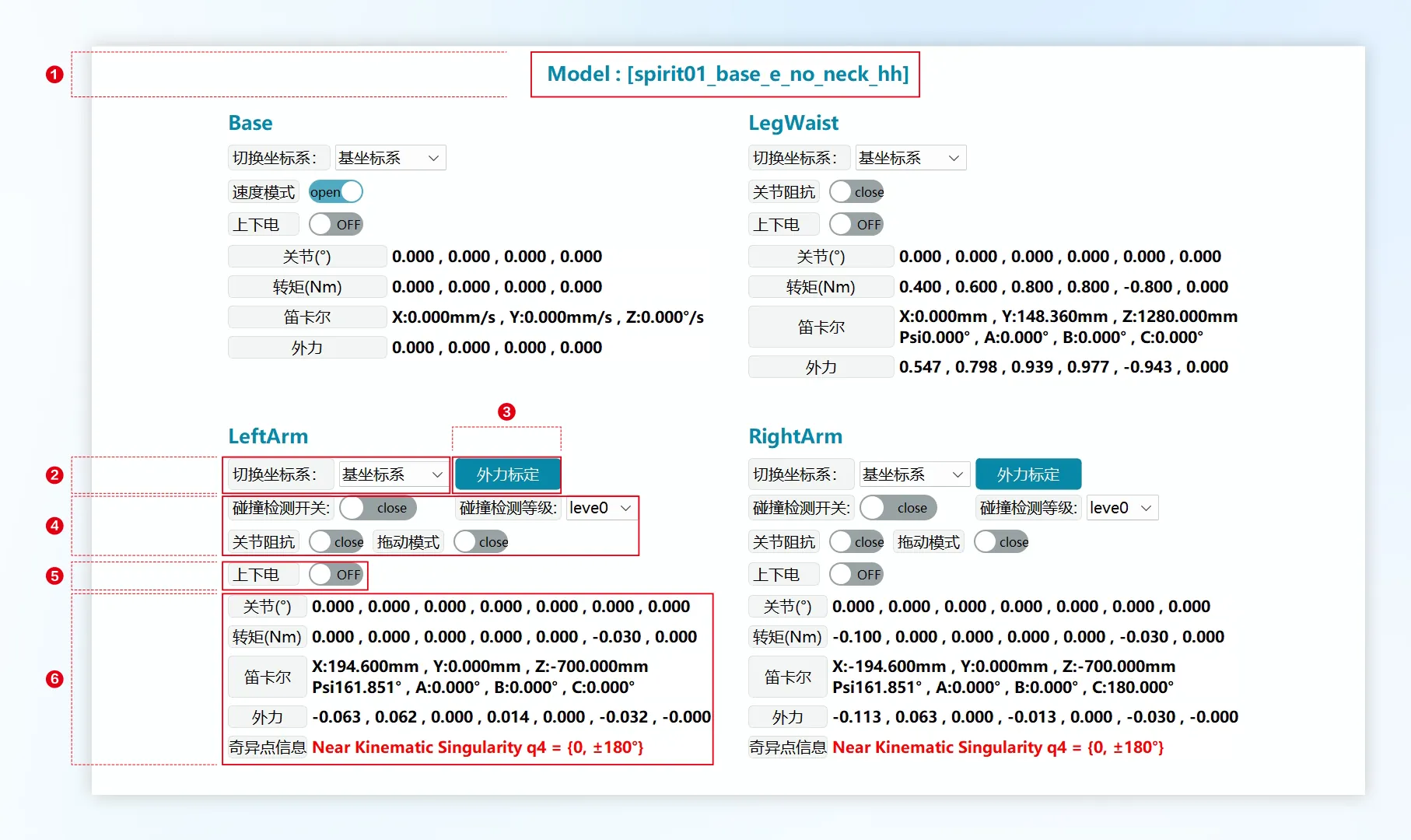
| No. | Description |
|---|---|
| ① | Model: The model currently used by the robot. |
| ② | Switch Coordinate System: Can select base coordinate system and mobile platform base coordinate system, Cartesian values in ⑥ will change accordingly. |
| ③ | External Force Calibration: Perform external force calibration when mechanical unit is at zero position pose. |
| ④ | Force control related functions. |
| ⑤ | Power On/Off: Single mechanical unit power on/off switch. |
| ⑥ | Joint: Current axis angles of each mechanical unit axis. Torque: Current torque of each mechanical unit axis. Cartesian: Position and orientation of mechanical unit end effector relative to current coordinate system. External Force: Current external force status of each mechanical unit axis. Singularity Information: When robot is near singularity, red warning appears. At this time, Cartesian space motion may be affected, speeds of certain joints may become very fast, potentially causing errors and robot operation interruption. |
Power On/Off
Users can power on/off single mechanical units through the power on/off switch on the "System Monitoring" page, or control power on/off of all mechanical units through buttons on the bottom status bar.
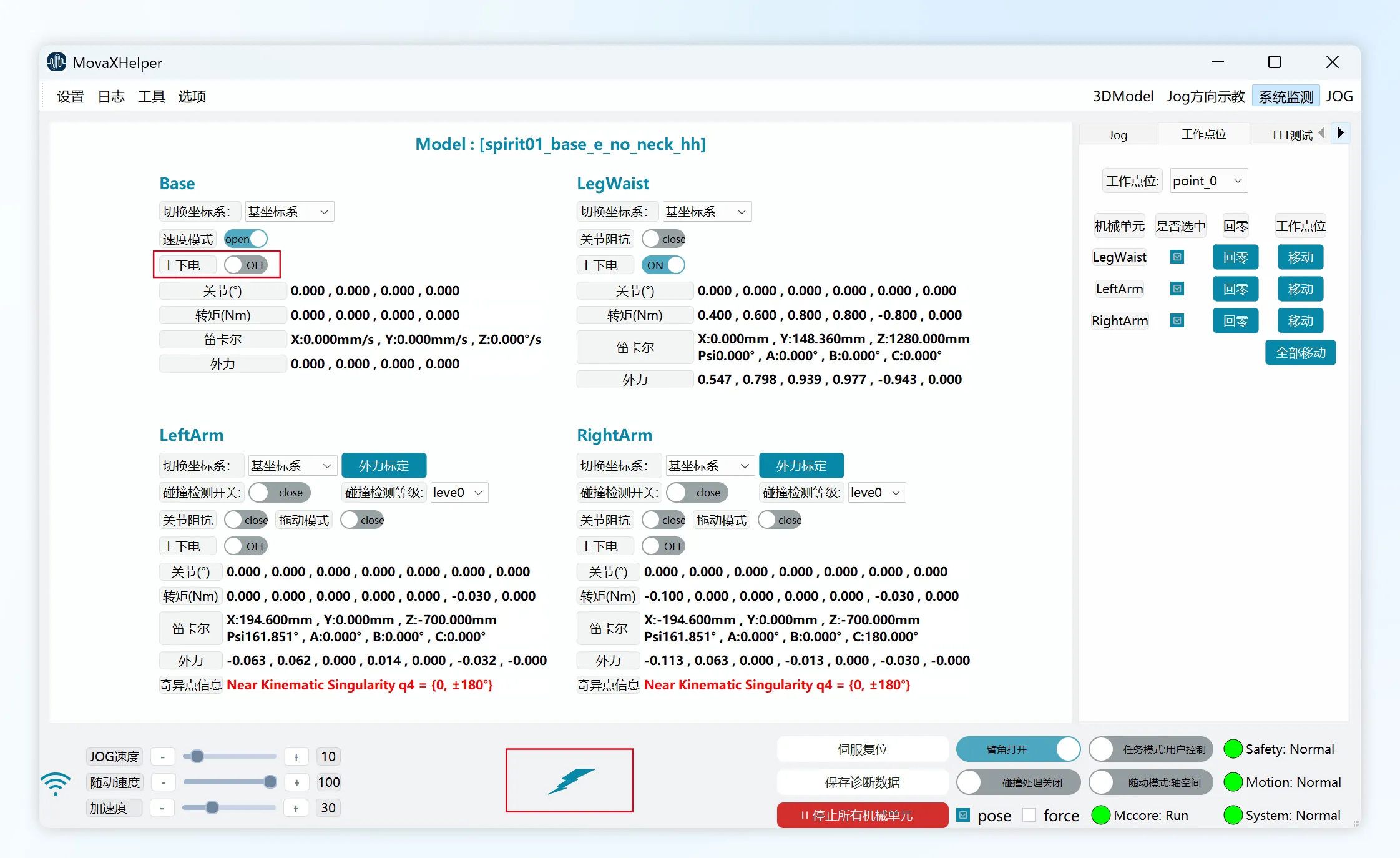
System Monitoring
| Status Indicator | Description |
|---|---|
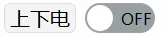 | Mechanical unit is currently powered off, click to power on this mechanical unit. |
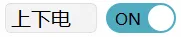 | Mechanical unit is currently powered on, click to power off this mechanical unit. |
 | Mechanical unit is currently in abnormal power-off state, need to clear abnormal situation before normal power on/off. |
Bottom Status Bar
| Status Indicator | Description |
|---|---|
 | All mechanical unit motors are powered off, click to power on all mechanical units. |
 | Some mechanical unit motors are powered on, click to power off all mechanical units. |
 | All mechanical unit motors are powered on, click to power off all mechanical units. |
Motion Control
JOG Jogging
Please first read MovaXHelper Software Introduction regarding interface function key settings.
Mechanical unit Jog jogging supports two modes: axis space and Cartesian space:
Axis Space: Control individual axis movement. See "JOG Direction Teaching" for motion direction.
Cartesian Space: Control mechanical unit movement along a given coordinate system direction. For example, selecting "Base Coordinate System", Jog X will translate along the base coordinate system X direction; selecting "Mobile Platform Base Coordinate System", Jog B will rotate around the mobile platform base coordinate system Y axis. See "3DModel" for motion direction.
INFO
For safety reasons, coordinate system selection permission is currently not open to users. During JOG, operations follow the controller's default coordinate system.
Jog jogging supports two modes: continuous and step:
In continuous motion mode, after the robot is powered on, press and hold the Jog button, and the robot will move continuously at the set Jog speed until the enable or Jog button is released.
In incremental step mode, after the robot is powered on, each press of the Jog button moves the robot by the given step size; users can select appropriate step size according to needs, mainly used for precise adjustment of robot pose.

Jog Speed Setting: Control robot motion speed during Jog through the speed setting area on the mobile platform status bar, selectable range 1%~100%, 100% corresponds to robot maximum TCP speed of 250mm/s. Due to safety regulations, TCP linear velocity in both Cartesian space Jog and axis space Jog will not exceed 250mm/s.
Mobile Platform JOG
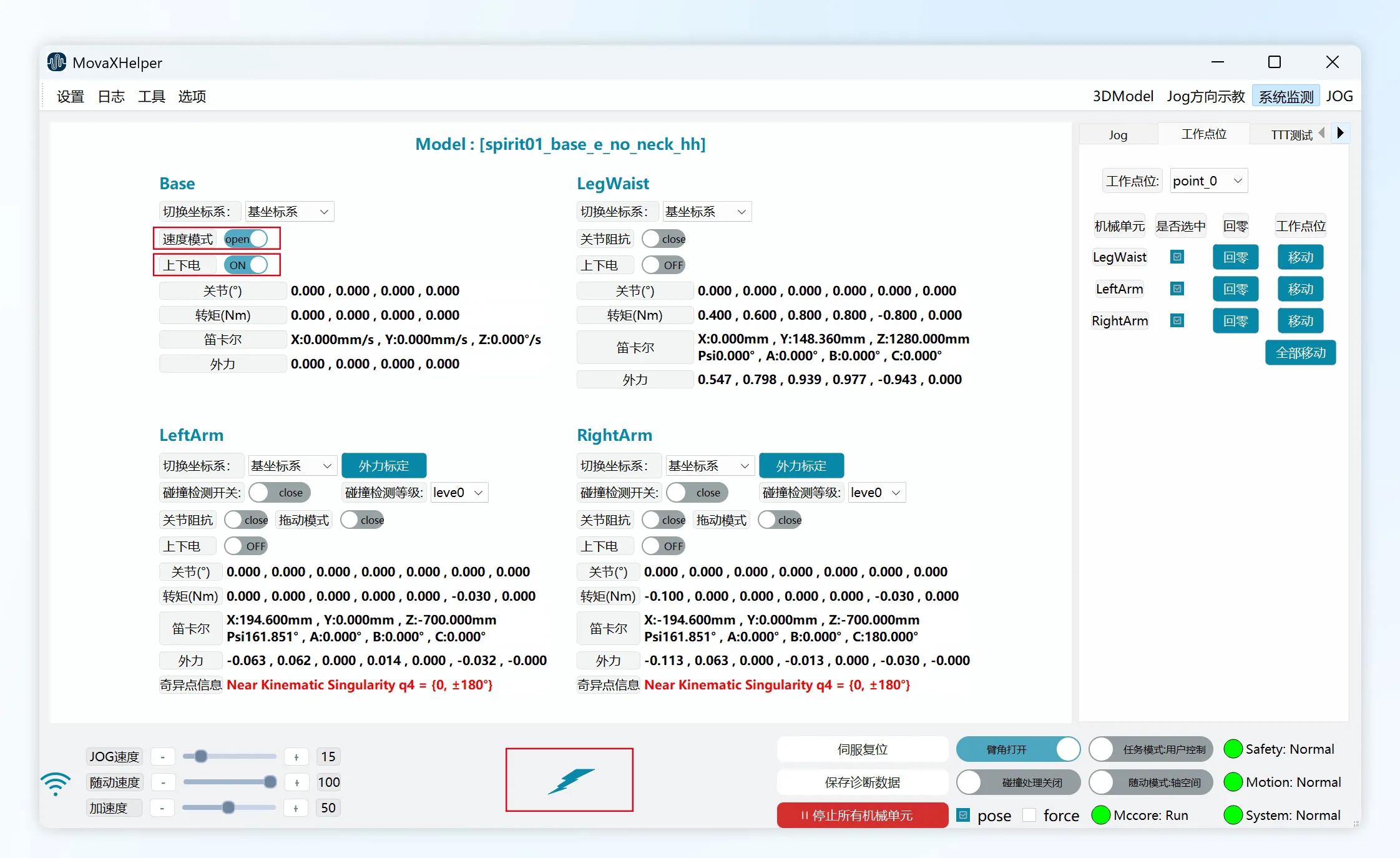
When JOGging the mobile platform, first turn on the "Speed Mode" switch on the "System Monitoring" page before powering on.
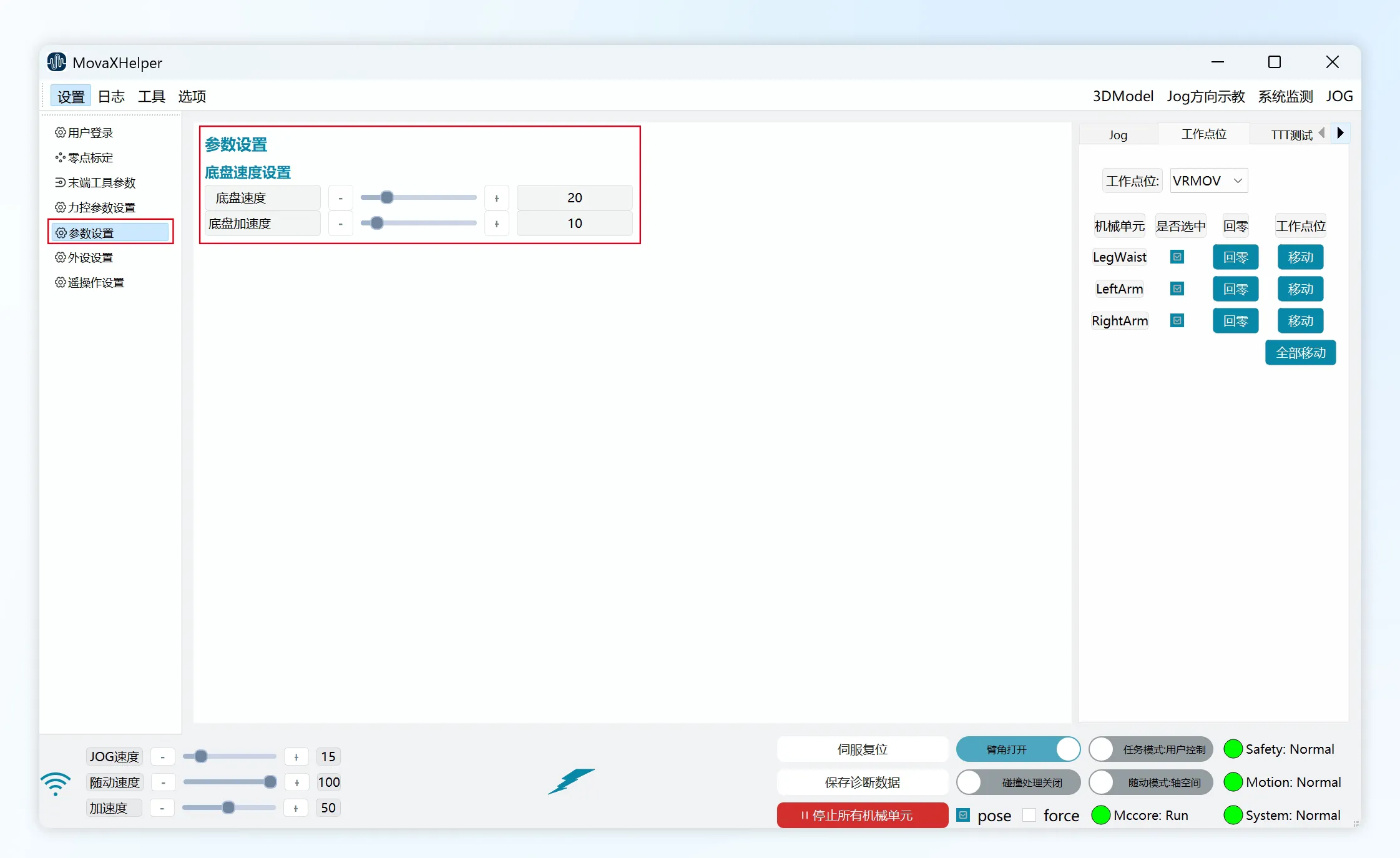
Mobile platform running speed is set through the "Settings-Parameter Settings" page, adjustment range 1~100%, as a percentage relative to the mobile platform "Motion Speed" and "Rotation Speed" on the JOG page.
Work Points
The "Work Points" in the right control panel of HMI provides quick pose adjustment function. Users can enter the "Set Work Points" page through "Tools" in the top status bar to set commonly used poses as work points. 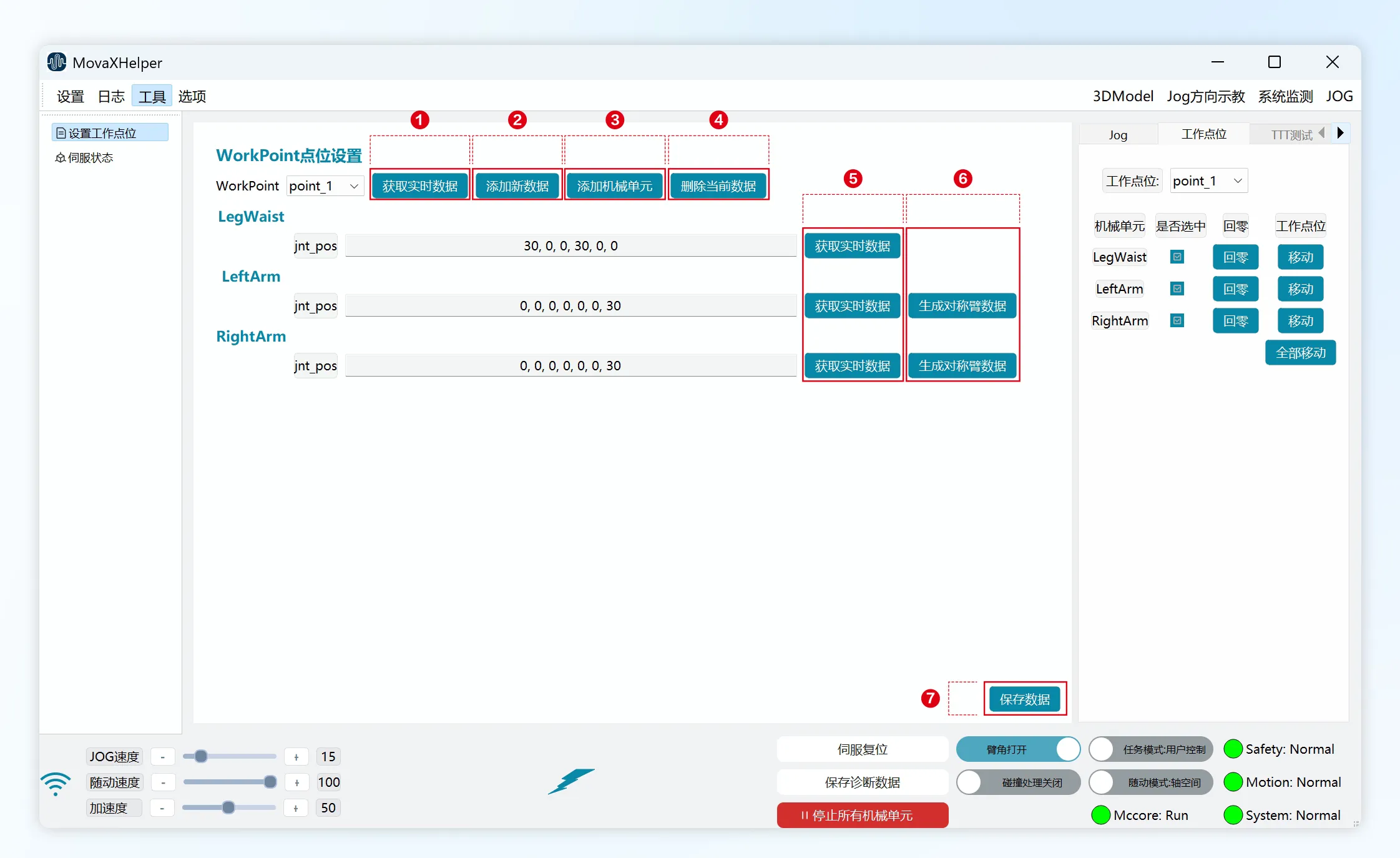
- ① Get Real-time Data: Get current angle values of all mechanical units and update to the selected point.
- ② Add New Data: Add new work point.
- ③ Add Mechanical Unit: Add mechanical unit (currently only supports adding dual arms + leg-waist, does not support mobile platform).
- ④ Delete Current Data: Delete currently selected work point.
- ⑤ Get Real-time Data: Get current angle values of single mechanical unit and update to the selected point's mechanical unit.
- ⑥ Generate Symmetric Arm Data: Left and right arms generate symmetric data from each other.
- ⑦ Save Data: Save operations on this point.
For example, click ② "Add New Data", a popup will appear to name the new point, names cannot be repeated. JOG the mechanical unit to the desired point, click ①/⑤ "Get Real-time Data", click ⑦ "Save Data". The "Work Points" in the right control panel can now select this point. ④ "Delete Current Data" also requires ⑦ "Save Data" to delete properly.
"Work Points" usage is similar to Jog operation. Power on the mechanical unit, press the corresponding target pose "Move" button, and the mechanical unit will move to the target pose through axis space motion. You can also power on all mechanical units and use "Move All" to make all mechanical units start moving toward the target pose simultaneously.
Motion speed can be adjusted through Jog speed.
Home (commonly used initial pose) and Docking (shipping pose) are bound to the controller. Users can adjust point angle values according to actual conditions. If not set, default configuration is used.
DANGER
When the robot's current pose and target pose differ significantly, there is collision risk between mechanical units during "Move All" process. It is recommended to adjust each mechanical unit sequentially.
TTT Test
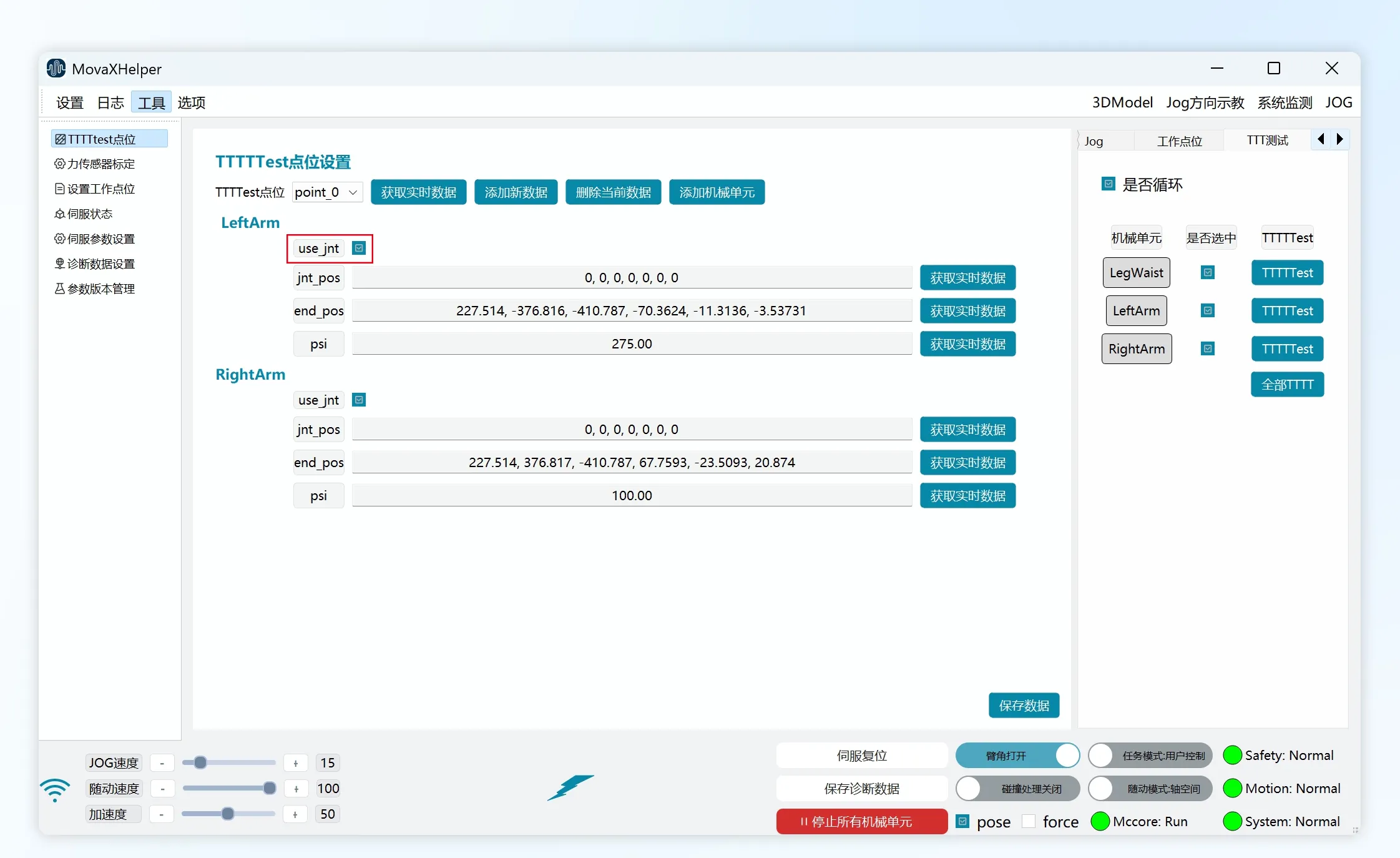
Users can add multiple points through the "TTTTtest Points" page, method is basically the same as "Work Points", the difference is that after clicking "Save Data" you need to restart the controller for it to take effect.
Note that "Work Points" only supports axis space motion, while "TTTTtest" supports both axis space and Cartesian space, distinguished by "use_jnt". When this option is unchecked, the mechanical unit moves from the previous point to the current point using Cartesian space motion; if checked, it moves using axis space motion.
Force Control Functions
Joint Impedance
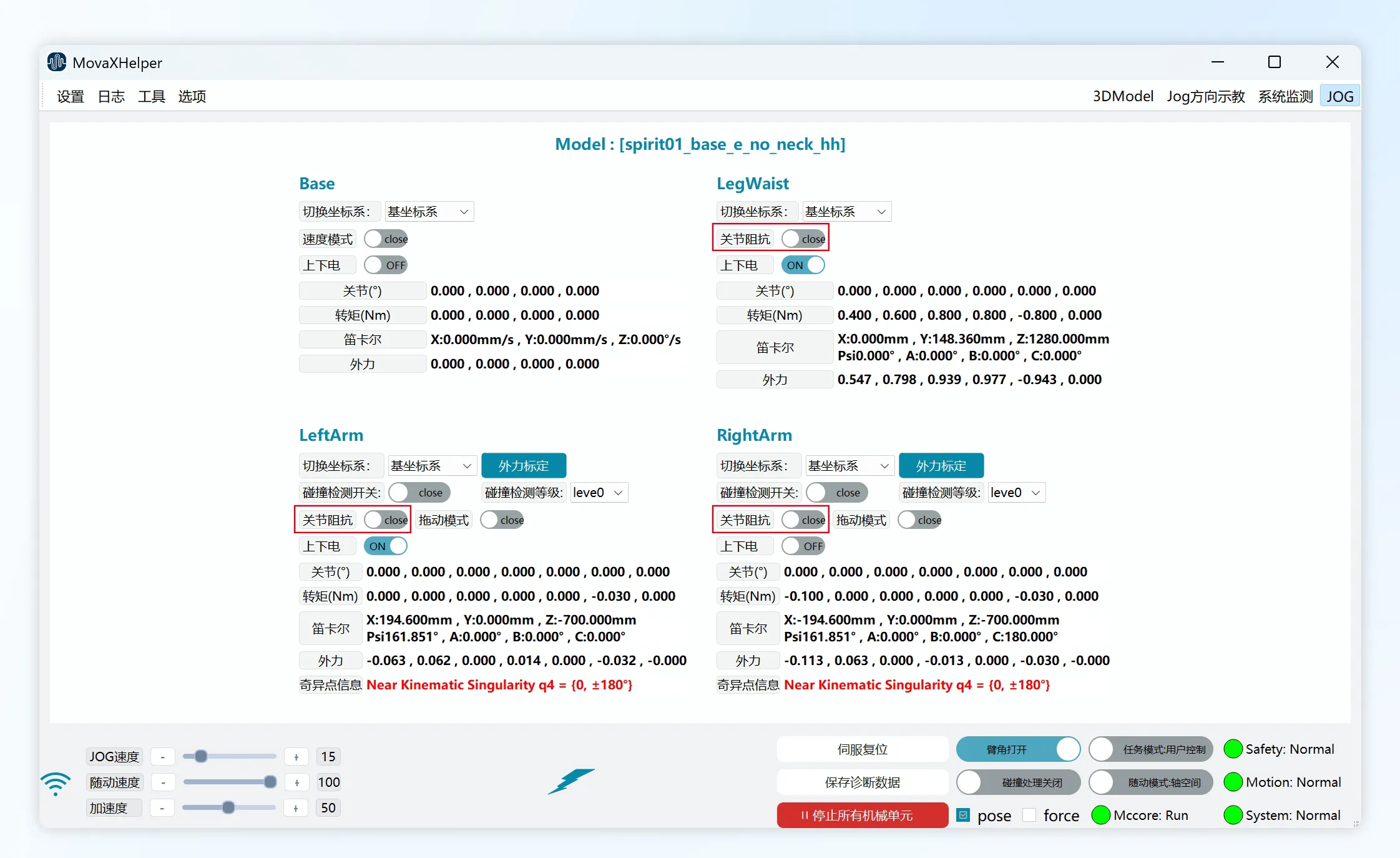 After enabling joint impedance, the mechanical unit will exhibit characteristics similar to a damped spring, allowing the mechanical arm to have certain compliance when interacting with the external environment.
Joint impedance function is enabled on the "System Monitoring" page. The mechanical unit must be powered off when enabling. Function takes effect after power on.
- This function does not support simultaneous use with drag mode; supports simultaneous use with collision detection function.
- This function supports user control mode and external control mode.
- Effective in both stationary and running states.
Drag Mode
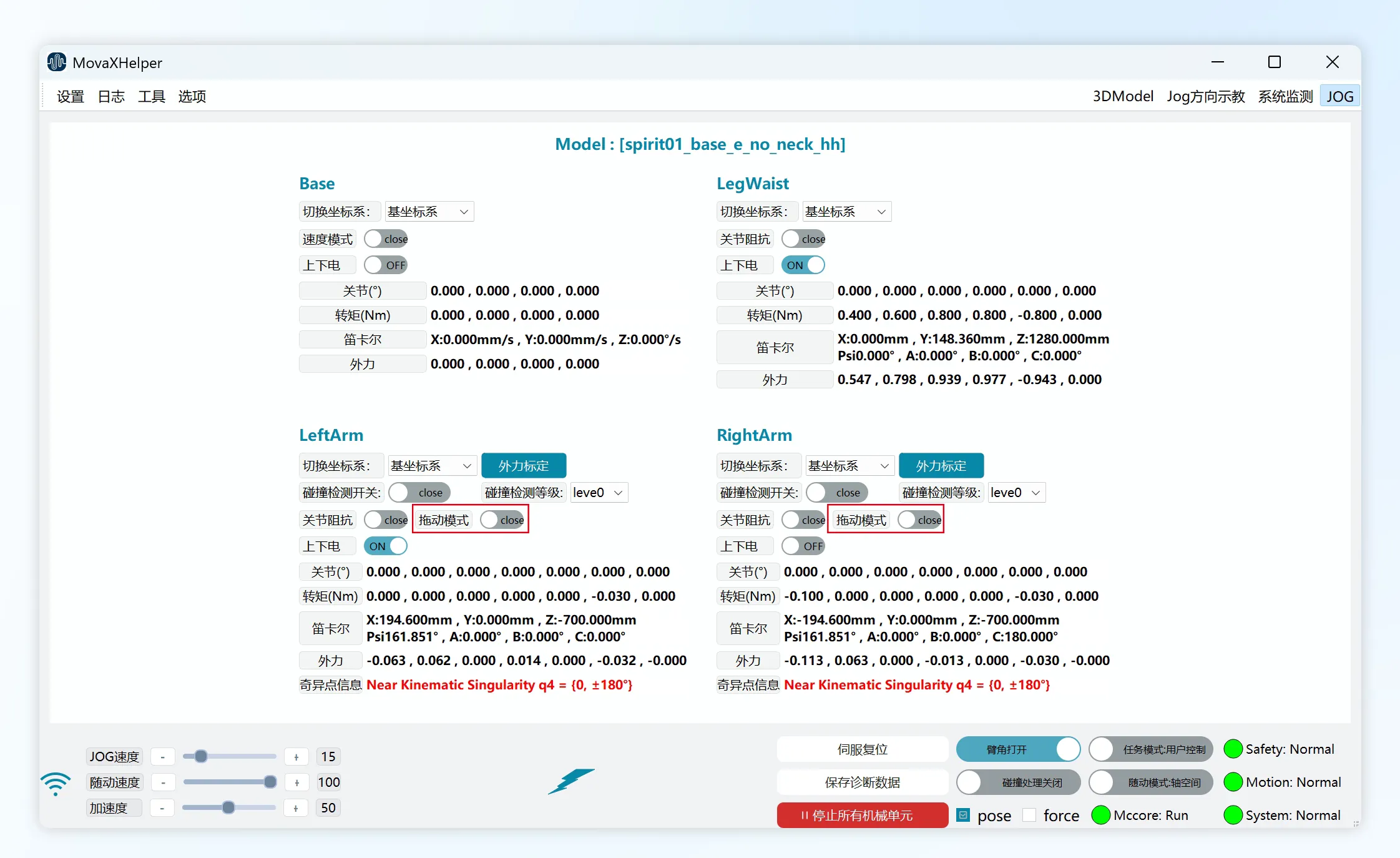 Enabling drag mode puts the mechanical unit in "zero-force space", at which point users can manually guide each joint of the mechanical unit to the desired position and orientation.
Drag mode is enabled on the "System Monitoring" page. The mechanical unit must be powered off when enabling. Function takes effect after power on.
- Currently only supports dual arms.
- This function does not support simultaneous use with joint impedance function; does not support simultaneous use with collision detection function.
- This function only supports user control mode.
- When in drag mode, "Jog", "Work Points", "TTT Test", "Auto Calibration" functions cannot be used.
Enabling drag mode enables virtual wall by default. The virtual wall limits the working space of each joint for robot dragging scenarios to protect the robot. When dragging a joint close to the virtual wall, users will feel the reaction force from the virtual wall.
The virtual wall boundary for each joint is within 5° of its soft limit. For example, if joint soft limit is -180° to +180°, in drag mode the joint operates within -175° to +175°.
WARNING
Before enabling drag mode, robot dynamics parameters and load parameters must be accurately set, otherwise there may be a drifting sensation during dragging. In extreme cases of excessive dragging force or speed, the robot may exceed virtual wall range, triggering error state.
Collision Detection
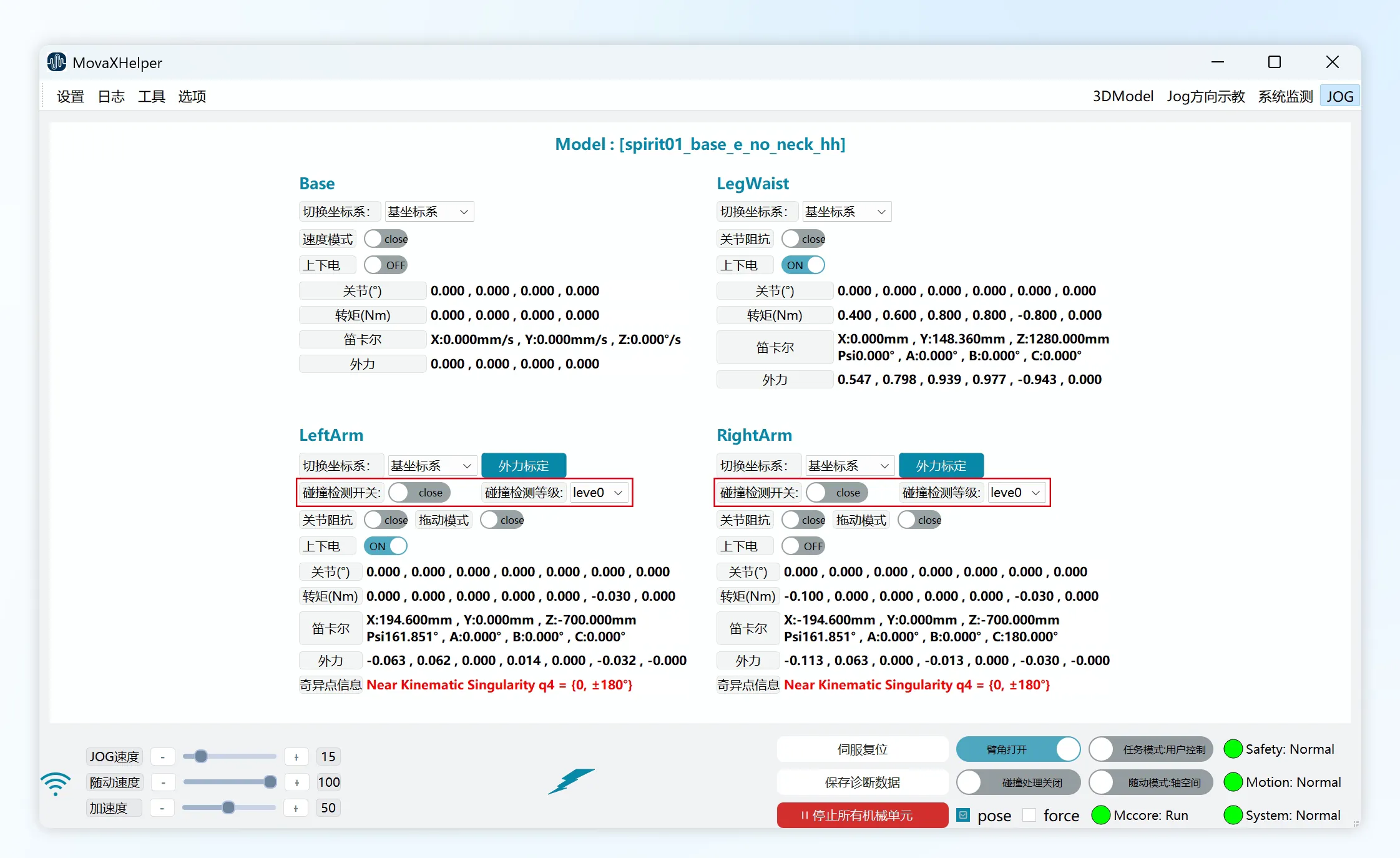
Collision detection function is a passive detection function based on robot dynamics model estimation. When the robot accidentally collides with the external environment during stationary or running state, collision detection can detect the collision in time and execute preset handling measures.
Collision detection function is enabled on the "System Monitoring" page. Enabling is not limited by mechanical unit state. Function takes effect after power on.
Collision detection has 8 levels. Lower levels have higher sensitivity, making the robot more likely to detect collisions.
- Currently only supports dual arms.
- This function does not support simultaneous use with drag mode; supports simultaneous use with joint impedance function.
- This function supports user control mode and external control mode.
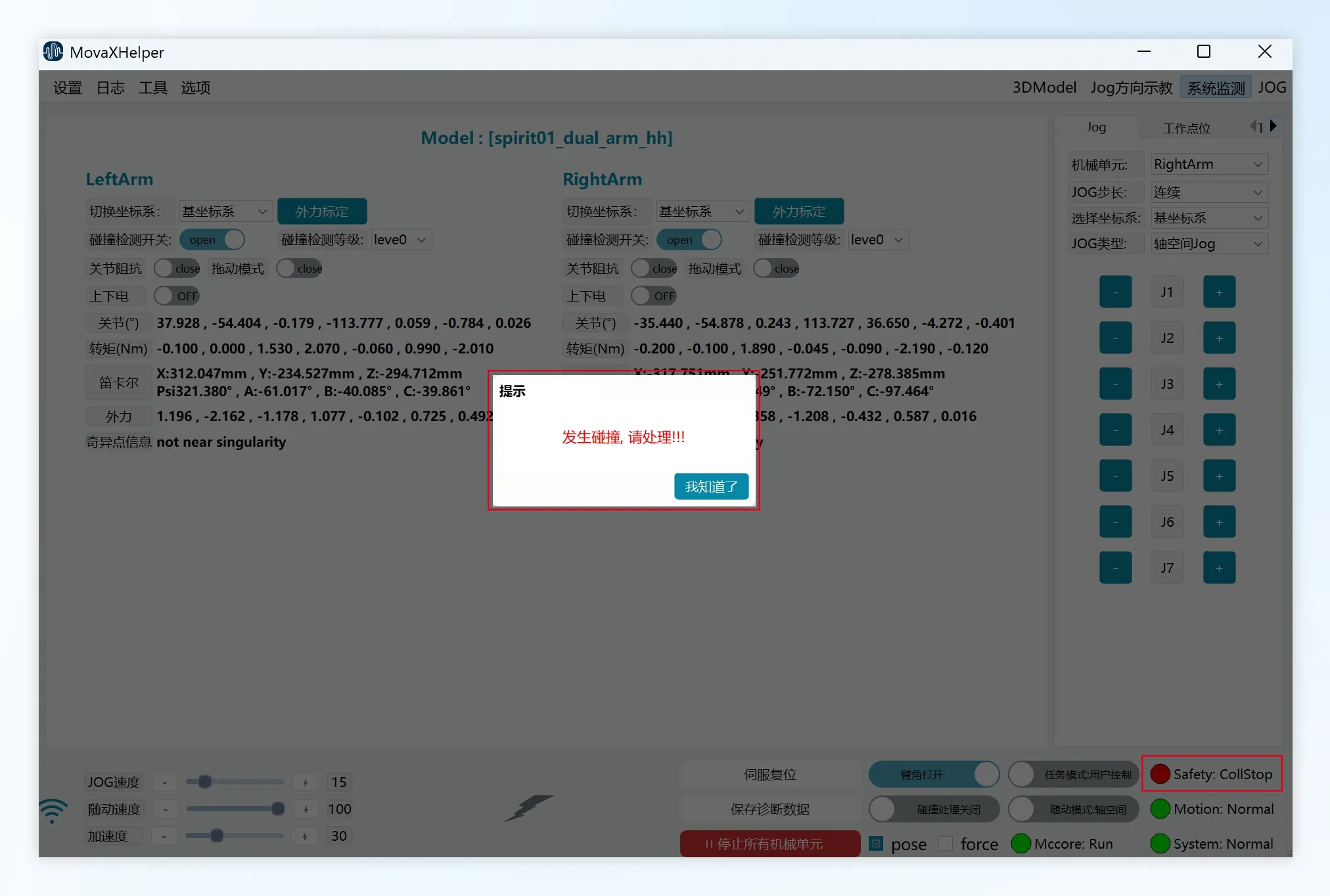
After collision detection is triggered, the robot will immediately stop and power off. A popup will appear on the interface, and the "Safety" status light on the bottom status bar will turn red and display "CollStop". At this time, the robot is in abnormal state and cannot be powered on. You need to use the "Collision Handling" function to recover before continuing use.
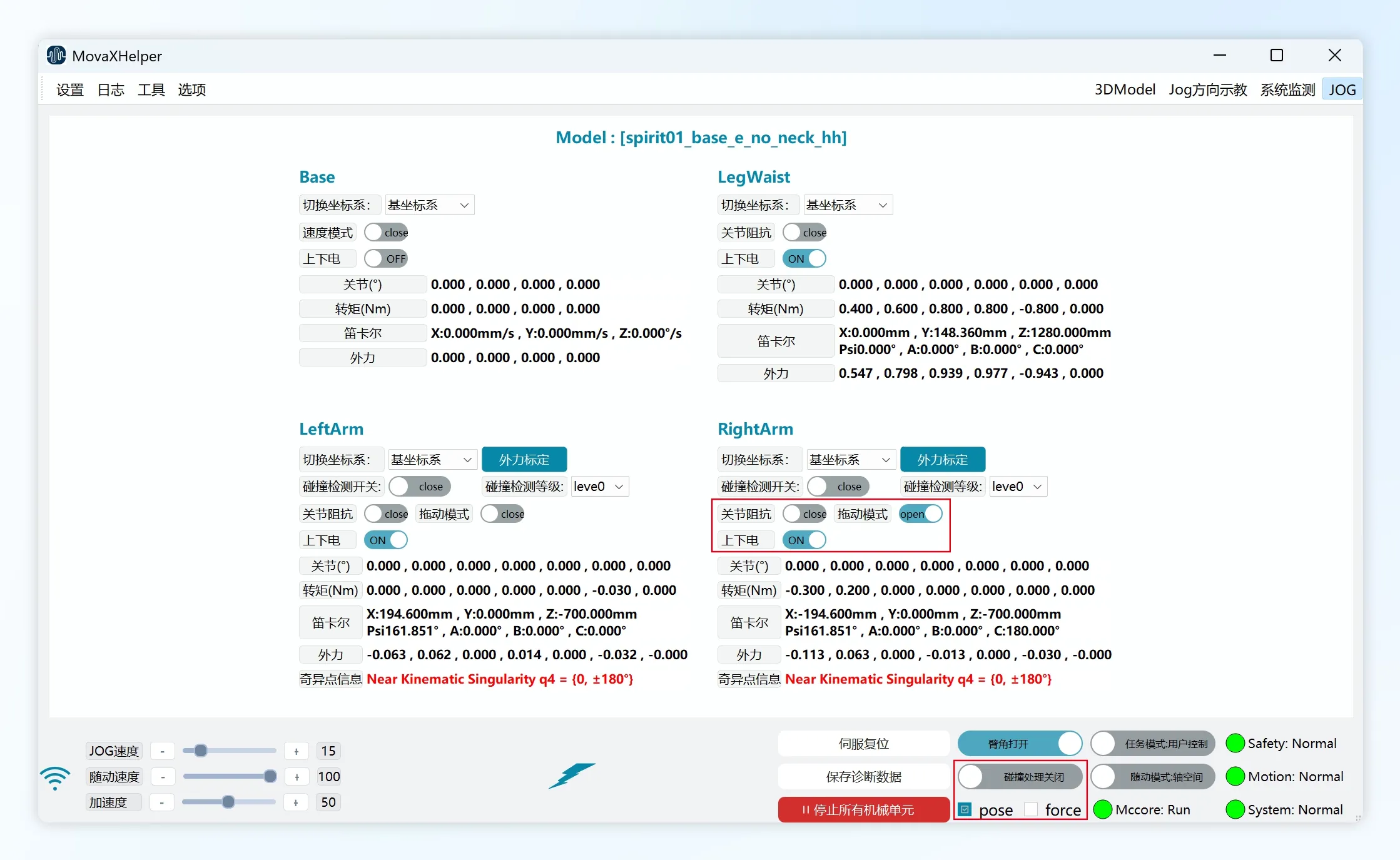
The "Collision Handling Enable" switch can only be turned on when collision is detected. Before enabling, select the handling mode according to the collision scenario. Currently supports "pose" and "force" modes.
- "pose" mode: This mode uses manual Jog to move the collision mechanical unit to a safe area;
- "force" mode: This mode uses manual dragging to move the collision mechanical unit to a safe area; Taking "force" mode as an example, collision handling operation steps are as follows:
- Select "force" mode, turn on "Collision Handling Enable" switch, Safety status light returns to green and displays "Safety"; but collision state is not recovered at this time. If you turn off "Collision Handling Enable" switch, it will return to "CollStop".
- Hold the handheld emergency stop, turn on "Drag Mode" switch for the collision mechanical unit and power on; if the mechanical unit was in continuous contact with the collision object before, after powering on the mechanical unit will move a distance away from the object until no longer in contact;
- Manually drag the mechanical unit to a safe area;
- Turn off "Collision Handling Enable" switch, Safety status light is green and displays "Safety", indicating collision state has been cleared. If selecting "pose" mode, after enabling the switch, directly power on and Jog the mechanical unit to a safe area. No need to turn on "Drag Mode".
WARNING
Selecting the wrong collision detection level may cause robot collision false alarms. Please select different detection levels according to different application scenarios. In severe collisions, torque sensor damage may occur causing force control function failure. Prefer using "pose" mode for collision handling.
Settings Functions
Zero Point Calibration
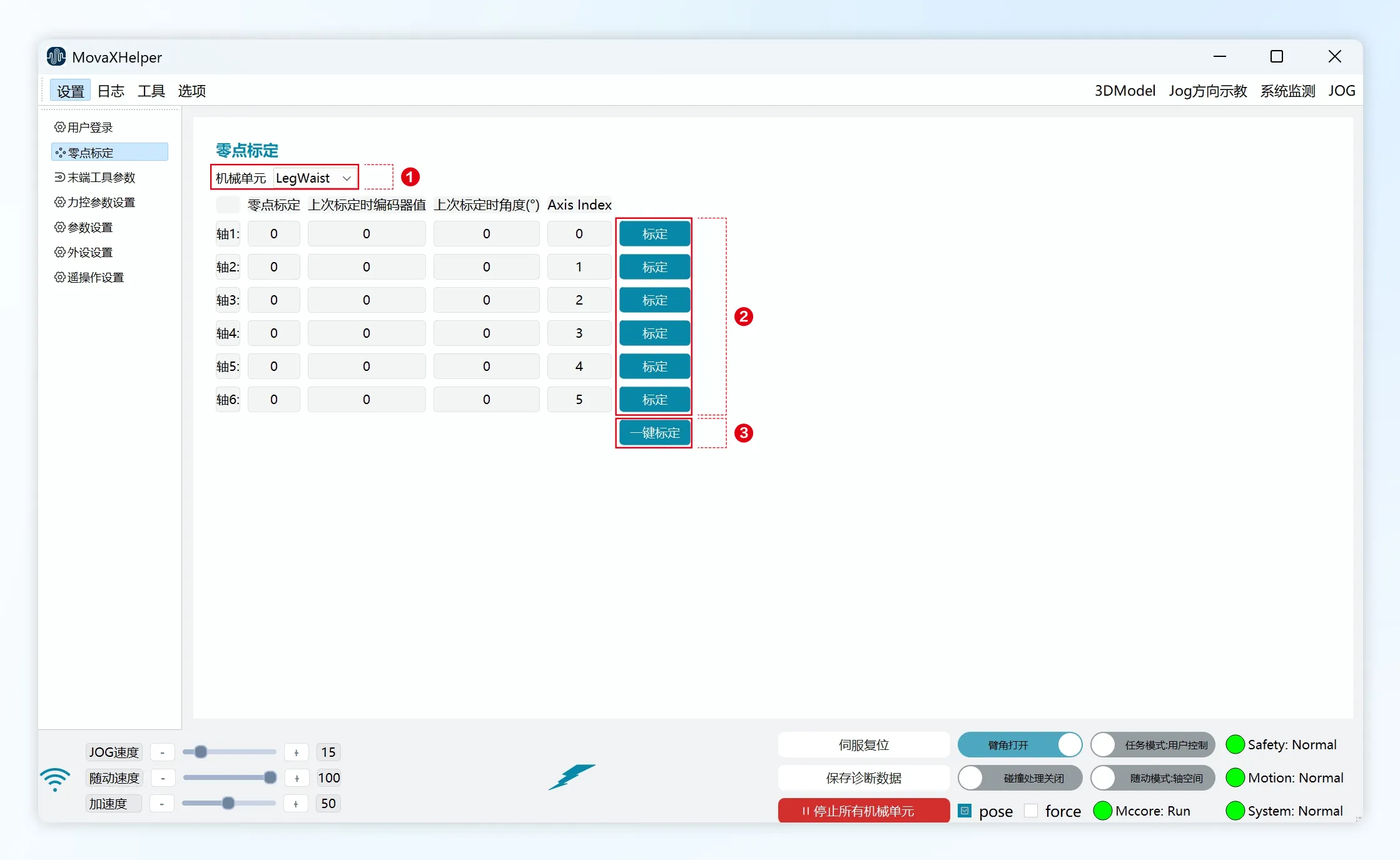
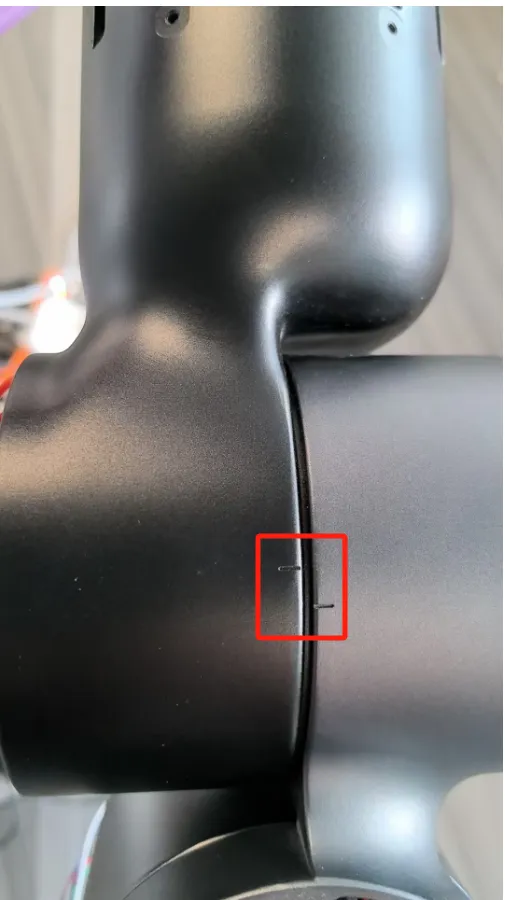
"Zero Point Calibration Function" refers to mechanical zero point calibration. The purpose is to make the robot's theoretical zero point coincide with the actual mechanical zero point. Zero point slots are preset on the robot body. After aligning all joints, i.e., returning to mechanical zero point, calibration can be performed.
- ① Mechanical Unit: Select the mechanical unit for zero point calibration; generally the mobile platform does not need zero point calibration;
- ② Calibrate: Single joint zero point calibration;
- ③ One-Click Calibration: All joints of the mechanical unit perform zero calibration;
 |  |
|---|
Calibration steps are as follows. Hold the handheld emergency stop and maintain a certain distance from the robot:
- Power on a single mechanical unit through the "System Monitoring page" in the top status bar;
- Adjust "JOG Speed" to below 10 through the bottom status bar;
- Enter the "Jog" page in the right control panel to Jog until the joint zero position slots are aligned;
- Perform calibration through the "Zero Point Calibration" page, noting the difference between "Calibrate" (single joint calibration) and "One-Click Calibration" (all joint calibration);
- Takes effect after restarting the controller.
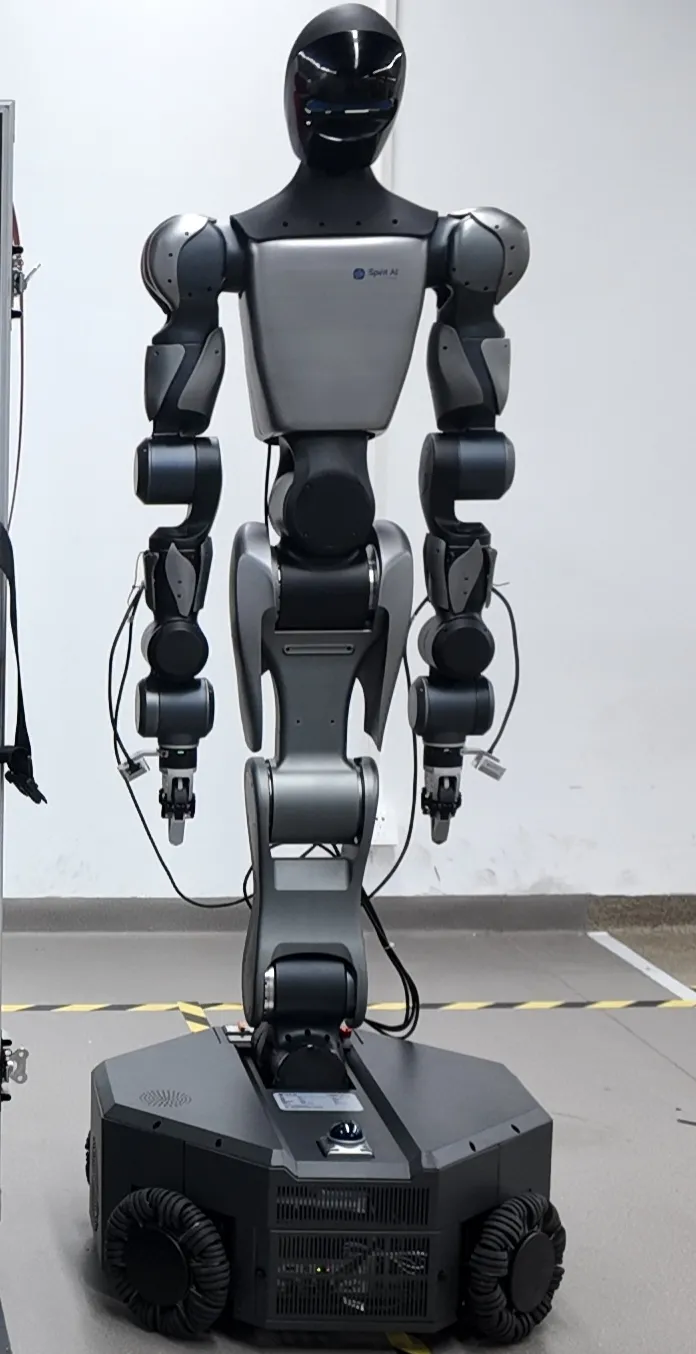
When all joints are at zero point, robot pose is as shown in the figure.
DANGER
Do not calibrate mechanical zero point randomly. Before calibration, use mechanical calibration blocks to confirm all robot joints are at zero point.
Peripheral Settings
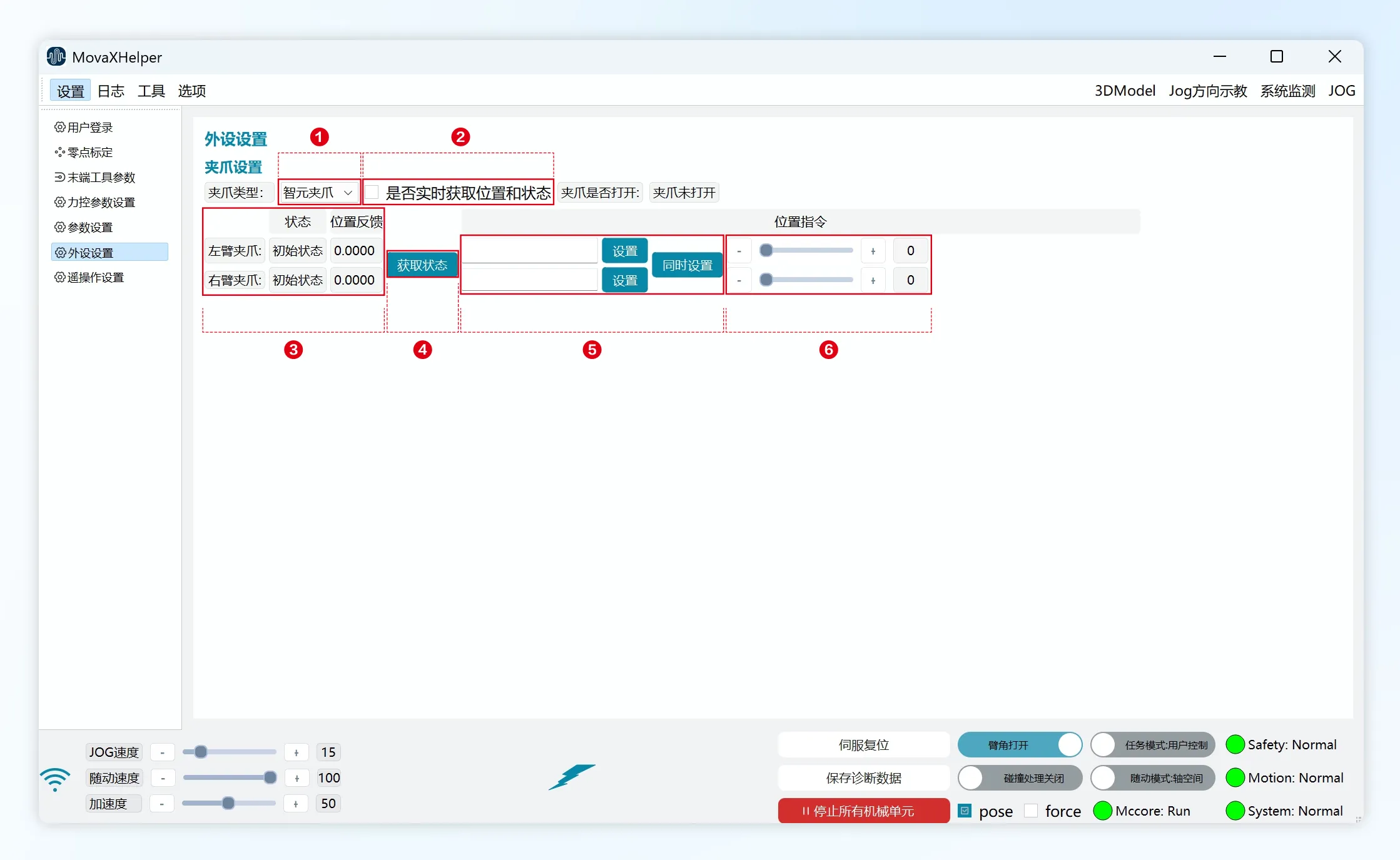
"Peripheral Settings" is used to adjust the opening/closing size of the left and right arm gripper two-finger ends.
- ① Gripper Type: Select end gripper type; factory standard is Zhiyuan gripper. If replacing with other types of grippers, please contact technical support
- ② Real-time Position and Status: When checked, "Status" and "Position Feedback" in ③ update every second; checking will continuously refresh logs, occupying backend resources, not recommended unless necessary
- ③ "Status" "Position Feedback": Gripper communication status and current position feedback; can update every second by checking ②, or get real-time through ④
- ④ Get Status: Get current gripper communication status and position feedback;
- ⑤ "Set" "Set Both": "Set" sets single gripper, "Set Both" sets both grippers; valid range 0-12, unit: cm
- ⑥ Gripper Position Setting Control: Same function as ⑤, single gripper setting, maximum opening distance 12cm
Teleoperation Settings
- Teleoperation HMI 1.0.1
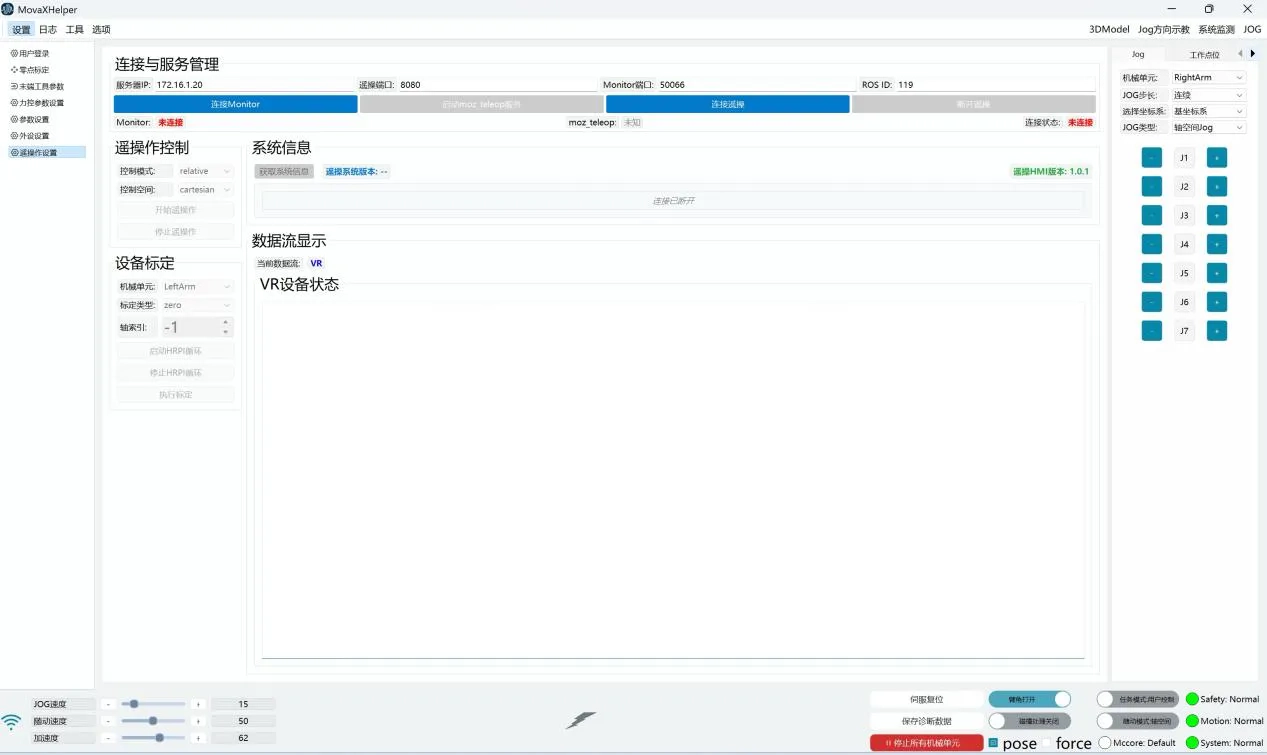
- Teleoperation HMI Version: 1.0.3 Update
- Torso base system definition moved up to above chassis;
- Teleoperation adds headset-controlled chassis mode, switch chassis control mode via VR controller Y button: headset control or controller control; VR controller B button is dual arm return button;
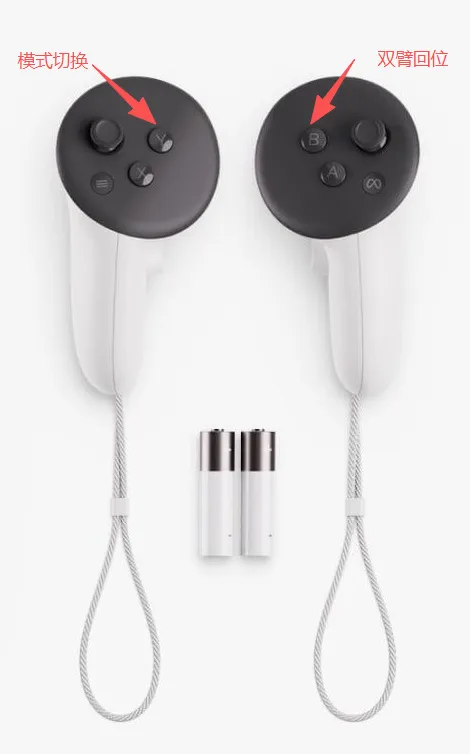
- When using VR for teleoperation, joystick chassis rotation direction changed from mirror rotation to same direction rotation;
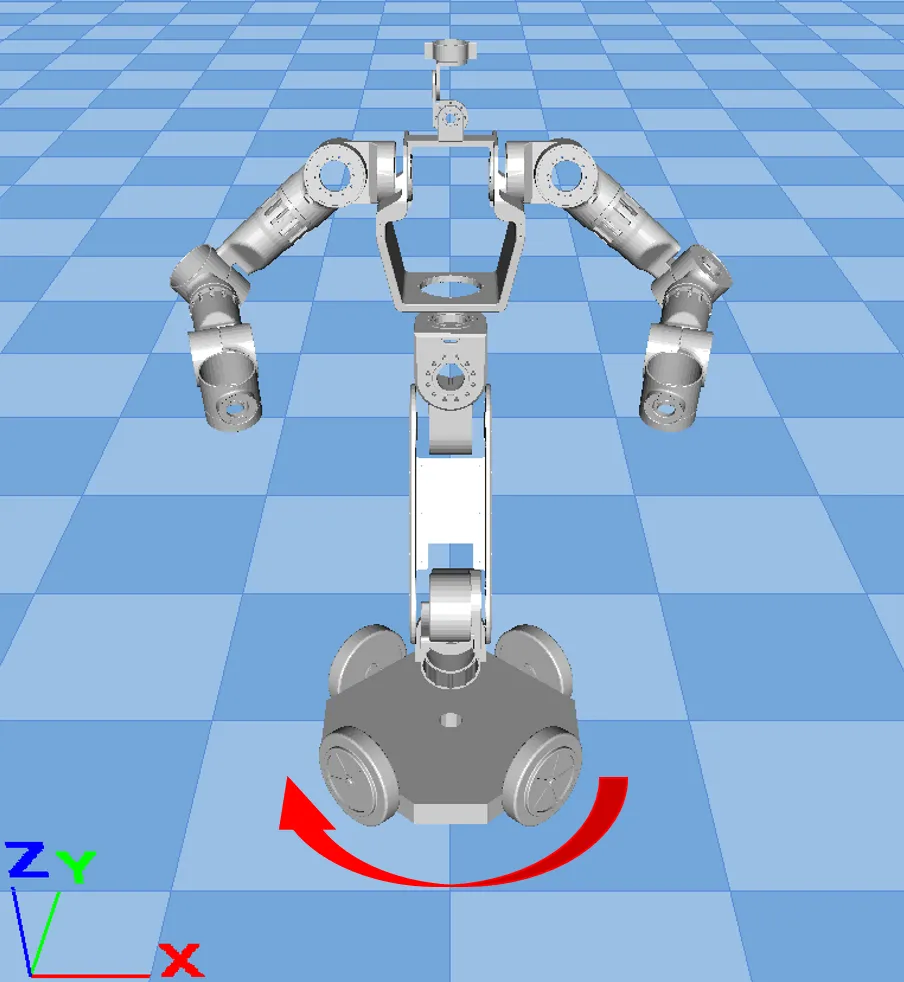 | 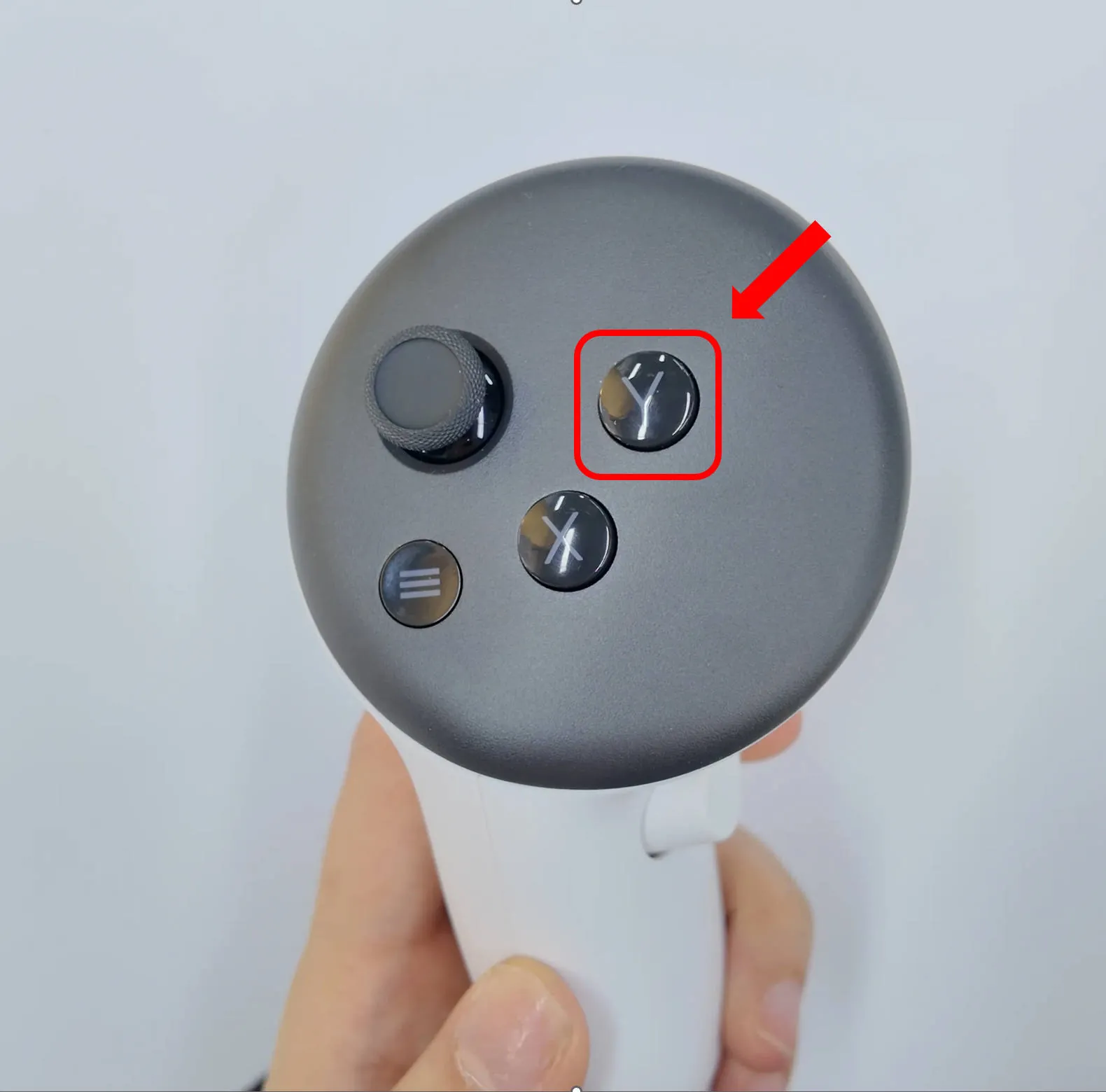 |
|---|
- Teleoperation function improves connection stability and page usability: added connection status information feedback on page;
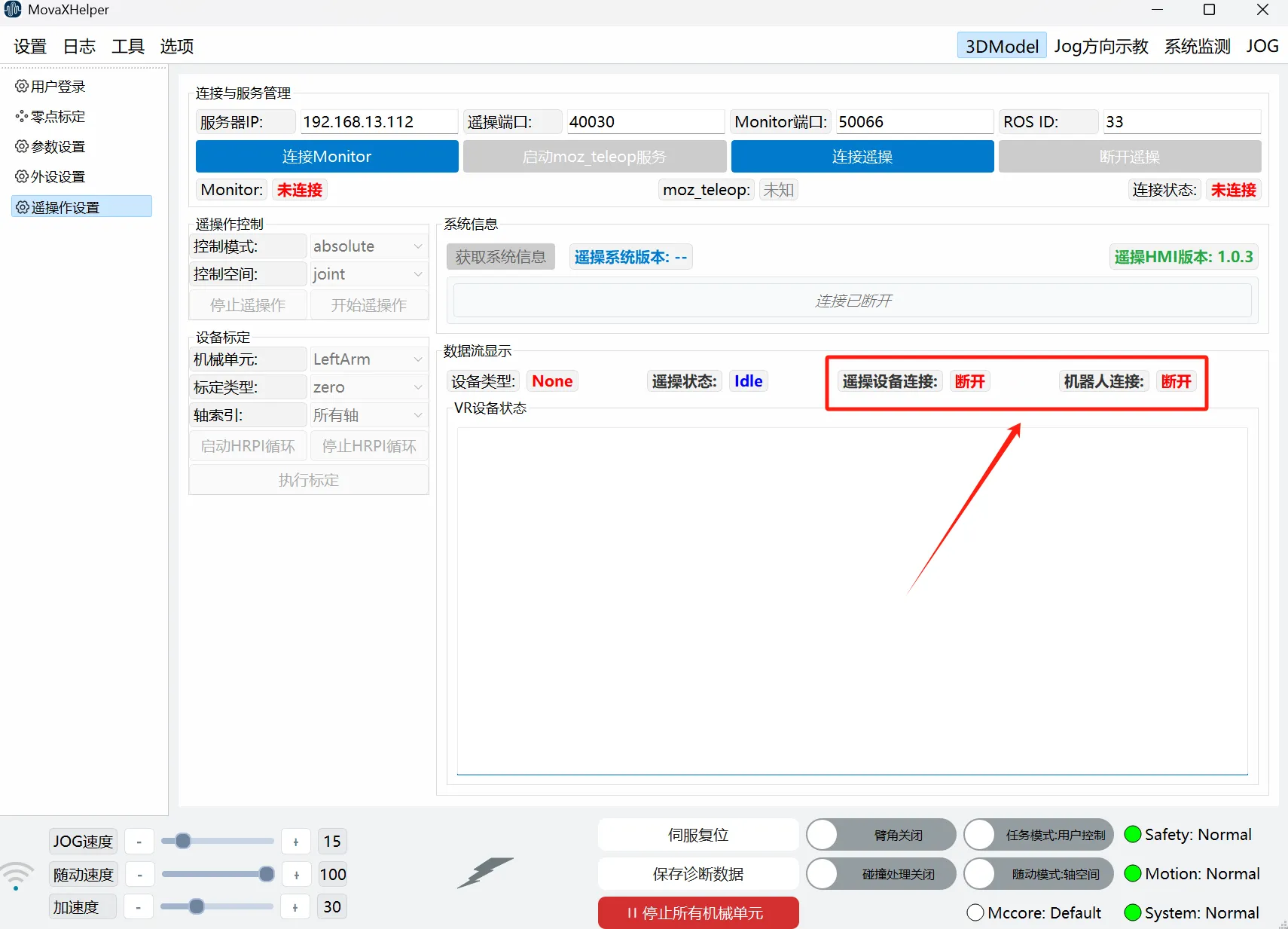
For specific teleoperation usage, see teleoperation section Quick Start
Logs
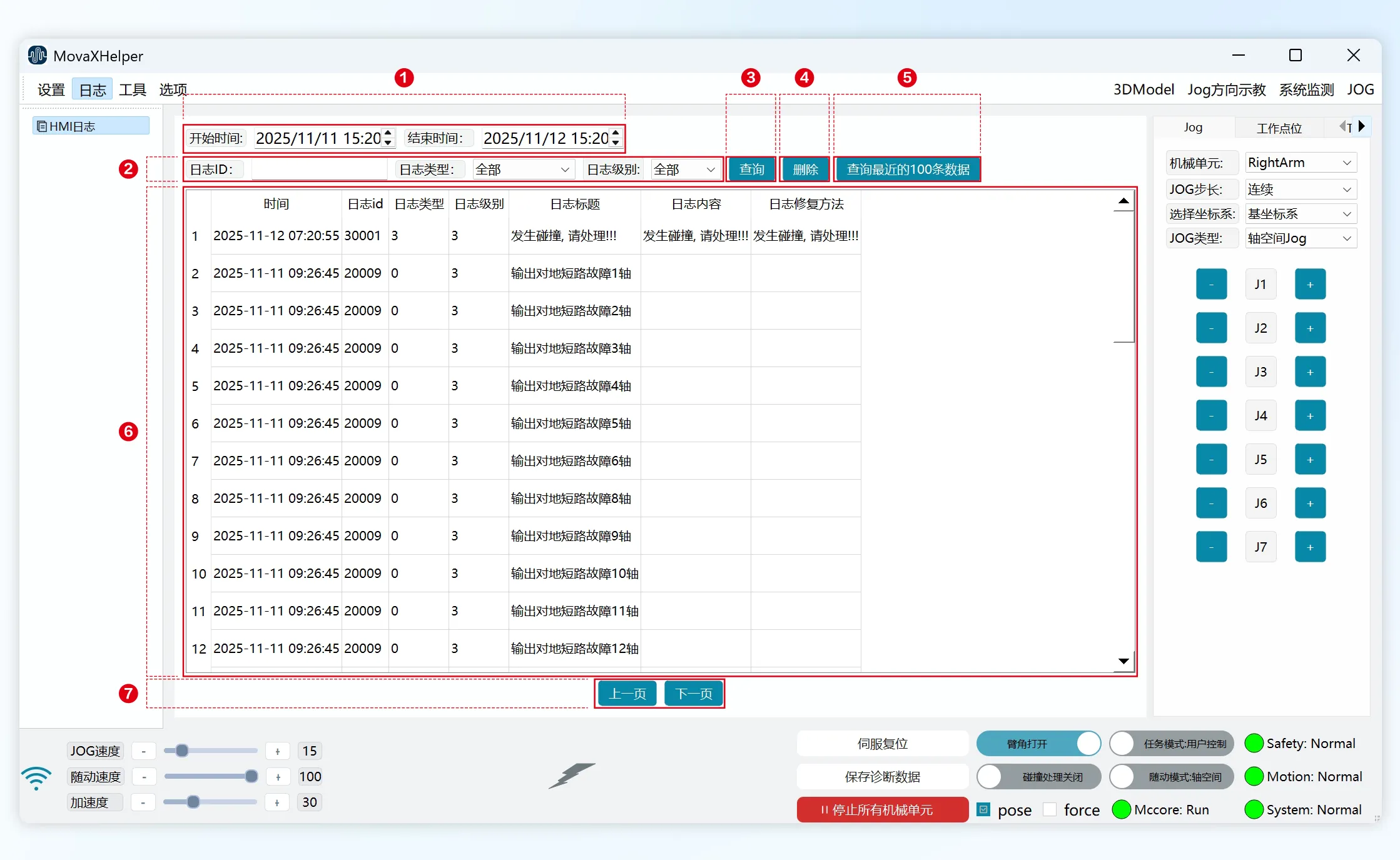
"HMI Logs" is used to query past servo error information for corresponding handling.
- ① Log Time Control: Select log time range;
- ② Log Filter Control: Log ID, log type, log level; currently only "Servo Error" type "ERROR" level log query function is open to users;
- ③ Query: Query logs based on range selected in ① and filter conditions in ②;
- ④ Delete: Delete logs from current query;
- ⑤ Query Last 100 Records: Not limited by ①, ②, queries the last 100 log entries;
- ⑥ Log Information Display: Log information display, shows 100 entries per page, browse by dragging the left slider;
- ⑦ Page Control: Click to turn pages;