

Quick Start
Power On and Connection
Power On
TIP
Note: Before powering on, confirm that the handheld emergency stop, back emergency stop, and mobile platform emergency stop are in the non-triggered position
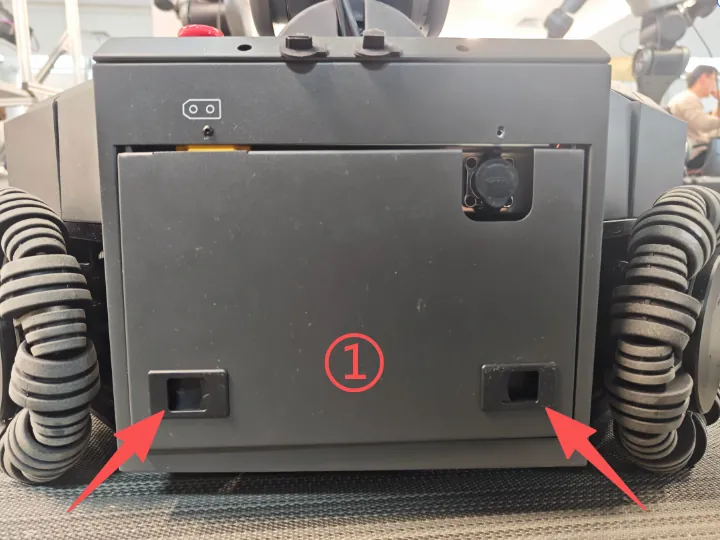 | 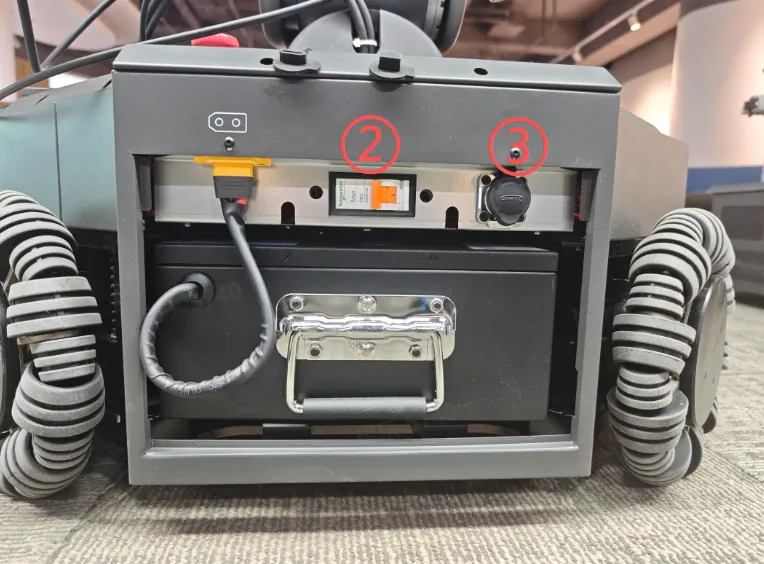 |
The main power switch is located at the rear of the mobile platform, as shown in the figure. The function descriptions are as follows:
- ①Battery Cover: Press the clip indicated by the arrow to remove the cover
- ②Circuit Breaker: Robot main power switch
- ③Charging Interface Aviation Plug: Charging port, charger connection interface
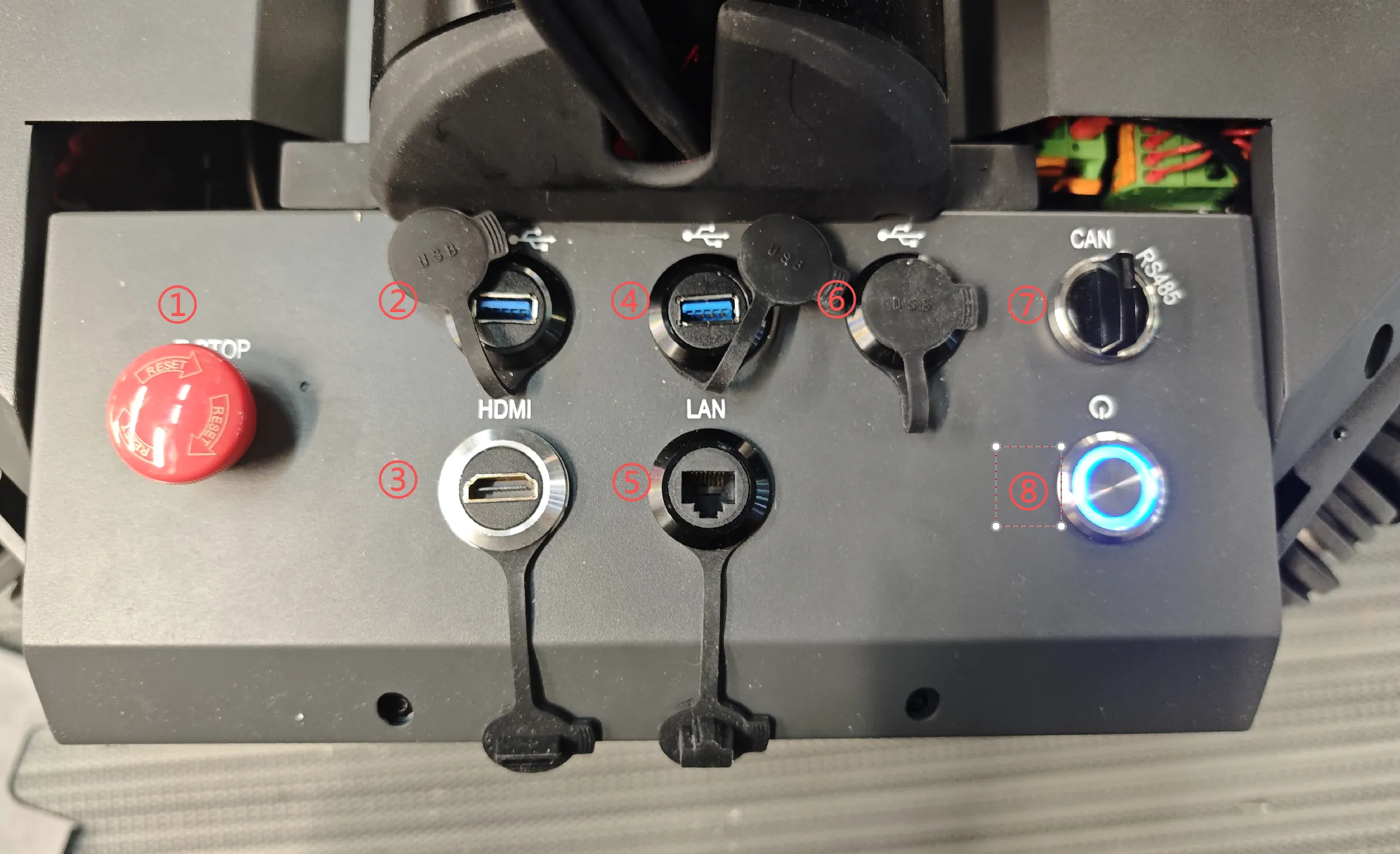
The function descriptions for the above figure are as follows:
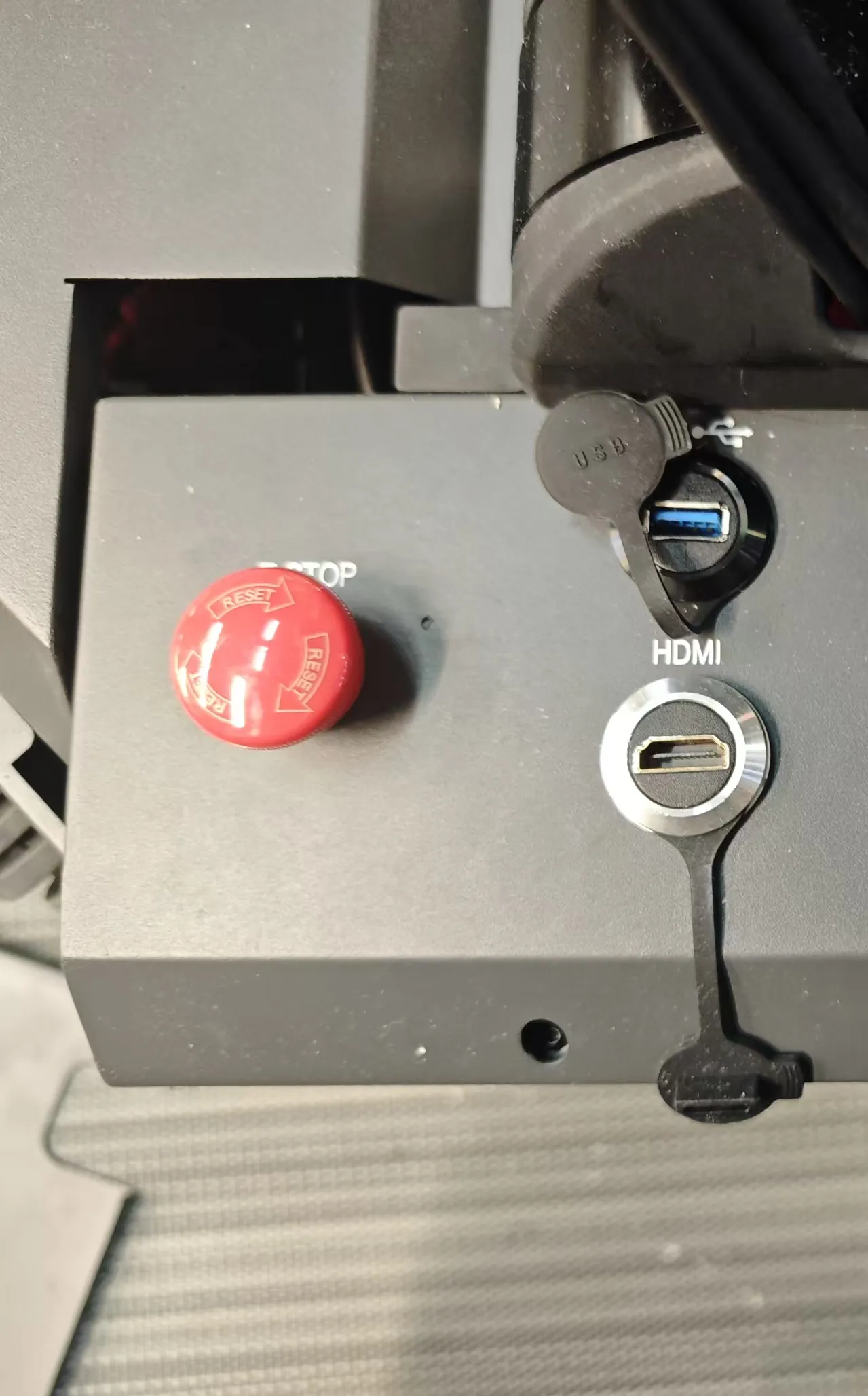
- ①Mobile Platform Emergency Stop Button: Rotary reset red mushroom head button, needs manual reset after being pressed.
- ②USB Port: Connect VR teleoperation device
- ③HDMI Interface: Connect external display
- ④USB Port: Inference host external device
- ⑤Ethernet Port: Internally connected to IPC LAN 1 port, fixed IP 172.16.1.20
- ⑥USB Port: Inference host external device
- ⑦Rotary Switch: End effector CAN and RS485 bus conversion
- ⑧Power Button:
Power on/off operation process is as follows:
- Power On: First turn on the circuit breaker, short press for 1s to power on, blue light flashes, when the blue light stays on it indicates the IPC and inference machine have finished booting
- Power Off: Long press for 2s, release the button when the green light starts flashing, the indicator light turns off after 5s, IPC and inference machine shutdown complete
- Forced Shutdown: Long press for more than 4s, when the indicator light turns off it indicates the IPC and inference machine shutdown complete
INFO
- When the acquisition/inference host is not in use, it can be turned off to maintain battery power. Press and hold ② for 1s then release, it will shut down after 60s;
- Try to turn off the host before turning off the main power each time.
Connection
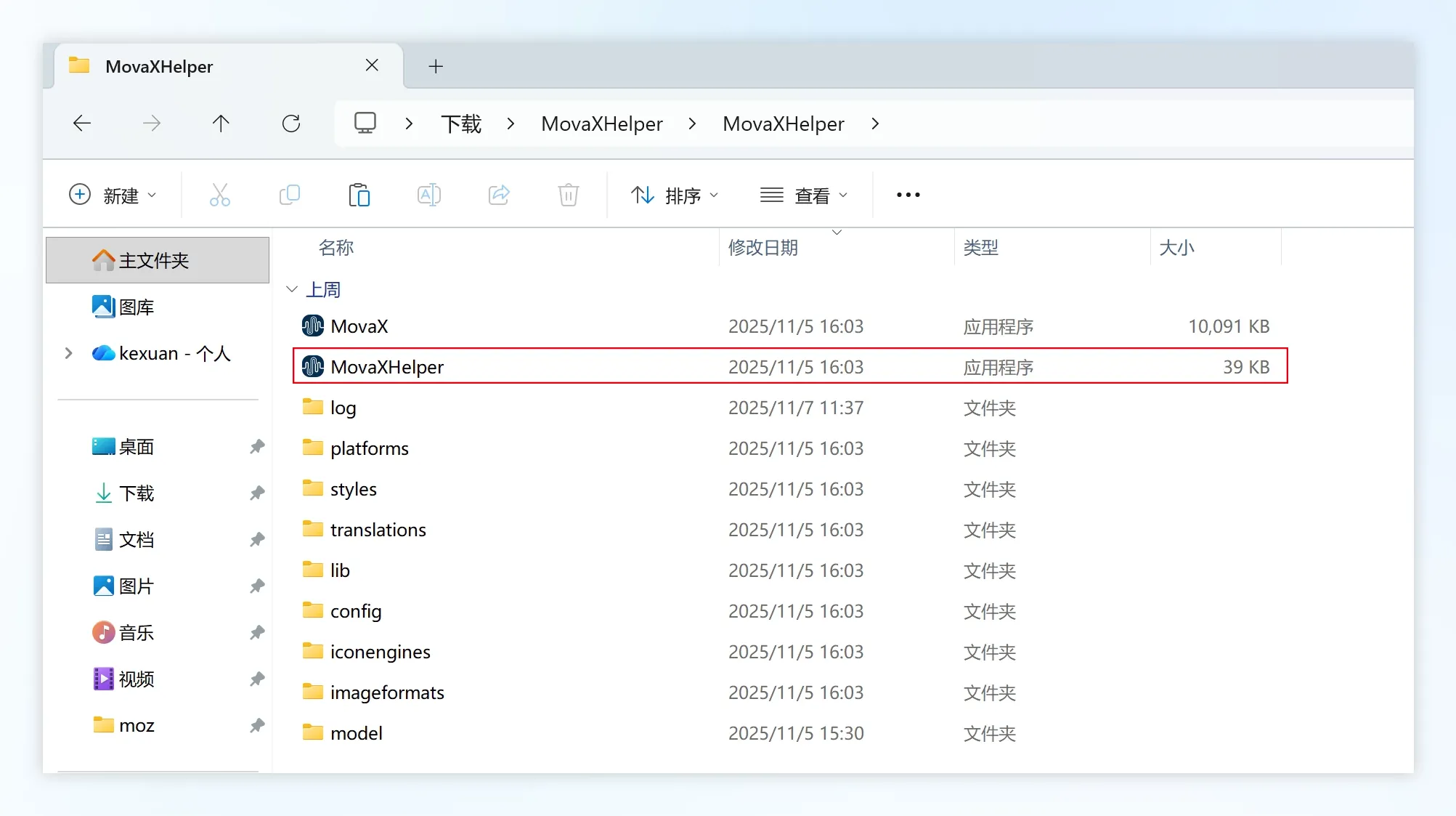 Using Windows PC as an example, download the MovaXHelper software package and extract it, enter the folder and double-click the MovaXHelper.exe icon to open the HMI.
WARNING
The software package should be stored in a non-Chinese character path, otherwise it cannot be opened normally.
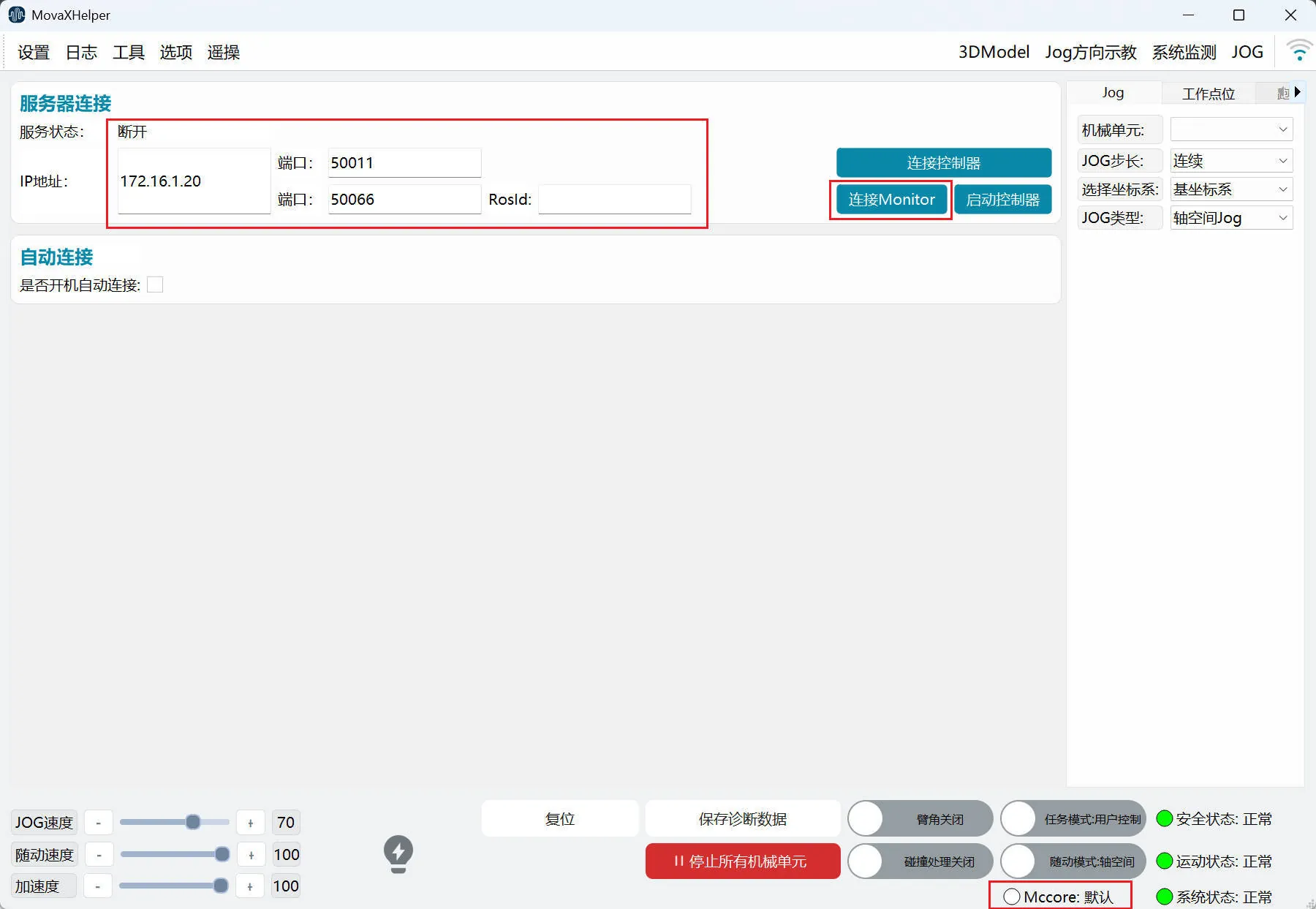 After the system starts, the host computer (IP needs to be in the same network segment as ④) can establish a connection with the device via Ethernet cable.
First click "Connect Monitor", the interface will prompt connection successful, and the "Mccore" status light in the lower right corner will be green with status showing "Running", indicating successful connection.
Then click "Connect Controller", the interface will prompt connection successful, and the signal status in the lower left corner of the interface will be full, indicating successful connection.
Tablet Connection
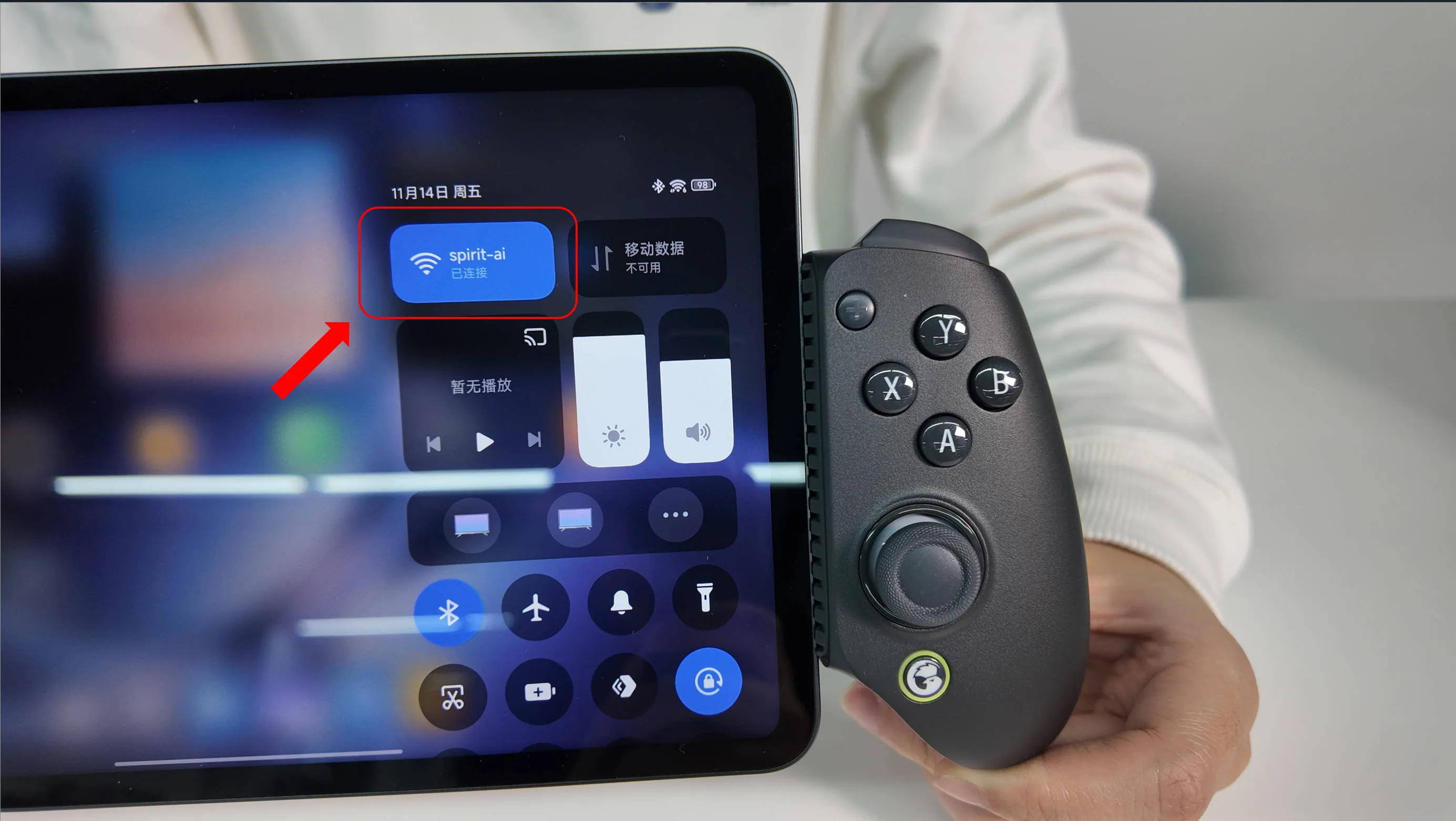 Connect the tablet to the robot's built-in Wi-Fi hotspot "MOZ1-0900x" via Wi-Fi settings, default password "spirit-ai".
 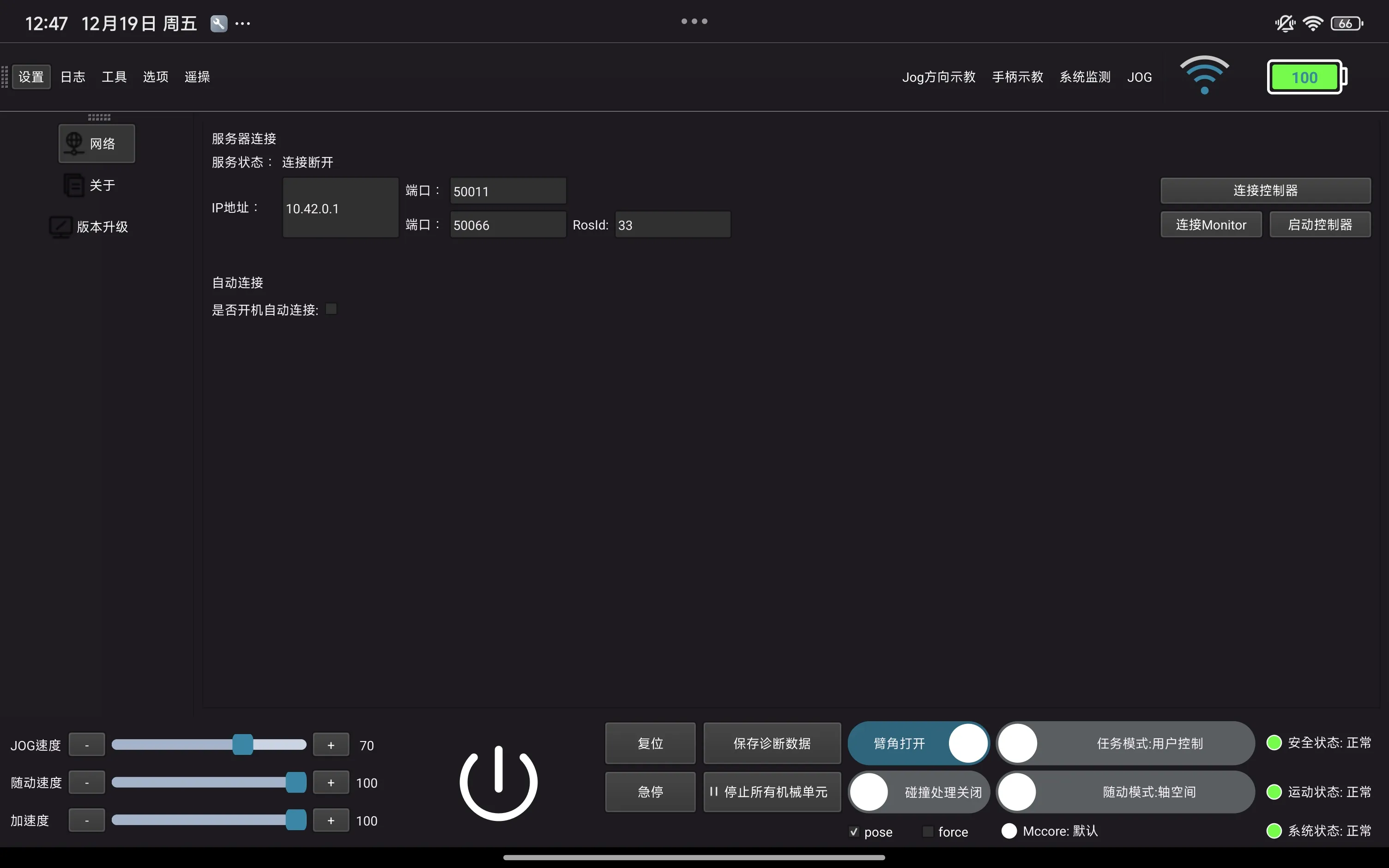 Launch the desktop application "SpiritAI MovaX" and wait for the interface to start. The IP address and port are shown in the figure, and the software usage is the same as the PC version.
User Permission Login
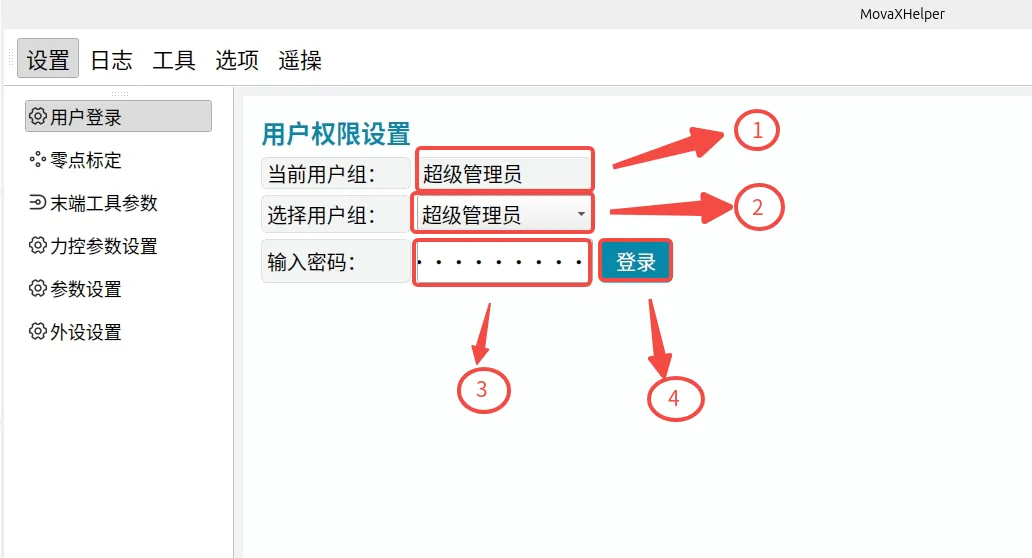 The MovaX system has four built-in user levels, from lowest to highest operation permissions: Normal User, Data Collector, Developer, and Super Administrator. After connecting to the controller, the default login is Normal User; switching to other permission users requires entering a password.
- ① Current User Group: Currently logged in user group.
- ② Select User Group: Select the user group to log in to.
- ③ Enter Password: The open permissions and default passwords for each user group are as follows:
| User | Password | Permissions |
|---|---|---|
| Normal User | 123456 | Settings: User Login, Zero Point Calibration, Parameter Settings, Peripheral Settings, Teleoperation Settings Logs: HMI Logs Tools: Set Work Points, Servo Status Options: Network, About, Version Upgrade JOG: Jog, Work Points Mechanical Units: Power On/Off |
| Data Collector | 123456 | Settings: User Login, Zero Point Calibration, Parameter Settings, Peripheral Settings, Teleoperation Settings Logs: HMI Logs Tools: Set Work Points, Servo Status Options: Network, About, Version Upgrade JOG: Jog, Work Points Mechanical Units: Power On/Off, Joint Impedance |
| Developer | spirit | Settings: User Login, Zero Point Calibration, End Tool Parameters, Force Control Parameter Settings, Parameter Settings, Peripheral Settings, Teleoperation Settings Logs: HMI Logs Tools: Break-in Test, Force Sensor Calibration, Set Work Points, Servo Status, Servo Parameter Settings, Diagnostic Data Settings, Parameter Version Management Options: Network, About, Version Upgrade JOG: Jog, Work Points, Break-in Test, Auto Calibration Mechanical Units: Power On/Off, Joint Impedance, Collision Detection, Drag Mode |
| Super Administrator | spirit-ai | Settings: User Login, Zero Point Calibration, End Tool Parameters, Force Control Parameter Settings, Parameter Settings, Peripheral Settings, Teleoperation Settings Logs: HMI Logs Tools: Break-in Test, Force Sensor Calibration, Set Work Points, Servo Status, Servo Parameter Settings, Diagnostic Data Settings, Parameter Version Management Options: Network, About, Version Upgrade JOG: Jog, Work Points, Break-in Test, Auto Calibration Mechanical Units: Power On/Off, Joint Impedance, Collision Detection, Drag Mode |
Post-Power-On Checks
Status Check
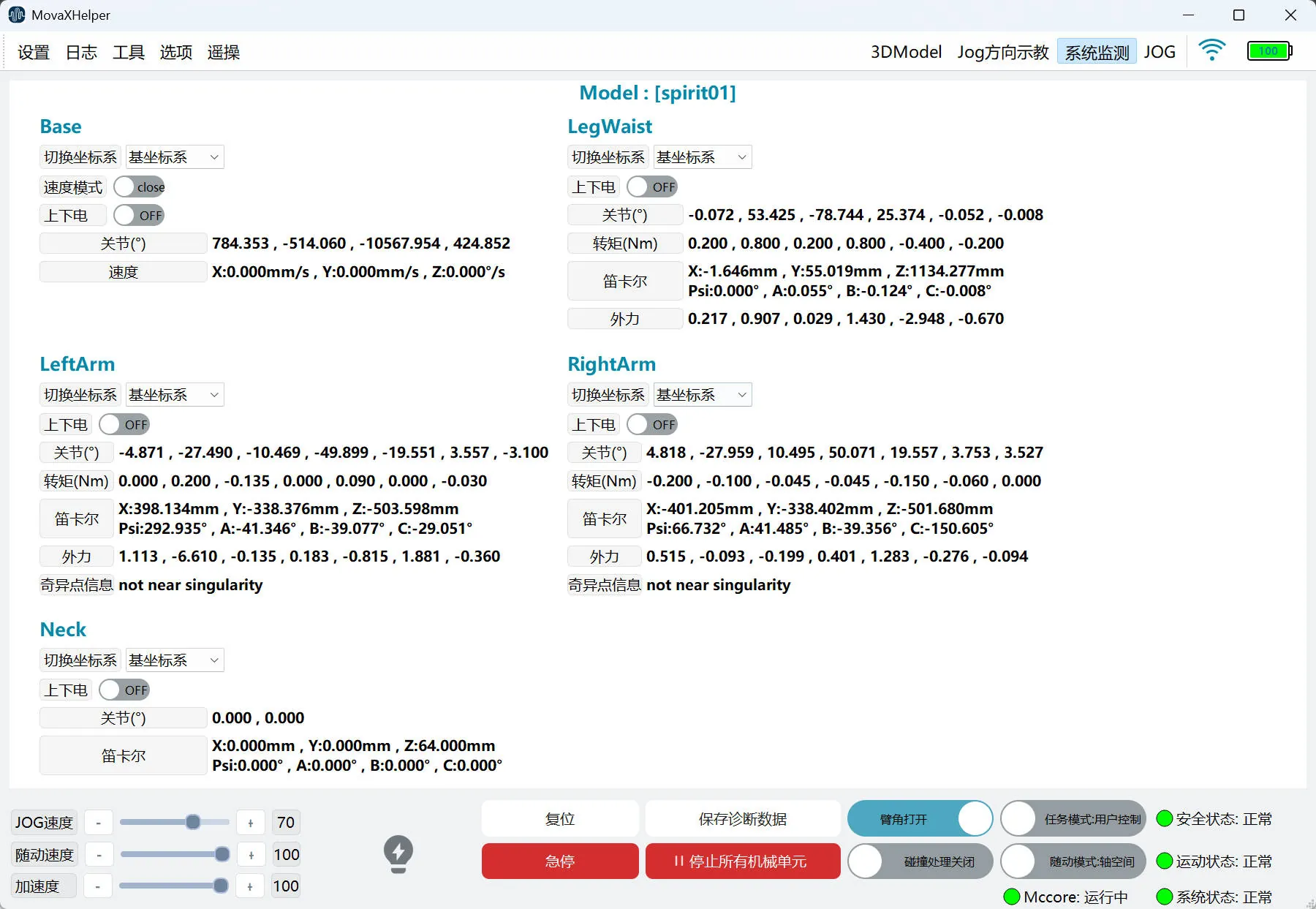 After successfully connecting to the controller, enter the function page through the "System Monitoring" button in the HMI top status bar. At this point:
- The values on the System Monitoring page should be constantly changing;
- The "Safety Status", "Motion Status", and "System Status" indicator lights in the lower right corner of the interface should be green, with status showing "Normal";
If the above two conditions are met, the robot has started without abnormalities, otherwise please contact technical support.
Emergency Stop Check
| Mobile Platform Emergency Stop |
|---|
 |
| Back Emergency Stop |
|---|
 |
| Handheld Wireless Emergency Stop |
|---|
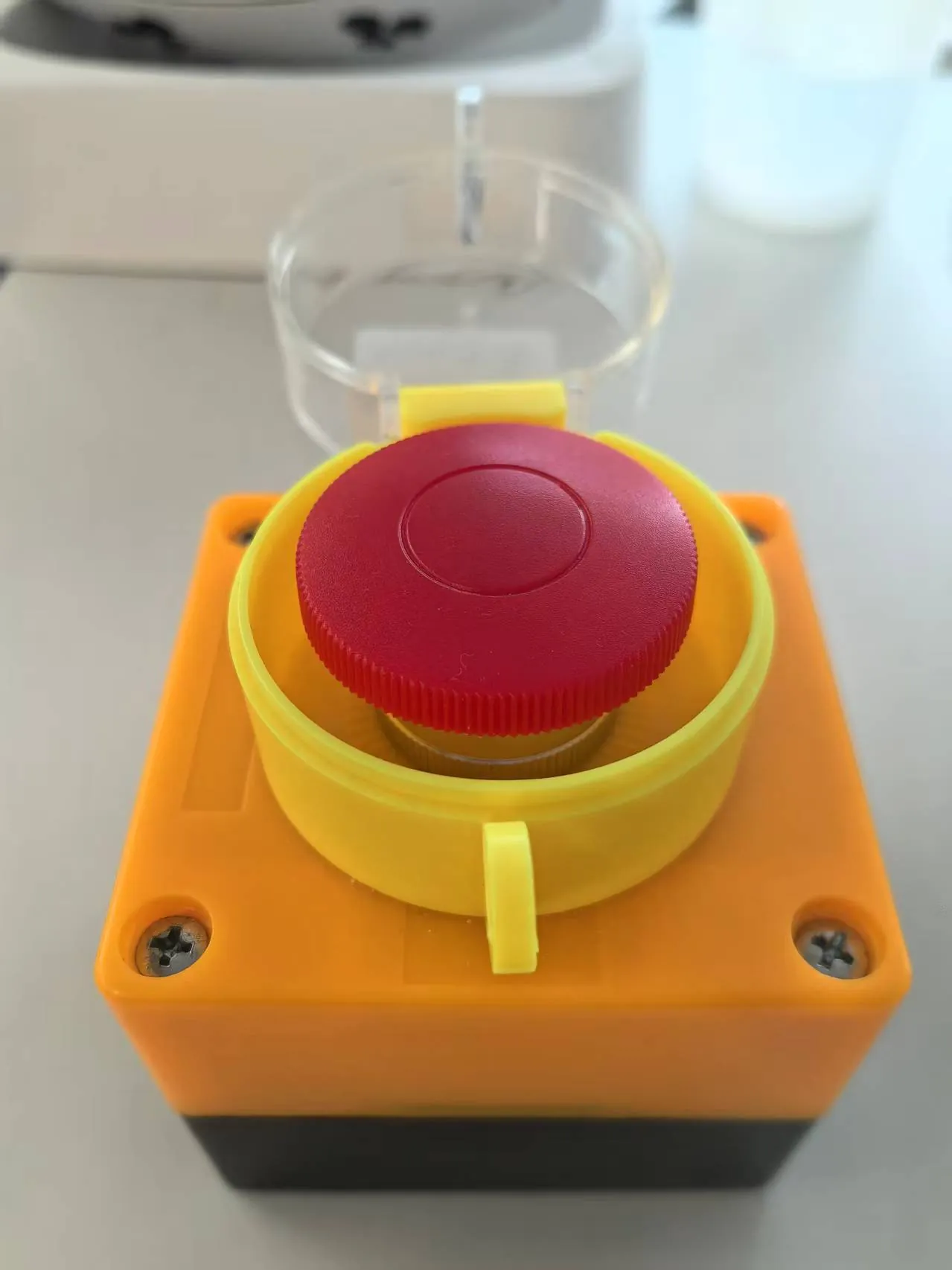 |
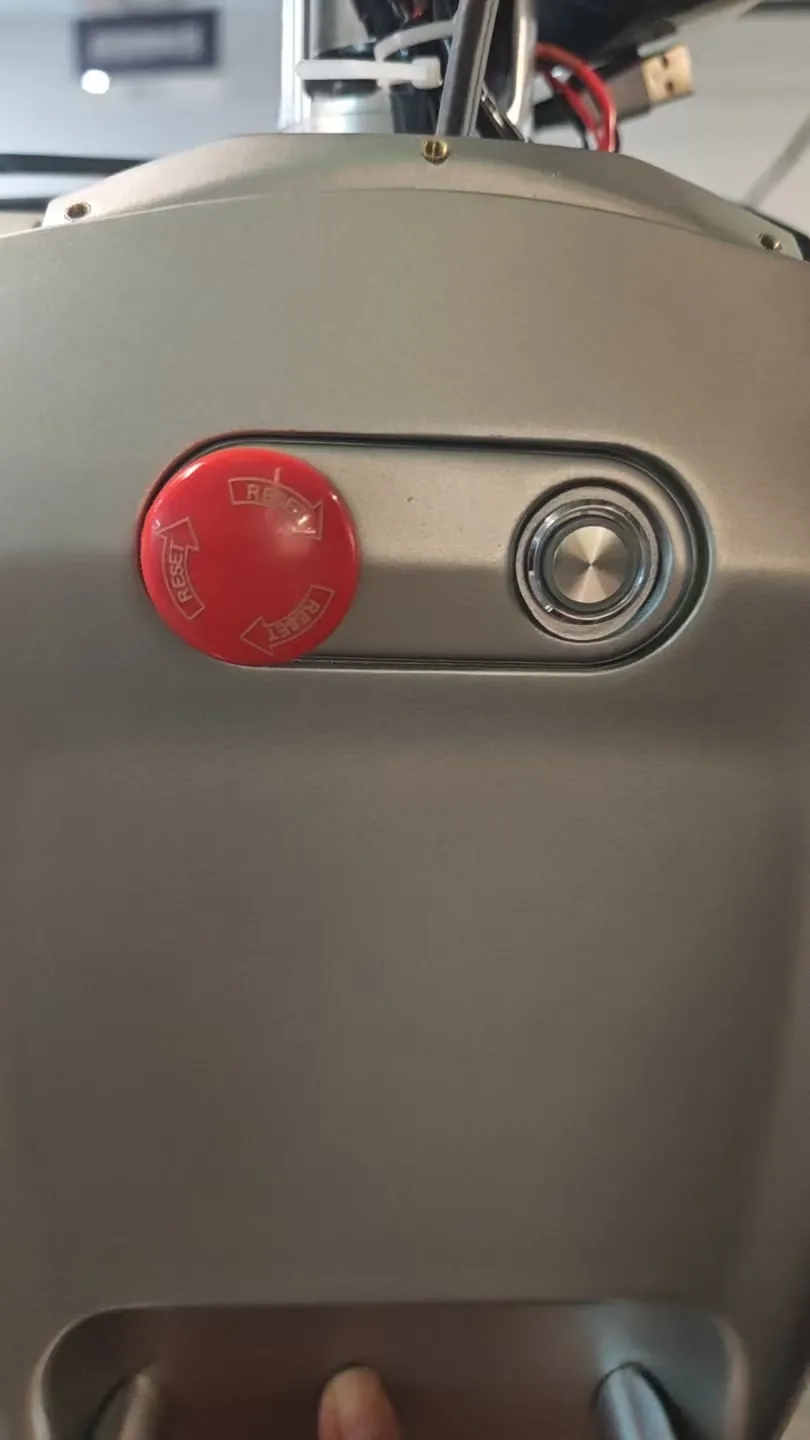
The robot has three emergency stop switches, two of which are rotary reset red mushroom head buttons located at the rear of the mobile platform and on the back of the body; the other is a self-resetting handheld wireless emergency stop. The difference is that the red mushroom head button needs to be manually rotated to reset after being pressed, while the handheld emergency stop does not require this operation.
In the powered-on state, press the back emergency stop and check the feedback:
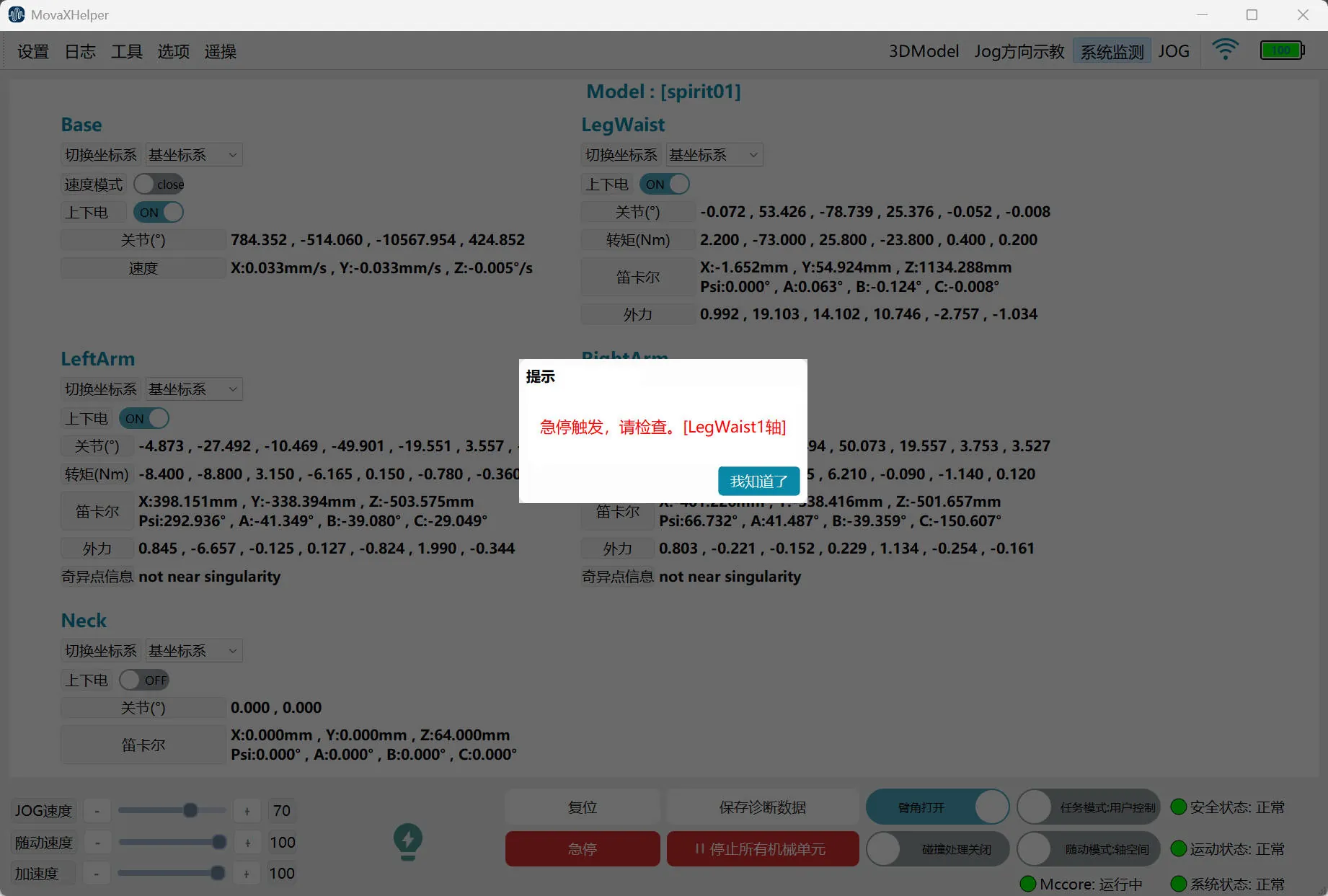
- If previously in powered-on state, all mechanical units will power off simultaneously, accompanied by the sound of the brake engaging;
- The HMI interface will pop up an alarm "Emergency stop triggered, please check. [XXX axis]", and on the "System Monitoring" interface, all powered-on mechanical unit power switches will turn red, and all values will stop changing;
- After clearing the alarm popup, power-on is still not possible;
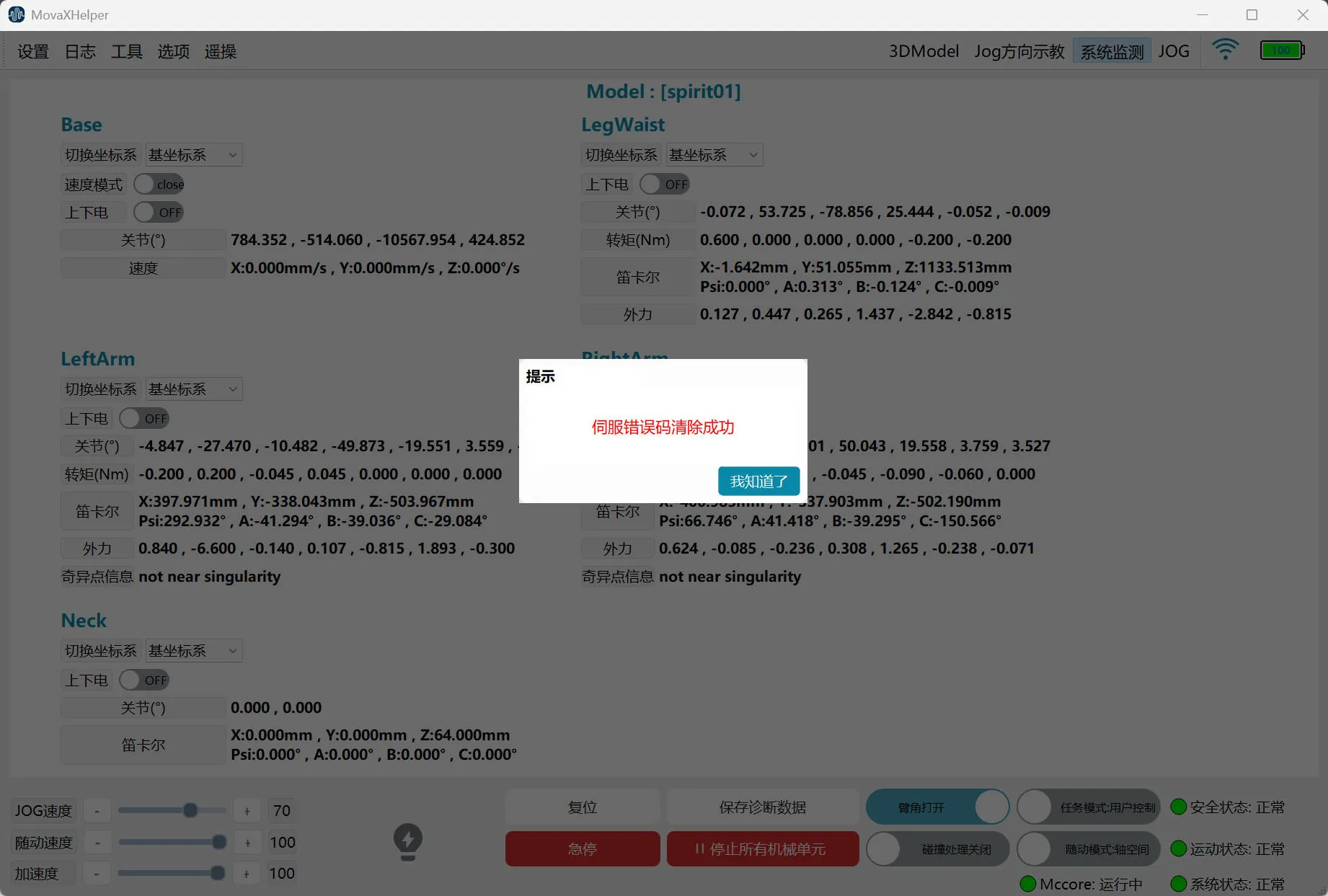
- Manually rotate the back emergency stop button to reset, click the "Reset" button in the middle of the HMI interface bottom status bar, the interface will pop up "Servo error code cleared successfully", the interface returns to normal, and normal power on/off is possible; in some cases, recovery cannot be achieved by "Reset" alone, then restart from the "Options--Network" page by clicking "Start Controller", and then perform "Reset" after restart.
If the phenomena match the above four points, the robot emergency stop function is normal, otherwise please contact technical support.
Repeat the above steps to verify the mobile platform emergency stop and handheld wireless emergency stop respectively (the handheld emergency stop does not need manual reset when performing step four).
Power On/Off Check
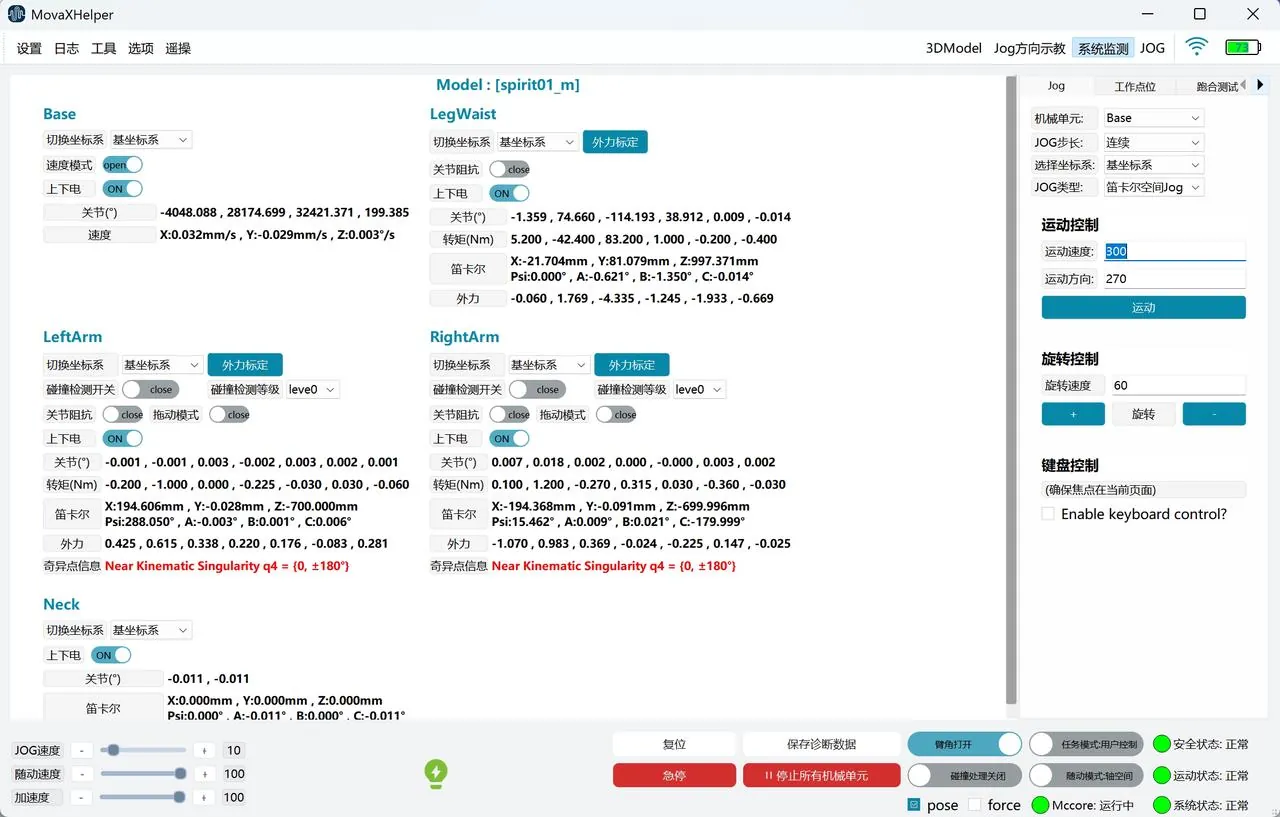
On the "System Monitoring" page, each mechanical unit has a corresponding "Power On/Off" switch.
Hold the handheld emergency stop, maintain a certain distance from the robot, turn on each mechanical unit's "Power On/Off" switch in sequence and then turn them off in sequence, check the feedback:
- When turning on the switch, the status shows "ON", and you can hear the sound of the corresponding mechanical unit releasing the brake;
- After the mechanical unit is powered on, it remains stationary with no runaway phenomenon;
- When turning off the switch, the status shows "OFF", and you can hear the sound of the corresponding mechanical unit engaging the brake;
- When no mechanical unit is powered on, the lightning symbol at the bottom shows gray; when partially powered on, it shows yellow; when all are powered on, it shows green;
If the phenomena match the above four points, the robot power on/off function is normal, otherwise please contact technical support.
Zero Point Verification
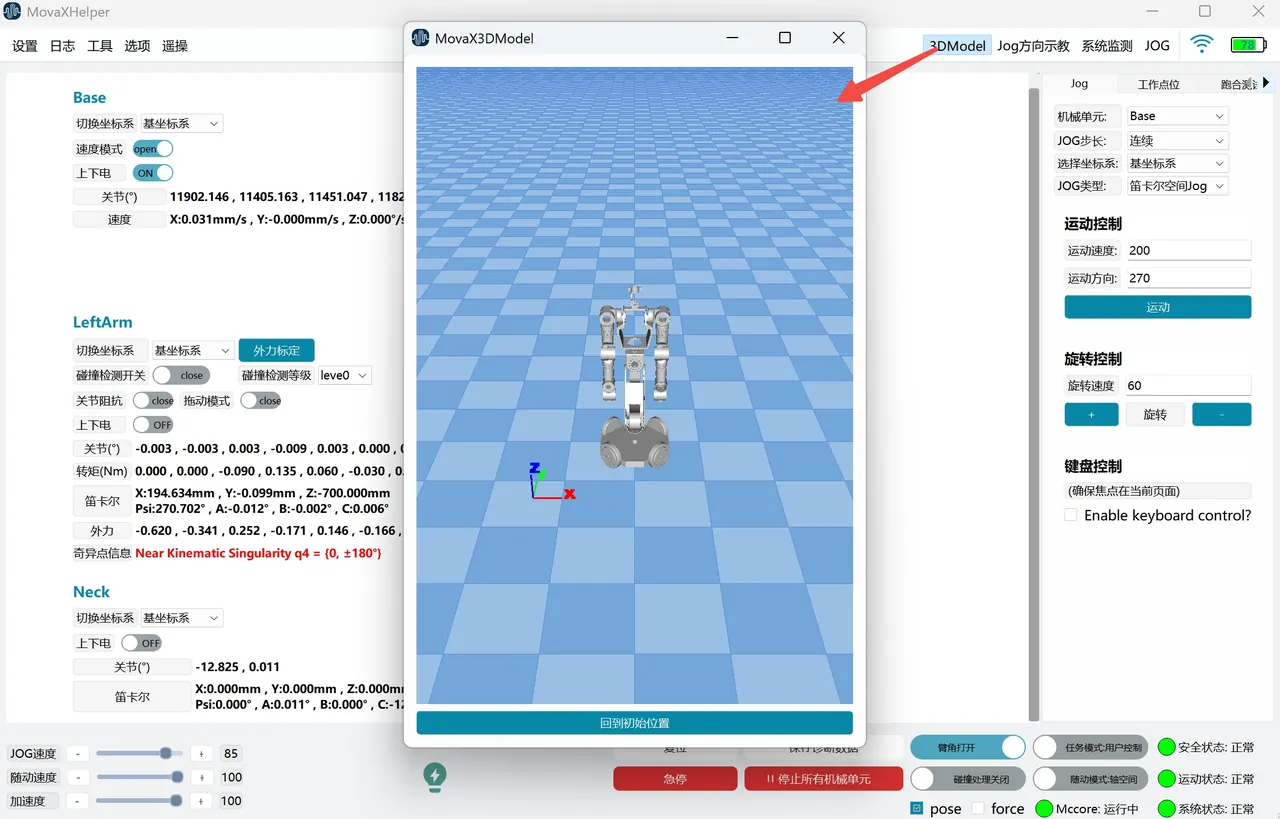
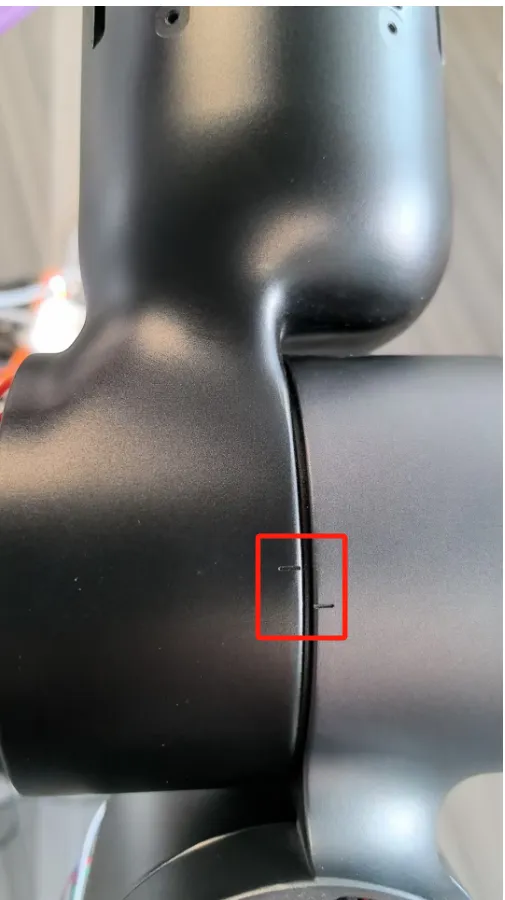
Open the floating panel through the "3DModel" in the top status bar, check whether the 3D model display posture is consistent with the robot's actual posture. If there is a large difference between the two, or if there is zero point loss, zero point calibration needs to be redone, please contact technical support.
If the 3D model posture is basically consistent with the robot's actual posture, follow the steps below for further confirmation.
|  |
|---|
Hold the handheld emergency stop, maintain a certain distance from the robot:
- Power on a single mechanical unit through the "System Monitoring Page" in the top status bar;
- Adjust the "JOG Speed" to below 10 through the bottom status bar;
- Enter the "Work Points" page in the right control panel, click "Return to Zero" for the mechanical unit in ①;
- Pay attention to the robot posture at all times during the process to avoid collisions, until the operation ends (at this point Motion shows Normal);
- Power off the mechanical unit in ①, check whether the zero point calibration slots of each axis of the mechanical unit are aligned, if there is deviation, recalibration is needed.