

Moz 1 Isaac Sim Simulation Platform Tutorial
This tutorial is designed to guide users on how to quickly deploy and use the Moz1 robot on the Isaac Sim simulation platform. The tutorial includes a simplified quick start process and complete simulation operations. Before using this tutorial, please ensure you have downloaded all related resources and materials.
- Download resource package ISAAC_MOZ1
1. Docker Setup
1.1 System Requirements
Please ensure your system meets the system requirements for running NVIDIA Isaac Sim:
1.1.1 x86_64 Requirements
| Element | Minimum Specs | Good Specs | Ideal Specs |
|---|---|---|---|
| Operating System | Ubuntu 22.04/24.04 Windows 10/11 | Ubuntu 22.04/24.04 Windows 10/11 | Ubuntu 22.04/24.04 Windows 10/11 |
| CPU | Intel Core i7 (7th Generation) AMD Ryzen 5 | Intel Core i7 (9th Generation) AMD Ryzen 7 | Intel Core i9 X-series or higher AMD Ryzen 9, Threadripper or higher |
| Cores | 4 | 8 | 16 |
| RAM | 32GB | 64GB | 64GB |
| Storage | 50GB SSD | 500GB SSD | 1TB NVMe SSD |
| GPU | GeForce RTX 4080 | GeForce RTX 5080 | RTX PRO 6000 Blackwell |
| VRAM | 16GB | 16GB | 48GB |
| Driver | Linux: 580.65.06 Windows: 580.88 | Linux: 580.65.06 Windows: 580.88 | Linux: 580.65.06 Windows: 580.88 |
GPUs with less than 16GB VRAM may not be sufficient to run complex scenes rendering more than 16MP per frame. If your needs involve such scenarios, please consider upgrading to a higher-spec graphics card. It is recommended to add more RAM and VRAM for advanced use of Isaac Sim. Isaac Lab usage also requires additional RAM and VRAM for training.
1.1.2 aarch64 Requirements
| Element | Minimum Specs |
|---|---|
| Device | NVIDIA DGX™ Spark |
| Operating System | NVIDIA DGX OS 7.2.3 |
| Driver | 580.95.05 |
1.2 Install Docker
# Docker installation using the convenience script
curl -fsSL https://get.docker.com -o get-docker.sh
sudo sh get-docker.sh

# Post-install steps for Docker
sudo groupadd docker
sudo usermod -aG docker $USER
newgrp docker

# Verify Docker
docker run hello-world
If you have installation issues, refer to:
1.3 Install Nvidia Docker Toolkit
# Configure the repository
curl -fsSL https://nvidia.github.io/libnvidia-container/gpgkey | sudo gpg --dearmor -o /usr/share/keyrings/nvidia-container-toolkit-keyring.gpg \
    && curl -s -L https://nvidia.github.io/libnvidia-container/stable/deb/nvidia-container-toolkit.list | \
    sed 's#deb https://#deb [signed-by=/usr/share/keyrings/nvidia-container-toolkit-keyring.gpg] https://#g' | \
    sudo tee /etc/apt/sources.list.d/nvidia-container-toolkit.list \
    && \
    sudo apt-get update

# Install the NVIDIA Container Toolkit packages
sudo apt-get install -y nvidia-container-toolkit
sudo systemctl restart docker

Configure the container runtime
sudo nvidia-ctk runtime configure --runtime=docker
sudo systemctl restart docker

# Verify NVIDIA Container Toolkit

docker run --rm --runtime=nvidia --gpus all ubuntu nvidia-smi
2. Docker Deployment
This section mainly introduces how to deploy Isaac Sim locally as a container to support subsequent simulation running and development processes.
- Set up and install container prerequisites. Please refer to the "Docker Setup" section above.
- Run the following command to confirm your GPU driver version: nvidia-smi
- Load the Isaac Sim Docker:
cd isaac_moz1/                            # cd to installation package location
docker load -i isaac-sim-5.1.0.tar        # Load image
docker images # Check if container is deployed locally
If nvcr.io/nvidia/isaac-sim:5.1.0 appears, it means the container has been successfully loaded locally
- Create cache volume mount points on the host:
mkdir -p ~/docker/isaac-sim/cache/main/ov
mkdir -p ~/docker/isaac-sim/cache/main/warp
mkdir -p ~/docker/isaac-sim/cache/computecache
mkdir -p ~/docker/isaac-sim/config
mkdir -p ~/docker/isaac-sim/data/documents
mkdir -p ~/docker/isaac-sim/data/Kit
mkdir -p ~/docker/isaac-sim/logs
mkdir -p ~/docker/isaac-sim/pkg
sudo chown -R 1234:1234 ~/docker/isaac-sim- Check if the system is compatible with Isaac Sim:
./check_isaac.shIf "app ready" or "Isaac Sim Full Streaming App is loaded." appears at the end, it means the system is compatible with the Isaac Sim simulation platform.
3. Starting Simulation
This section mainly covers loading Moz1 for subsequent development using Isaac Sim Docker, supporting both quick start and full loading methods. If you need to perform secondary development on scenes and asset importing, please visit NVIDIA Isaac Assets official website for documentation and asset downloads.
INFO
Note: Please extract the downloaded asset files to the isaac_moz1/Issacsim_Assets directory to ensure proper mounting and normal use in the Docker environment.
3.1 Lightweight Quick Start
The "Quick Start" feature is designed for enterprise customers who need cloud-based batch simulation and automated training, supporting high-speed physics simulation, data generation, and programmatic control processes without GUI. Run the following command in the Isaac_Moz1 path:
docker compose upThe first loading takes a long time (please wait patiently, do not click "Force Quit"). After successful loading, the following screen appears:
After the above screen appears, you can proceed with simple development simulation, etc.
3.2 Extended Full Loading
The "Full Loading" feature is designed for R&D customers who need to build, debug, and visualize robot scenes, supporting full extensions, graphical interface, physics debugging, and interactive development environment. Run the following command in the Isaac_Moz1 path:
./start_isaac.sh
# After entering docker
./isaac-sim.sh
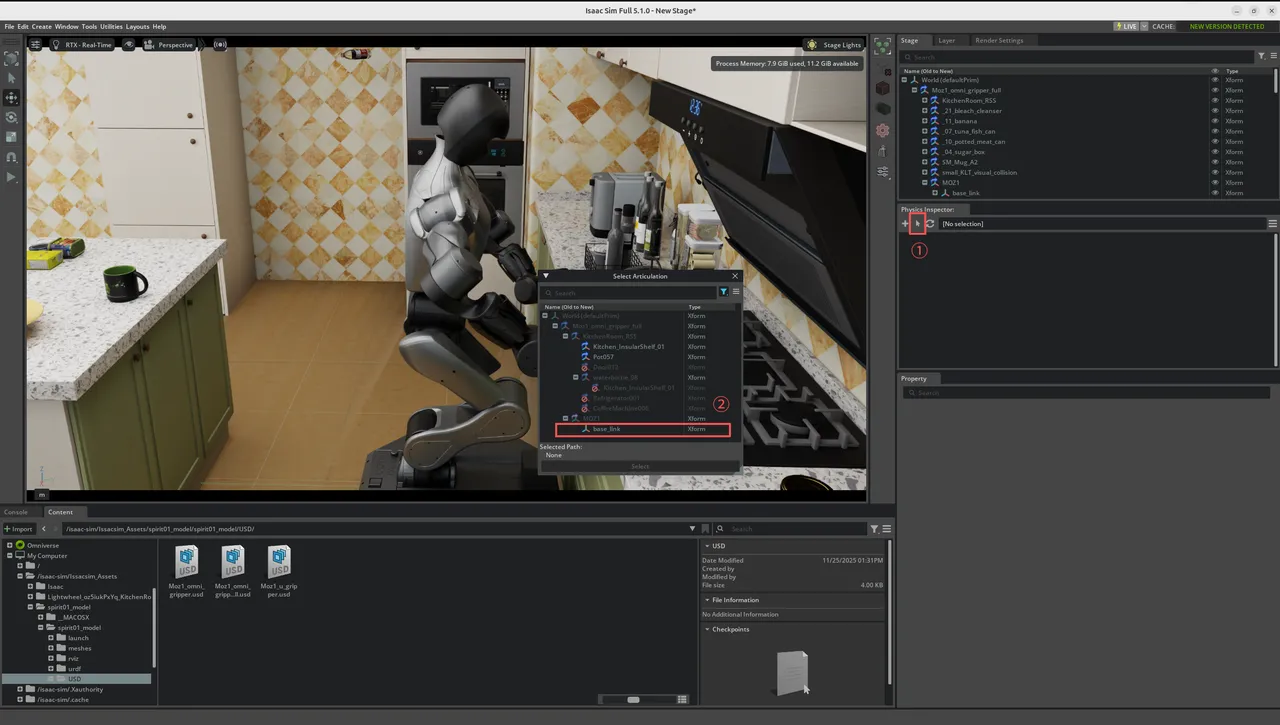
The first loading takes a long time (please wait patiently, do not click "Force Quit"). After successful loading, the following screen appears: 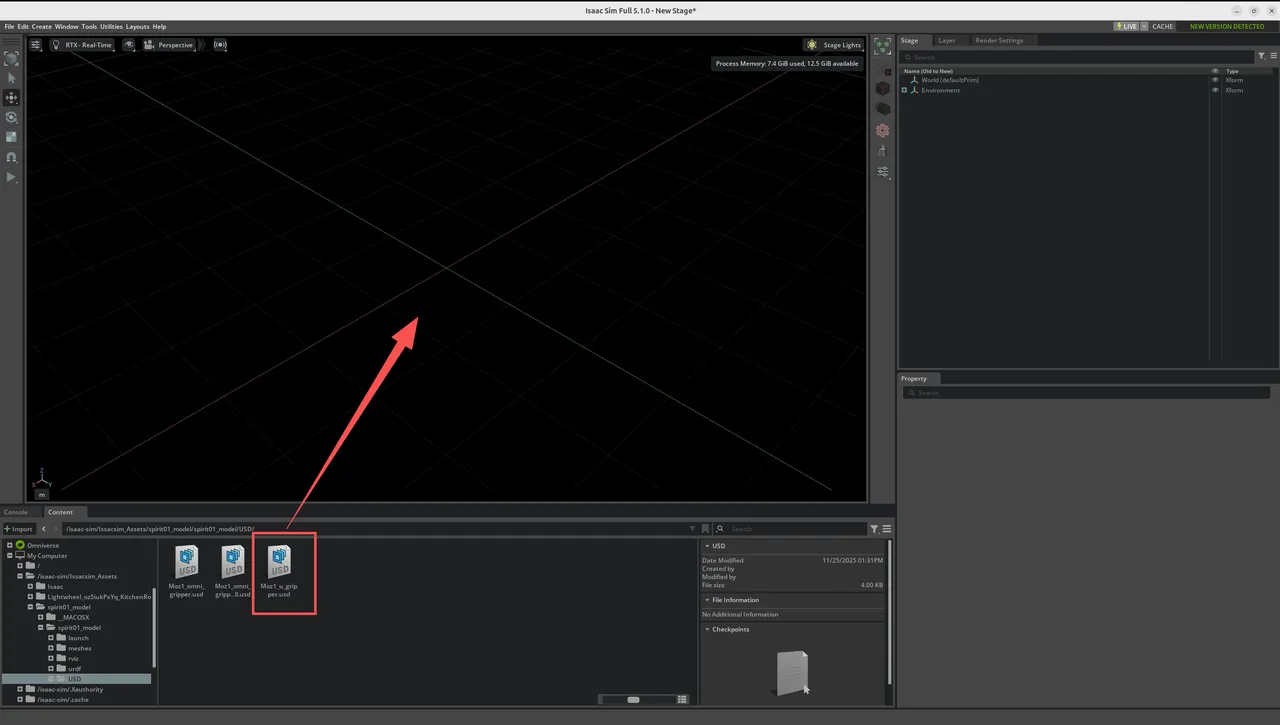
In the assets section, find the corresponding asset according to the path Issacsim_Assets/spirit01_model/spirit01_model/USD/Moz1_* (container internal path), then drag it into the middle Stage section,
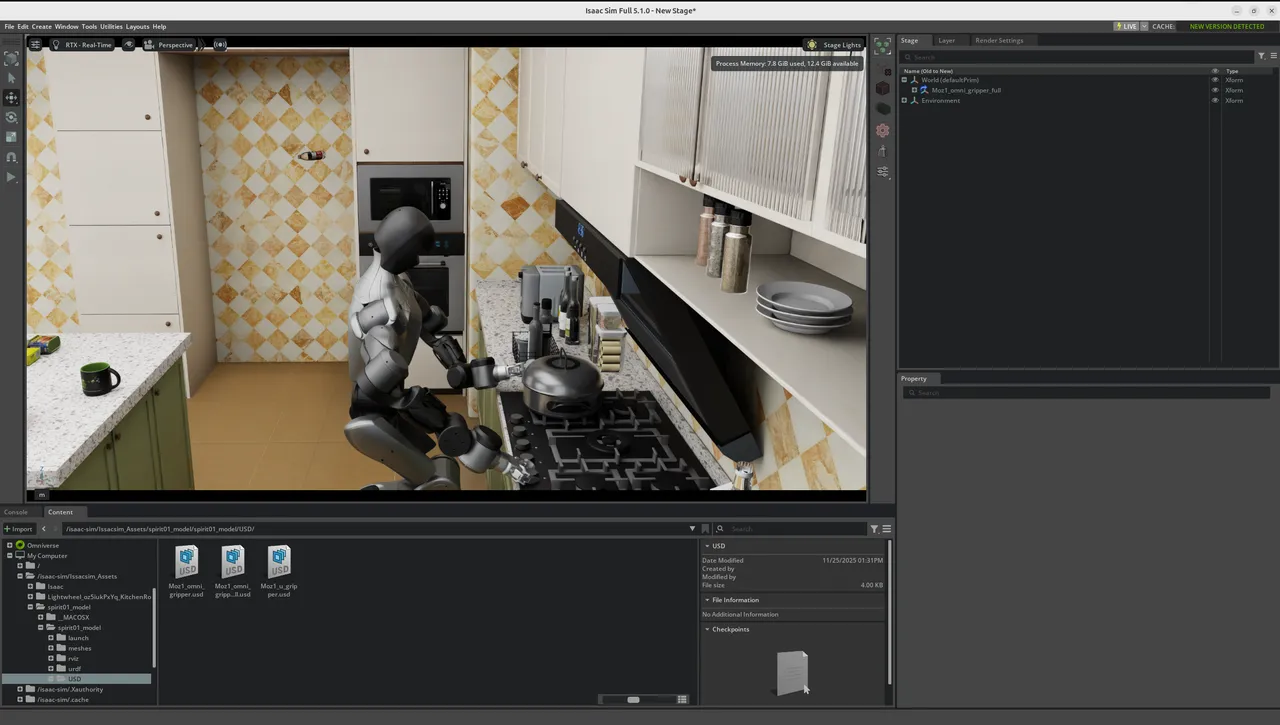
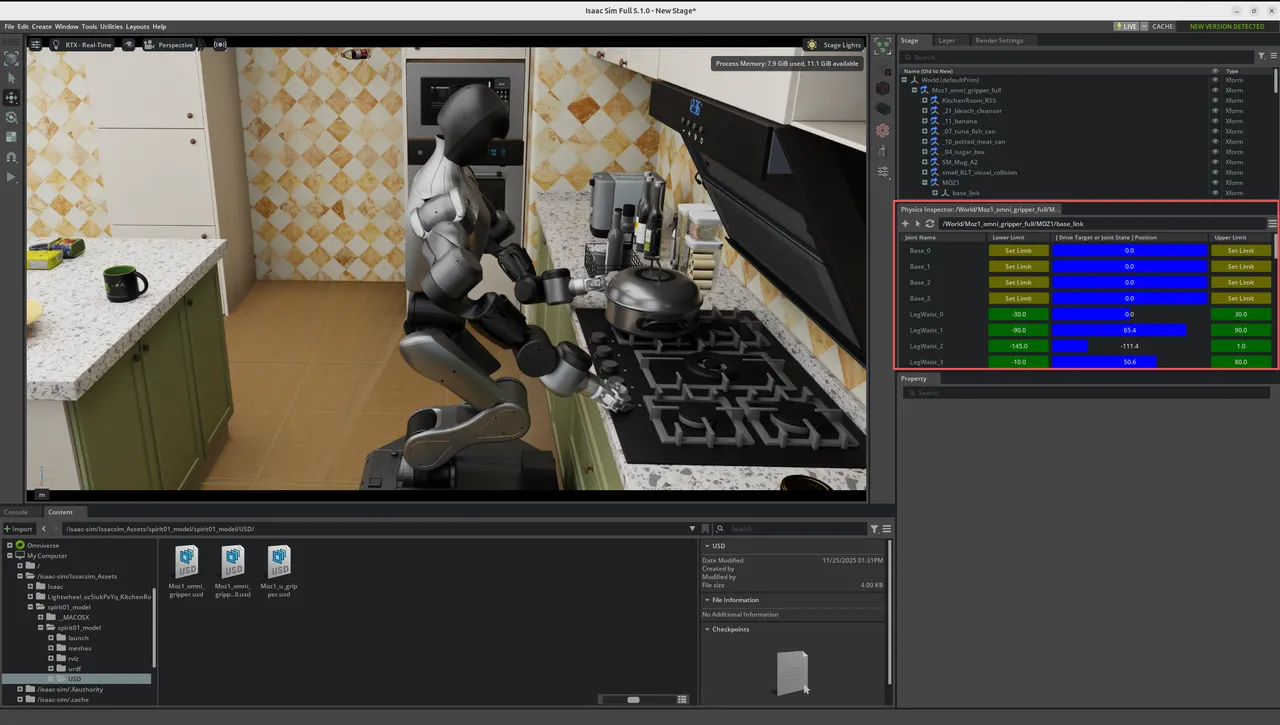
The following screen indicates that the Moz1 robot and related scenes have been loaded successfully: 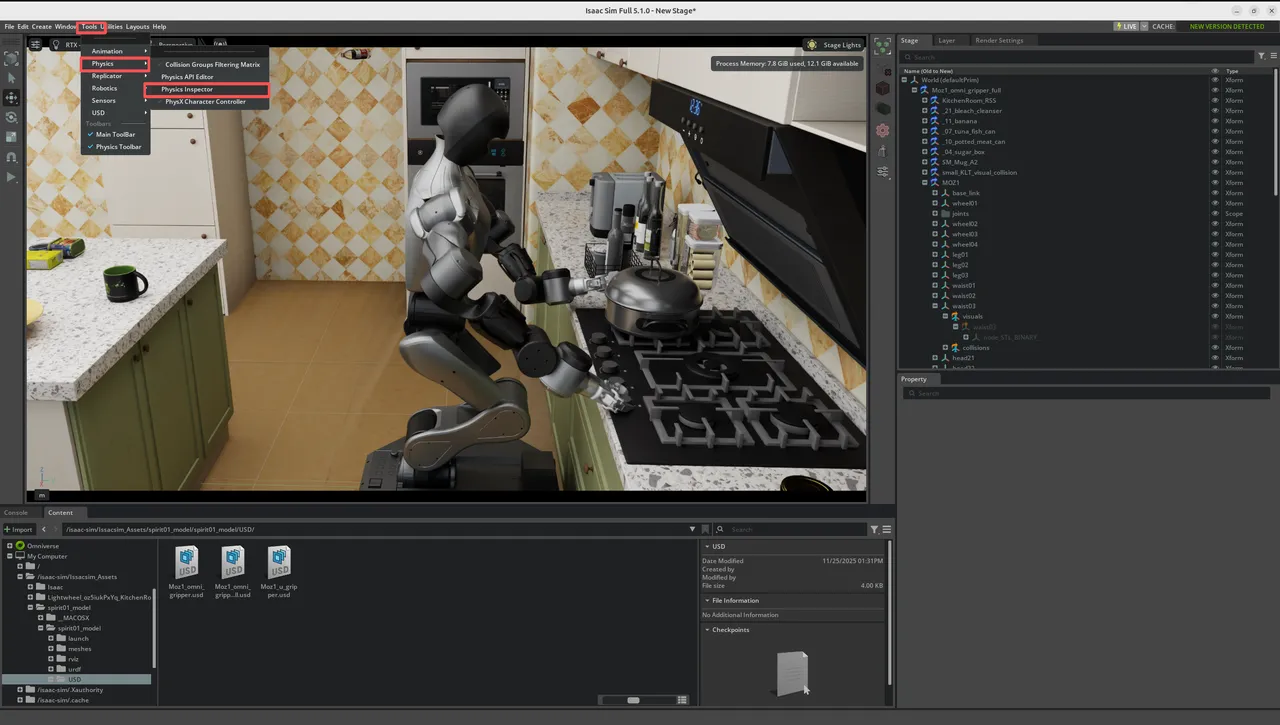
To visually adjust the robot joint angles, you can open the physics property editor through the menu Tool → Physics → Physics Inspector, as shown below. 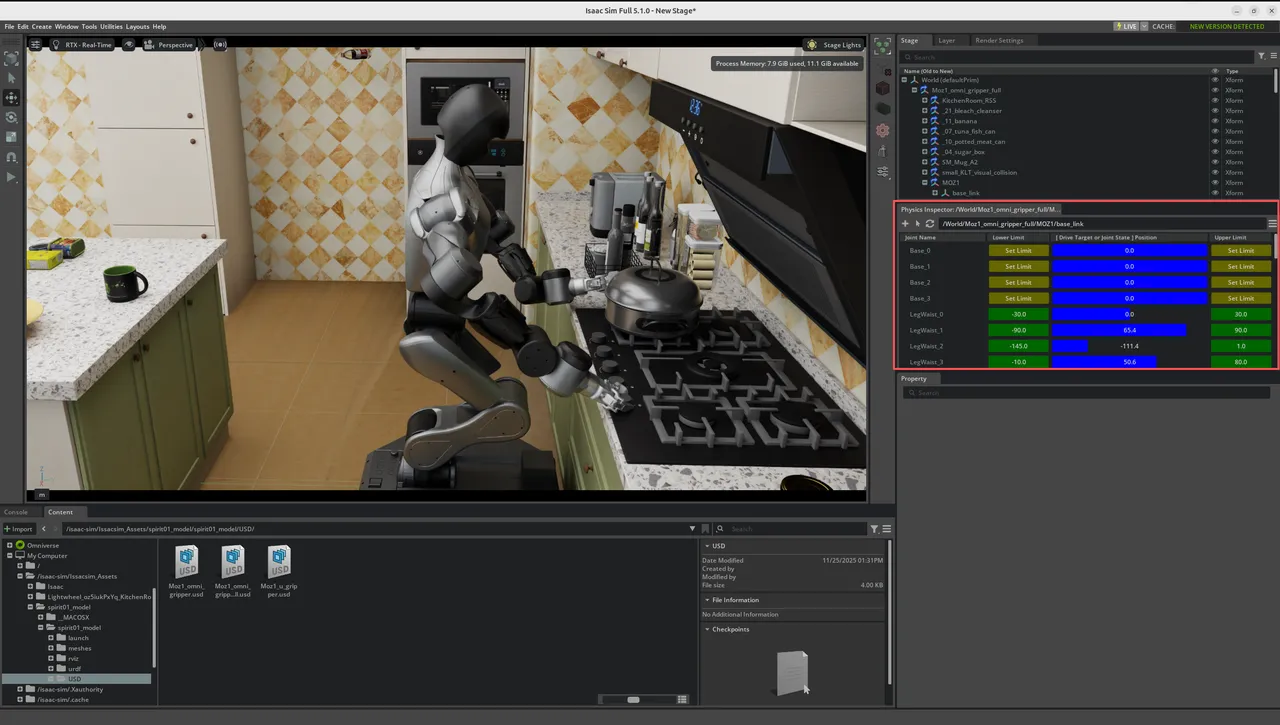
After selecting the Moz1 robot, you can complete joint debugging and motion preview by dragging the joint sliders in the visual GUI interface.
4. File Description and Notes
Please contact customer service to obtain the ISAAC_MOZ1 files below. Related descriptions are as follows:
ISAAC_MOZ1/
├── Issacsim_Assets/                            # Isaac related assets
│   ├── Isaac/5.1/                                  # Isaac official assets
│   ├── Lightwheel_oz5iukPxYq_KitchenRoom/          # Kitchen related living assets
│   └── spirit01_model/                             # Moz1 robot hardware design related files
│       └── spirit01_model/
│           ├── launch/                                 # ROS launch files
│           ├── meshes/                                 # Moz1 hardware Mesh files
│           ├── rviz/                                   # ROS visualization files
│           ├── urdf/                                   # Moz1 overall description files
│           ├── USD/                                    # Isaac scene description files
│           ├── CMakeLists.txt
│           └── package.xml
│
├── docker-compose.yml                              # Lightweight Docker startup file
├── entrypoint.sh                                   # Lightweight Docker entrypoint file
├── start_isaac.sh                                  # Full version Docker startup file
├── check_isaac.sh                                  # System compatibility check file
├── isaac-sim-5.1.0.tar                             # NVIDIA Isaac official image compressed file
└── ...
This version of simulation only includes Kitchen-related scenes and their supporting assets. If other environments are needed, please build them yourself according to project requirements. Moz1's end effector comes pre-installed with a gripper: OmniGripper, which can be directly used for simulation and testing of related tasks.